8 Best Adobe Illustrator Alternatives in 2026
Compare eight Illustrator alternatives for SVG, native-file handoff, typography, print, and prepress, with honest limits and a five-file migration test.
 Anvisha Pai, Co-founder & CEO, Moda
Affinity is the best general Adobe Illustrator alternative for most independent designers because it combines serious vector editing, typography, raster work, and page layout in one free desktop application. Inkscape is the strongest open-source choice and the most natural option for SVG-centered work. CorelDRAW is the better specialist choice for signage, screen printing, production graphics, and print workflows.
Those answers change when a client expects an editable `.ai` file, a printer requires spot-color separations, or a product team needs collaborative SVG assets rather than press-ready artwork. Figma, VectorStyler, Linearity Curve, Kittl, and Canva can each replace a narrower Illustrator workflow, but none should be described as universally equivalent.
We did not run a controlled hands-on benchmark across all eight products. This comparison uses current product documentation, independent hands-on reviews, and clearly labeled practitioner reports. Instead of inventing performance or compatibility scores, we give you five representative files to test before changing your production workflow.
Adobe Illustrator alternatives at a glance
| Alternative | Best for | Strongest handoff | Main limitation |
|---|---|---|---|
| Affinity | Closest general replacement | SVG, PDF, EPS, raster and layout work | Cannot save native Illustrator files |
| Inkscape | Open-source SVG creation | Standards-based SVG and common vector exports | Print and CMYK workflow needs extra care |
| CorelDRAW | Signage, print, apparel and production graphics | Broad import, PDF and prepress controls | Costly and less common in some design teams |
| VectorStyler | Advanced vector control and difficult Illustrator archives | Documented native Illustrator import plus SVG, PDF and EPS | Small ecosystem and limited independent coverage |
| Figma | UI, icons and collaborative digital assets | SVG, PDF and developer handoff | Not a CMYK or prepress application |
| Linearity Curve | Mac and iPad vector illustration | SVG, PDF and vendor-documented Illustrator export | Apple-centered and plan-gated exports |
| Kittl | Lettering, merchandise and mockups | SVG and CMYK PDF delivery | Template-led, not a complete production editor |
| Canva | Simple branded graphics at scale | PDF Print, SVG and raster exports | Limited path editing and no native Illustrator workflow |
What are you actually replacing?
Illustrator is not just a pen tool. Adobe positions it for vector drawing, logos, illustration, typography, packaging, web assets, and print production. Its harder-to-replace value is the combination of native `.ai` files, Creative Cloud links, mature typography, color management, separations, scripting, plugins, and industry familiarity.
Before evaluating alternatives, identify which of these deliverables you must preserve:
- Editable working files: native `.ai`, linked images, live text, effects, brushes, symbols, artboards, and layers.
- Digital vectors: compact SVG, predictable strokes, masks, gradients, IDs, accessibility, and clean browser rendering.
- Typography: OpenType features, variable fonts, kerning, ligatures, text on a path, text styles, and reliable outlining.
- Print files: CMYK, ICC profiles, bleed, trim marks, embedded fonts, image resolution, and PDF/X output.
- Prepress: spot colors, overprint, separations, trapping expectations, imposition, linked assets, and RIP compatibility.
A practitioner can be happy with an alternative for months and still hit a hard boundary at handoff. One designer described Affinity as covering most of the workflow “until you need to send a client-editable file or collaborate with a print shop that only accepts native .ai.” That is anecdotal, but it captures the migration risk accurately: visual similarity is not native-file compatibility.
The five-file replacement test
Run these files through your two strongest candidates before cancelling Illustrator. Use real client assets when possible and ask the eventual recipient to inspect the outputs.
1. SVG round-trip
Build or import an icon set containing nested groups, compound paths, inside and outside strokes, clipping masks, gradients, text, and multiple artboards. Export SVG, inspect it in two browsers, reopen it, and compare editability. Check viewBox dimensions, stroke conversion, masks, IDs, text treatment, and unnecessary wrapper elements.
2. Illustrator archive and handoff
Open a representative `.ai` file with PDF compatibility enabled and another without it. Include linked images, live text, clipping masks, brushes, effects, gradients, symbols, and artboards. Record what becomes flattened, expanded, substituted, or lost. Then ask whether the recipient truly needs `.ai`, or whether an editable PDF, SVG, EPS, or the alternative’s native file is acceptable.
3. Typography stress test
Use a variable font, ligatures, alternate glyphs, kerning overrides, paragraph styles, text on a path, and several writing-system characters. Reopen the file on another machine, export PDF and SVG versions, and compare line breaks, glyph substitutions, editable text, and outlined text.
4. Print package
Create a two-sided brochure or package panel with CMYK images, bleed, rich black, small type, transparency, and an ICC profile supplied by the printer. Export the printer’s requested PDF standard and run a preflight in a separate PDF tool.
5. Spot-color and prepress job
Create a two-ink label or screen-print design with named spot colors, overprinted black, knockouts, transparency, and a dieline or varnish plate. Inspect separations and overprint preview, then send the PDF to the actual printer or RIP operator. This is the test most lightweight alternatives are least likely to pass without another application in the workflow.
1. Affinity: best overall Illustrator alternative
Best for: professional vector, raster, and layout work when native `.ai` delivery is not mandatory.
The current Affinity application combines Vector, Pixel, and Layout studios in one desktop product. Its official vector feature page documents pen and node tools, vector brushes, text on paths, ligatures, character and paragraph styles, multiple fills and strokes, vector generation, and export to PDF, SVG, PNG, JPEG, TIFF, and WebP. The core application is free, while some Canva AI functions require an eligible Canva plan.
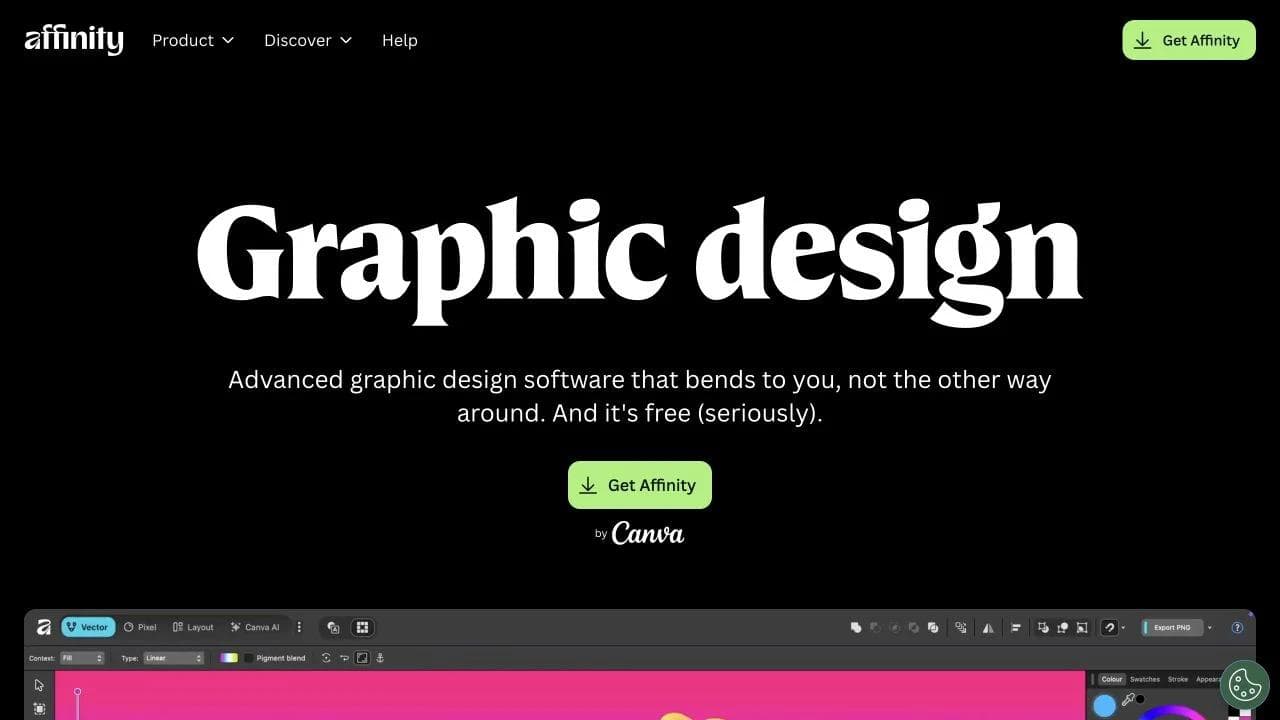
Affinity can import Illustrator documents when they were saved with PDF compatibility enabled. That qualifier matters. It reads the embedded PDF representation rather than promising perfect reconstruction of every Illustrator-native object, and it does not save a native `.ai` working file. TechRadar’s 2026 hands-on review found the combined studios powerful and well made, but cautioned that Adobe-dependent workflows still expose missing capabilities.
SVG and typography: Strong general vector controls, artboards, export slices, path text, ligatures, and styles make it suitable for logos, illustration, and brand assets. Still inspect SVG structure if the file will be manipulated in code.
Print and prepress: Affinity is one of the strongest options here for CMYK documents, ICC-managed work, bleed, spot colors, and PDF/X export. A dedicated preflight or PDF application may still be necessary, and the printer should validate a live production file.
Verdict: Affinity is the first alternative most professional generalists should evaluate. Keep Illustrator access if clients exchange complex `.ai` files or if existing scripts, plugins, and Creative Cloud links are central to the job.
2. Inkscape: best open-source alternative and best for SVG
Best for: open-source workflows, Linux users, web vectors, iconography, logos, diagrams, and teams that want SVG as the native source format.
Inkscape is built around SVG rather than treating it only as an export format. It runs on Windows, macOS, and Linux and includes path editing, Boolean operations, text on paths, clones, filters, bitmap tracing, extensions, and a standards-oriented native file. TechRadar’s independent assessment calls it the strongest free Illustrator alternative while noting that complex work can feel slower and the interface takes adjustment.
SVG and typography: This is Inkscape’s clearest advantage. You can keep vectors in an open, inspectable format and edit XML when needed. Browser output should still be tested because filters, fonts, and application-specific metadata can travel differently.
Illustrator files: Inkscape can import some `.ai` and PDF content, but editability depends heavily on how the source was saved and which effects it uses. A practitioner who uses both products reported that layers and folders do not always translate. Treat that as a warning to test, not a universal result.
Print and prepress: Inkscape can produce PDF and EPS, but it is not the safest single-application choice for CMYK separations and press control. Even Inkscape’s historical CMYK guidance points to Scribus or external tooling. For serious print work, define the companion prepress application before migrating.
Verdict: Choose Inkscape when SVG is the source of truth or open-source software is a requirement. Do not assume that strong web-vector support automatically means strong spot-color or PDF/X production.
3. CorelDRAW: best for signage, apparel, and print production
Best for: sign shops, screen printers, engraving, apparel, large-format graphics, technical illustration, and production teams already exchanging Corel files.
CorelDRAW is a mature professional competitor rather than a simplified design app. Its ecosystem combines vector drawing, page layout, tracing, photo editing, font management, and production-oriented output. TechRadar’s suite review found the main drawing application familiar to Illustrator users and praised its broad suite, while noting platform differences between Windows and Mac.
Illustrator files: CorelDRAW documents direct AI and PDF import, including text-as-text or text-as-curves choices for compatible files. Its older official import guide also shows why version and PDF compatibility matter. Test your current files rather than relying on a generic “supports AI” label.
Print and prepress: This is CorelDRAW’s strongest differentiation. Its current Print to PDF guide covers bleed, printer marks, imposition, color separations, halftones, registration, and device profiles. Corel’s help also documents color proofing, rendering intents, and spot-to-process conversion.
Verdict: CorelDRAW deserves the first trial when the output is manufactured rather than merely viewed. Confirm which platform and product edition includes the production features your shop expects.
4. VectorStyler: best specialist for advanced vector control and Illustrator migration
Best for: experienced vector designers who value deep path, stroke, color, and file-import controls and are willing to adopt a smaller product.
VectorStyler is less widely known, but it addresses several gaps that make other alternatives difficult for power users. Its feature documentation lists multiple fills and outlines, variable-width strokes, vector brushes, mesh gradients, linked content, symbols, spot and process colors, CMYK and Lab modes, and exports to SVG, PDF, PostScript, and EPS.
The unusual claim is its native Illustrator importer, which the vendor says can interpret Illustrator-specific objects even when a file lacks the usual PDF stream. That makes VectorStyler worth testing against difficult archives, but it is still a vendor claim. We found far less independent testing and practitioner evidence than for Affinity, Inkscape, or CorelDRAW.
Print and prepress: Spot colors, CMYK, linked files, PDF, and EPS make it more credible for production than browser-first tools. Run the full separation and PDF preflight tests because feature presence does not prove compatibility with your printer’s RIP.
Verdict: VectorStyler is the thoughtful niche choice for users who hit Affinity or Inkscape limits. Its smaller ecosystem, training library, support footprint, and installed base are the tradeoffs.
5. Figma: best for collaborative SVG and interface assets
Best for: product teams creating icons, interface illustrations, design-system assets, and SVGs that move into software.
Figma is not a general Illustrator replacement, but it can be a better source of truth for screen-based vectors. Vector networks, multiplayer editing, components, variables, libraries, comments, and developer inspection align the artwork with the product system around it. Figma’s design-system documentation explains how shared assets, variables, and components connect design and code.
SVG: Figma provides relevant controls for IDs, outlined versus editable text, bounding boxes, and stroke simplification. Its official SVG export guide also states that inside and outside strokes may be simplified or converted because SVG itself centers strokes. This is exactly why round-trip and browser testing matters.
Typography and print: Figma supports serious screen typography and now documents text on vector paths, but it is not a CMYK, separations, PDF/X, or prepress system. Exporting a PDF does not change that boundary.
Verdict: Use Figma when vectors belong to a product design system and must stay collaborative. Keep another application for press-ready artwork, complex illustration, and `.ai` handoffs.
6. Linearity Curve: best for Mac and iPad vector illustration
Best for: Apple-centered illustrators who want a touch-friendly vector editor across Mac, iPad, and iPhone.
Linearity Curve combines pen and node editing, Auto Trace, brushes, typography, templates, and Apple Pencil workflows in an interface designed for mobile creation. Its product materials list AI, SVG, PDF, PNG, JPEG, and TIFF import or export paths, though availability varies by direction and plan.
Handoff: The vendor advertises Illustrator import and export, which is more than many lightweight tools offer. Test the actual `.ai` result with the Illustrator version and effects your collaborators use. Current export documentation also notes that some formats and options are plan-gated.
Print and prepress: PDF and TIFF exports support many everyday print jobs, but Linearity is not primarily positioned around separations, imposition, trapping, or production-room controls. Ask the printer for a test before standardizing.
Verdict: Curve is a compelling alternative when drawing on iPad is central to the process. It is less convincing as the only tool for a mixed-platform team or demanding prepress department.
7. Kittl: best for typography, merchandise, and mockups
Best for: lettering-led graphics, apparel concepts, posters, badges, and product mockups that need to move quickly from idea to presentation.
Kittl is not trying to reproduce every Illustrator panel. It concentrates on editable typography, ornaments, textures, templates, vector assets, AI-assisted creation, and mockups. That makes it useful when the design is type-led and the next step is showing it on a shirt, label, sign, or product.

Print: Kittl now documents CMYK PDF and JPEG export, which is a meaningful improvement for merchandise and print work. It does not by itself establish spot-color separations, overprint control, or complete prepress readiness.
Verdict: Choose Kittl for the narrow workflow it optimizes. Keep a deeper vector or prepress tool available when the artwork needs exact path surgery, native-file delivery, separations, or manufacturing controls.
8. Canva: best for simple branded graphics at scale
Best for: non-designers and marketing teams adapting approved brand assets into social graphics, flyers, presentations, and everyday content.
Canva can reduce the number of Illustrator requests a design team receives. Templates, Brand Kits, locked layouts, stock media, collaboration, resizing, and broad content formats make it effective for controlled adaptation. That is different from being a professional vector-authoring replacement.
Vector and print handoff: Canva can import some SVG and PDF content and export SVG or PDF Print on eligible plans. Its own upload guidance exposes format-specific constraints, while Canva also documents moving SVG, PDF, or raster exports into Affinity. Those are useful delivery paths, not native `.ai` compatibility or deep path editing.
Prepress: PDF Print, crop marks, bleed, and flattened delivery can suit many commercial print orders. A flattened PDF preserves appearance but removes editability, and Canva is not where a prepress operator should expect separations, trapping, or detailed overprint control.
Verdict: Canva replaces repetitive Illustrator production for teams working from approved assets. It does not replace the application used to build complex master artwork in the first place.
Where Moda fits, and where it does not
Moda is not a native-vector or prepress replacement for Illustrator, so it should not be ranked as though it were one. Moda fits when the job is to turn a brief into editable campaign visuals, presentations, social assets, diagrams, and motion on a collaborative canvas.
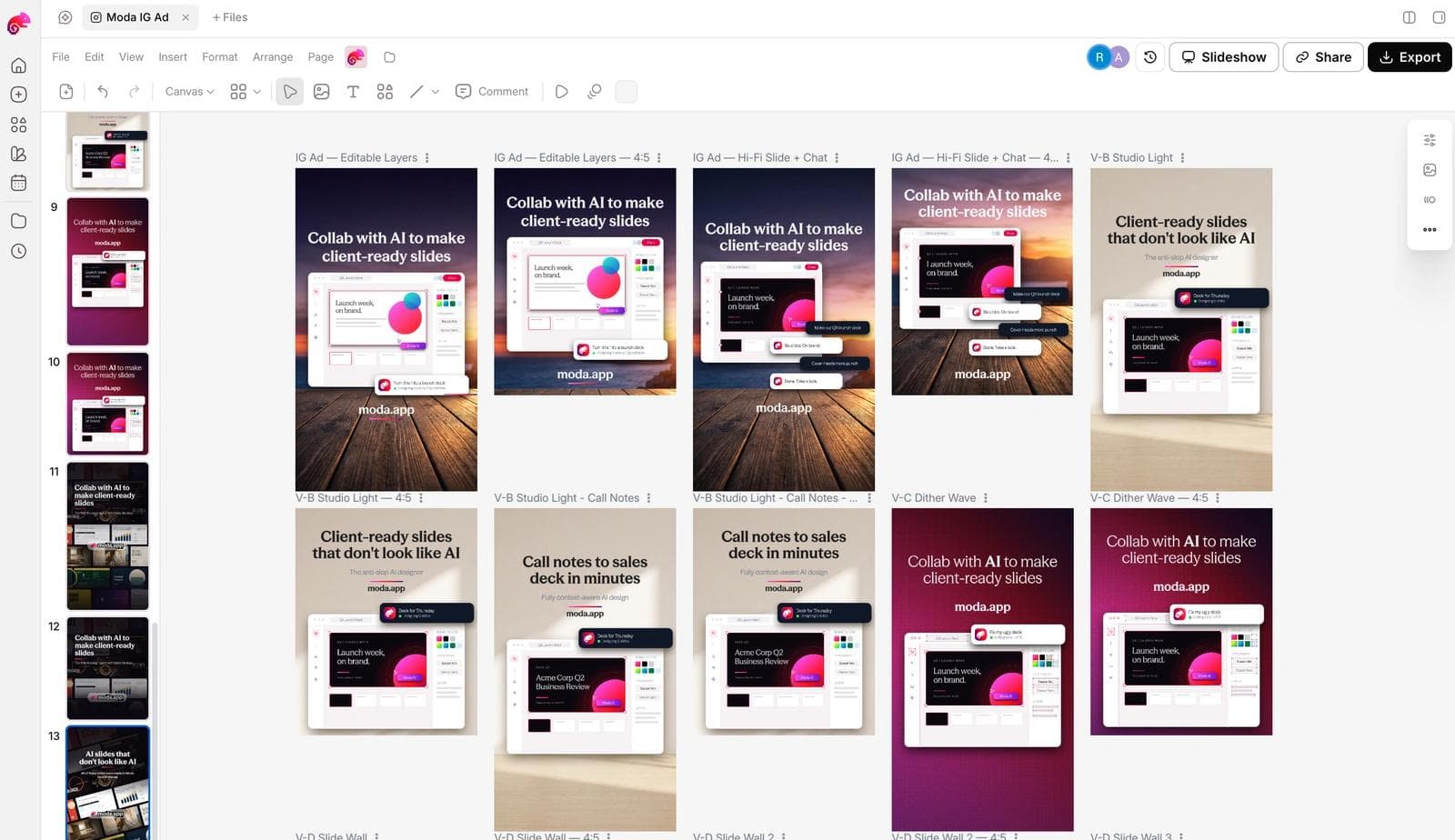
A practical workflow is to create master logos, dielines, spot-color artwork, and production vectors in Illustrator, Affinity, CorelDRAW, Inkscape, or another dedicated vector tool, then bring approved assets into Moda for campaign concepts and variants. If the deliverable must remain an editable `.ai` file or go directly to a print RIP, Moda is not the final production application.
When keeping Illustrator is worth it
Keeping Illustrator is rational when the surrounding workflow costs more to replace than the subscription:
- Clients or printers require editable native `.ai` files rather than PDF, EPS, or SVG.
- Your archives depend on Illustrator-native effects, brushes, scripts, plugins, variables, or linked Creative Cloud files.
- Spot colors, overprint, separations, and packaging or print handoffs are frequent and already validated.
- Designers, vendors, and production partners all use Illustrator and exchange working files repeatedly.
- You rely on tight round trips with Photoshop, InDesign, After Effects, Acrobat, or Adobe Fonts.
A hybrid setup is often the honest answer. Use the alternative for new work that fits it, retain Illustrator for legacy and mandated handoffs, and only cancel after a complete production cycle succeeds without Adobe.
Which Illustrator alternative should you choose?
Choose Affinity for the closest general professional replacement. Choose Inkscape when open-source SVG is the priority. Choose CorelDRAW when signage, screen printing, apparel, technical graphics, or prepress control drives the decision. Evaluate VectorStyler if complex vector controls and unusual Illustrator imports matter more than ecosystem size.
Choose Figma when the vectors belong to a collaborative interface system. Choose Linearity Curve when Apple Pencil and mobile illustration are central. Choose Kittl for lettering and merchandise concepts. Choose Canva when non-designers need to adapt brand assets across many content formats.
Then run the five-file test. The best application is not the one with the longest feature page. It is the one that preserves the files, type, color, and handoffs your work actually depends on.
Frequently asked questions
What is the best overall Adobe Illustrator alternative?
Affinity is the strongest general alternative for professional vector, typography, raster, and layout work. It is not a perfect replacement when clients require native `.ai` files or the workflow depends on Adobe-specific plugins and links.
What is the best free Illustrator alternative?
Inkscape is the strongest free and open-source choice, especially for SVG. The current Affinity application is also free for its core desktop tools, with some Canva AI functions tied to eligible paid plans. Compare licensing and account requirements directly before standardizing.
Can Affinity open and save Illustrator files?
Affinity can import Illustrator files saved with PDF compatibility enabled. It does not save a native `.ai` working file, and Illustrator-specific objects may not remain fully editable. Test representative archives rather than assuming perfect round trips.
Is Inkscape suitable for professional print work?
It can create professional artwork and export PDF or EPS, but it is not the safest single-application choice for CMYK separations, PDF/X validation, or demanding prepress. Many print workflows pair it with Scribus, a PDF preflight tool, or the printer’s own production software.
Is Figma a good Illustrator replacement?
Figma can be better for collaborative icons, interface illustrations, SVG assets, and design systems. It is not a replacement for CMYK documents, native `.ai` handoff, spot-color separations, or complex print production.

Real editable visuals. Real canvas. Full control.
Fly through design work