AI Flyer Generators: What Makes the Output Printable
By Moda · Last updated
An AI flyer generator turns a brief into a finished flyer layout in seconds. Whether that file reaches a printed sheet depends on four properties the preview never shows: trim size, bleed, color mode, and resolution. Moda builds flyers on an editable canvas and exports a vector PDF with selectable text.
Most flyer tools are judged on the first draft. A print shop judges the exported file. The gap between a design that looks finished on screen and one a printer will run without a phone call is narrow and specific: the sheet has to be the right finished size, carry ink past the line where the blade cuts, be separated for process inks rather than screen light, and hold enough pixels that small type stays sharp on paper. None of those four properties are visible in a preview, and none of them are what a generator is marketed on.
What is an AI flyer generator?
An AI flyer generator produces a single-sheet promotional layout from a short brief: an event, an offer, a headline, a date. The category covers three different products — a template filler, a prompt-to-image model, and a design agent that writes objects onto an editable canvas.
The three are easy to confuse because they answer the same request and differ only in what they hand back. A template filler drops the brief into a fixed layout, so the design is as good as the template and as flexible as its slots allow. A prompt-to-image model paints the whole sheet at once, which produces the most distinctive result and the least correctable one. A design agent places named text, image, and shape objects on a canvas, so the layout can be adjusted after the fact.
For a flyer the distinction matters more than it does for a social post, because a flyer usually has a second life. The date moves, the venue changes, the price is wrong, the sponsor logo arrives late. A flyer is rarely printed from the first draft, and the cost of the second draft is the real property being chosen between.
What does a print shop need that a screen preview never shows?
Four properties decide whether a flyer can be printed: the finished trim size, a bleed margin of ink extending past the cut line, separation for process inks rather than screen light, and enough pixel density that small type stays sharp. A preview shows none of them.
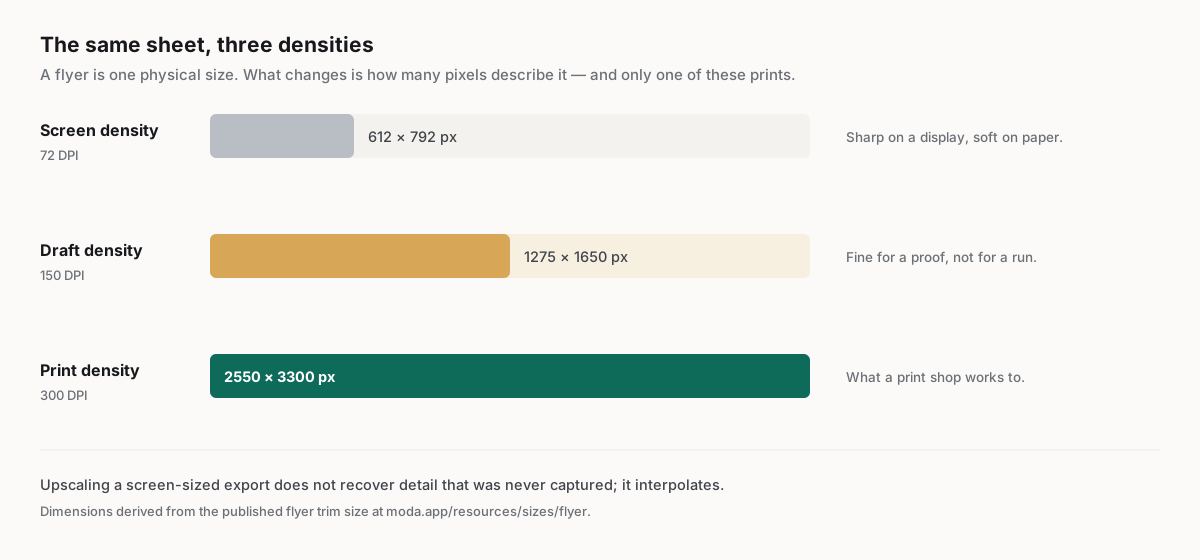
Every one of the four is a property of the exported file rather than of the design. A flyer can look correct in a browser and still arrive at a printer as an RGB raster at screen density with no bleed, which is a file the shop cannot run. The published reference below is the specification a printer expects for a standard full-page flyer, and it comes from the same catalogue that drives the live size page.
| Specification |
|---|
| Trim size — 8.5 × 11 in (215.9 × 279.4 mm) |
| Pixels at 300 DPI — 2550 × 3300 |
| Aspect ratio — 17:22 |
| Color mode — CMYK |
| Bleed — 3 mm on every edge |
| Bleed size — 8.75 × 11.25 in |
| Pixels at 300 DPI, bleed size — 2625 × 3375 |
| Safe area — 8.25 × 10.75 in |
| Export formats — PDF, PNG, JPG, TIFF |
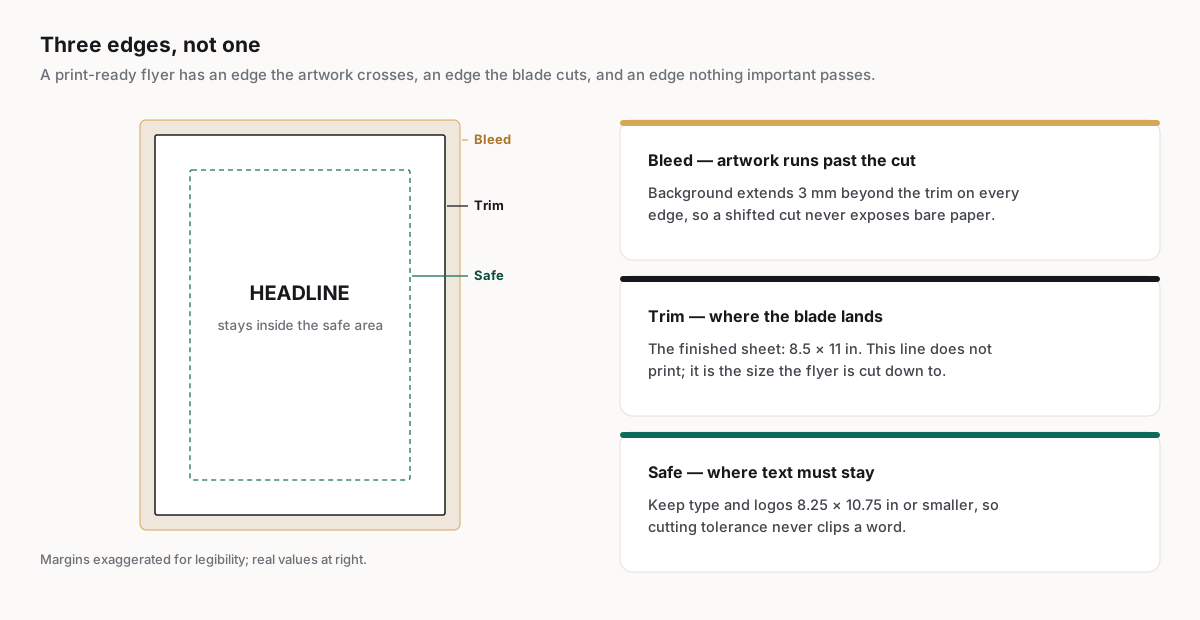
Bleed is the property most often missing, and the one with the most visible consequence. Cutting is mechanical and the stack shifts slightly, so a background that stops exactly at the trim line produces a thin white sliver along one edge of some sheets in the run. Extending the artwork past the cut is what removes that risk, and it has to exist in the exported file because it cannot be added afterwards. In Moda that means setting the canvas to the bleed size rather than the trim size and running the background to the canvas edge, so the exported vector PDF already carries the margin the printer trims away. Separation for process inks is a prepress step to agree with the shop; confirm it before committing to a run.
Why do AI-generated flyers get rejected at the print shop?
The common rejections are not design problems. They are export problems: screen color instead of process inks, screen density instead of print density, no bleed margin, and text baked into pixels so no correction is possible without regenerating the entire sheet.
| Failure | What the file contains | What arrives on paper | What fixes it |
|---|---|---|---|
| Screen color mode | Artwork separated for emitted light | Saturated brand colors print duller and shift, most visibly in blues and oranges | Export separated for process inks |
| Screen resolution | A raster sized for a display, not a sheet | Soft edges on small type and visible pixel structure at reading distance | Export at print density for the finished size |
| No bleed | Artwork stopping exactly at the cut line | A thin unprinted sliver along one edge of part of the run | Extend the background past the trim line |
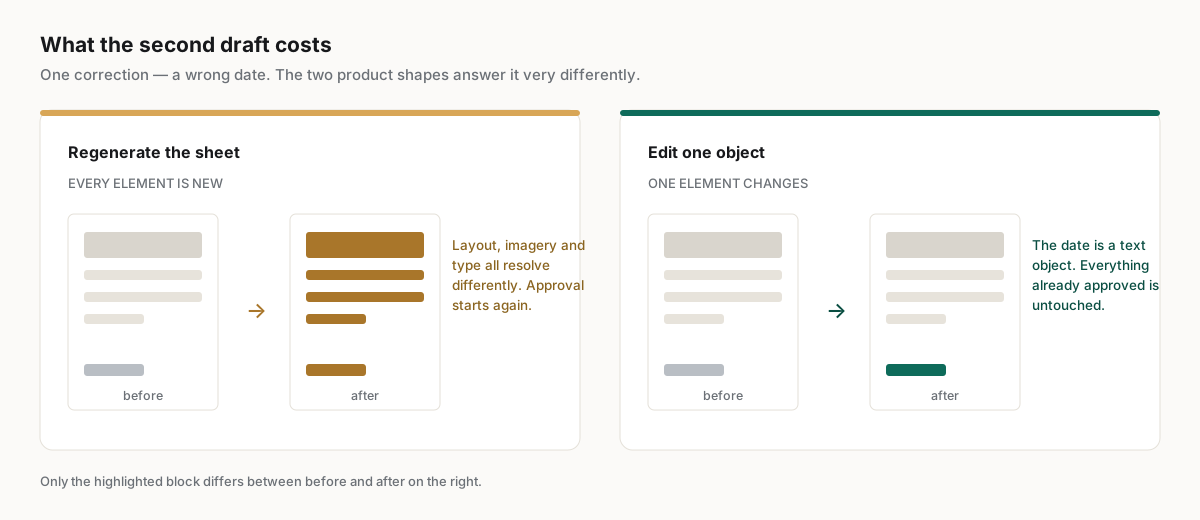
| Flattened text | Type painted into the image rather than kept as characters | A wrong date or price cannot be corrected without a rerun | Keep text as text objects through export |
Only the last of the four is a property of the generator rather than the export step, and it is the one that decides the cost of every later change. When the type is a region of pixels, correcting a date means regenerating the sheet and accepting a new layout. When the type is a text object, correcting a date is a text edit and the rest of the flyer is untouched.
Which flyer size fits the distribution?
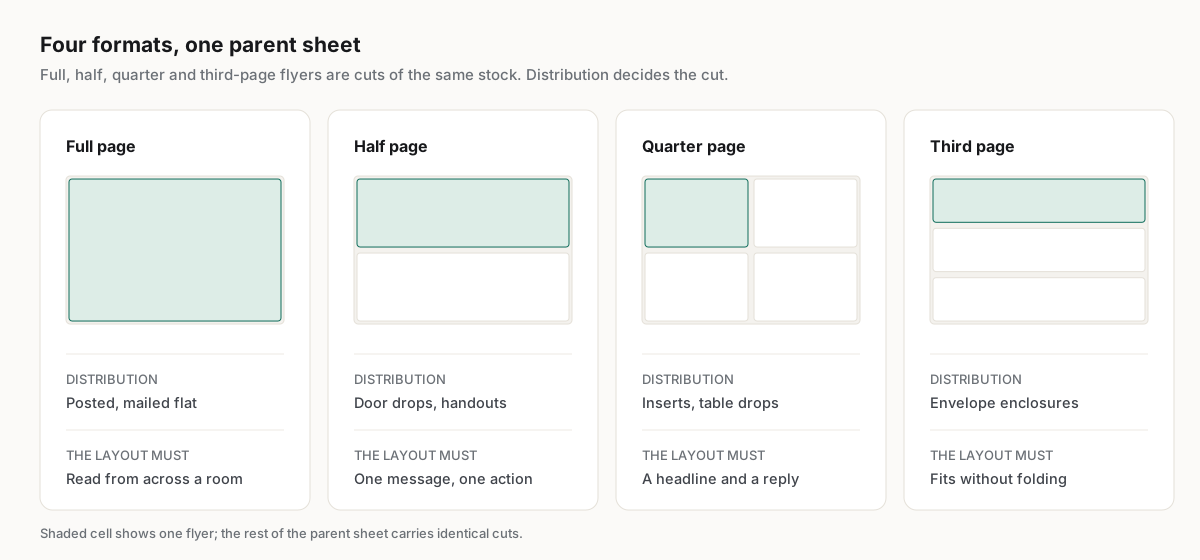
Flyers are cut from one sheet, so the choice is really about distribution rather than design. Full sheets suit posting and detailed promotion, half sheets suit handouts and door drops, and the smaller cuts suit inserts and table drops where cost per piece dominates.
The full-page, half-page, quarter-page and third-page formats are all cut from the same parent sheet. The full-page and half-page pixel dimensions are published alongside the trim specification at https://moda.app/resources/sizes/flyer, with the quarter-page and third-page cuts given there in inches. Choosing between them earlier than the design stage is worth the discipline, because a layout built for a full sheet rarely survives being scaled into a quarter of one: the hierarchy that made it readable from across a room collapses when the headline is a quarter of the size.
| Format | Typical distribution | What the layout has to do |
|---|---|---|
| Full page | Posted on a board, handed out at a stand, mailed flat | Read from across a room, then reward a closer look with detail |
| Half page | Door drops, event handouts, counter stacks | Carry one message and one action; detail is optional |
| Quarter page | Inserts, table drops, bag stuffers | Work as a single headline and a way to respond |
| Third page | Statement inserts and envelope enclosures | Fit a standard envelope without folding the message in half |
How should a team evaluate an AI flyer generator?
Judge the export rather than the preview, and judge the second draft rather than the first. A tool that produces a striking sheet nobody can correct is worse for recurring promotional work than one that produces a plainer sheet a non-designer can fix in a minute.
Six checks, in the order they tend to fail:
- Export a press-ready PDF and open it. Confirm the page is the requested trim size plus the bleed margin on every edge, not the trim size alone.
- Check that artwork extends past the cut line rather than stopping at it.
- Confirm the file is separated for process inks, not for a screen.
- Zoom to the smallest type at full size and look for soft edges or pixel structure.
- Select a headline in the exported file. If it highlights as characters, it is text; if not, it is a picture of text.
- Change one thing — a date, a price, a logo — and see whether the rest of the sheet moves.
The last check is the one that separates the category, and it is the cheapest to run. Ask for a correction that a real campaign would need, then look at what else changed. A generator that rebuilds the sheet will produce a different design, which means every approval already given has to be given again. That is a process cost, not a design preference, and it compounds on every flyer a team ships.
Which teams get the most out of one?
Teams that produce the same flyer repeatedly with small variations gain the most: venues with a weekly programme, retailers with recurring offers, and marketing teams running events across regions. The gain comes from the corrections, not from the first draft.
The pattern shows up in customer reporting. Cirrascale reported 20 min saved per asset with a single marketer running the content pipeline, at https://moda.app/case-studies/cirrascale — a gain that comes from not having to brief and wait on someone else for a small change. Recurring promotional print has the same shape: the design is settled after the first run, and everything after that is a date, a price, or a photograph.
A flyer generator is a poor fit where the sheet is the brand rather than a carrier for it. An identity piece, a launch campaign with bespoke illustration, or anything going to a large print run deserves a designer and a proof. The tool earns its place on the recurring work in between, where the alternative is not a better flyer but no flyer at all.
Related guides
Key takeaways
- An AI flyer generator is judged on the first draft; a print shop judges the exported file.
- Trim size, bleed, color separation, and pixel density decide whether a flyer can be printed at all.
- Bleed cannot be added after export, so it has to exist in the file the generator produces.
- Text kept as text turns a wrong date into an edit; text baked into pixels turns it into a rerun.
- Evaluate a generator on the second draft, because recurring promotional print is mostly second drafts.
Frequently asked questions
What size should a flyer be?
The most common finished size is a full Letter sheet, with half-page and quarter-page cuts taken from the same parent. The full sheet's millimetre and pixel dimensions, and the half-page pixel dimensions, are published at https://moda.app/resources/sizes/flyer. Choose by distribution rather than by design: posting favours full sheets, handouts favour smaller cuts.
Can an AI flyer generator produce a print-ready file?
Some can. The test is not the preview but the export: open the resulting PDF and confirm the finished size, a bleed margin past the cut line, separation for process inks, and enough pixel density for small type. Tools that return only a screen-sized image cannot meet that bar.
Why do the colors change between the screen and the printed flyer?
A screen mixes emitted light while a press mixes ink on paper, and the two cannot reproduce the same range. Bright blues, oranges and neons shift most. Exporting separated for process inks lets the shift be seen and corrected before the run rather than discovered afterwards.
Does a flyer really need bleed?
Any flyer with a background or image touching an edge does. Cutting is mechanical and the stack shifts slightly, so artwork stopping exactly at the trim line leaves a thin unprinted sliver on part of the run. Extending it past the cut removes the risk entirely.
Is an AI flyer better than a template?
Not automatically. A template gives a predictable, correctable result and a generator gives a more distinctive one. The useful question is what a correction costs in each: templates constrain the design but keep every element editable, and some generators return a sheet nothing can be changed in.
Published by Moda. Print specifications are read from the same catalogue that drives the published size reference and are linked to it. Customer metrics are attributed to the companies named above and link to their published case studies. Print-shop requirements vary; confirm trim, bleed and color requirements with the supplier before a run.