Microsoft Teams background size
The authoring canvas used in this guide is 1920 × 1080 pixels (16:9 aspect ratio).
Last updated:
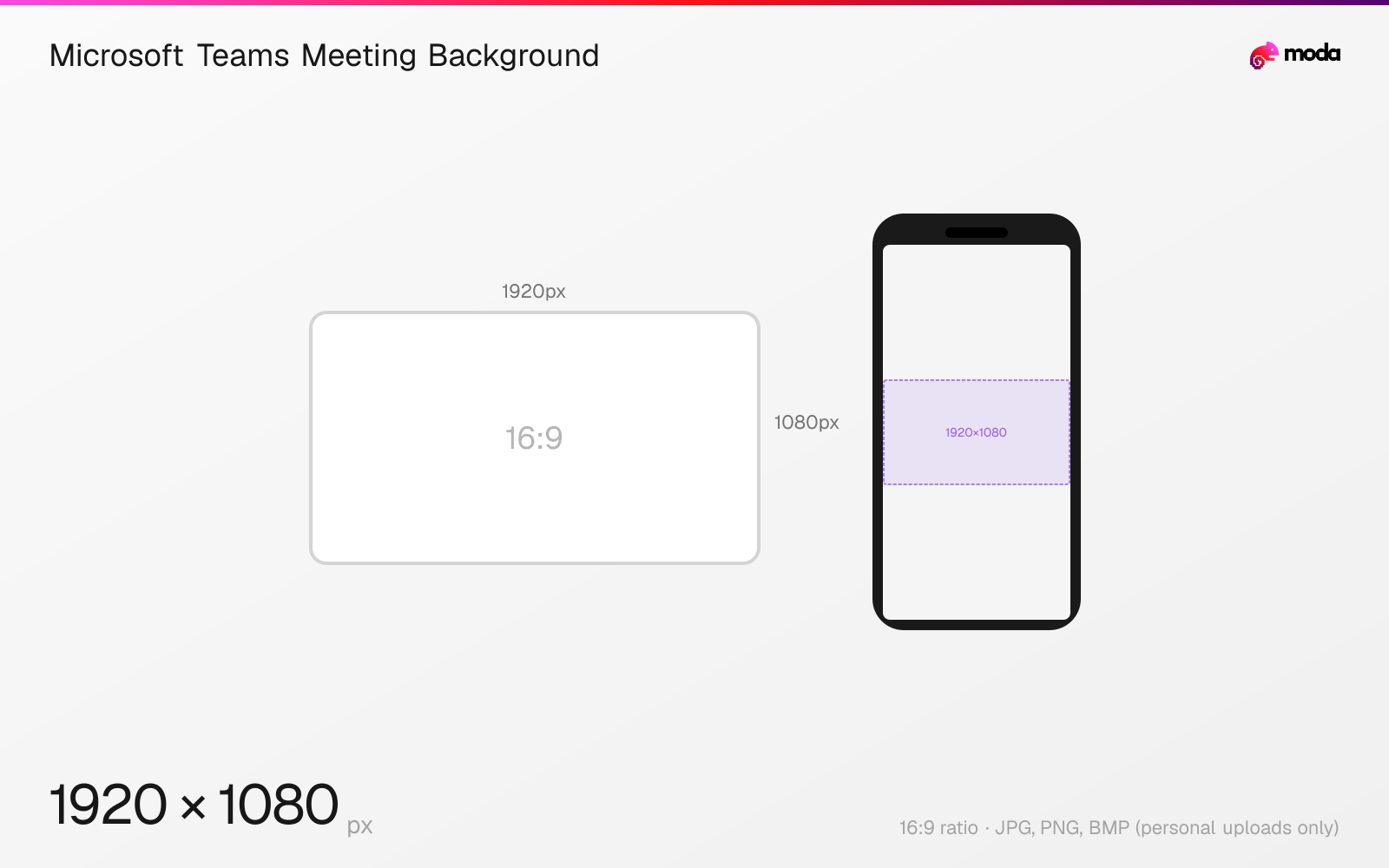
Specifications
| Spec | Value |
|---|---|
| Dimensions (px) | 1920 × 1080 px |
| Aspect ratio | 16:9 |
| Supported formats | JPG, PNG, BMP (personal uploads only) |
| Minimum resolution | 360x360 for organization backgrounds |
Other documented sizes
| Format | Dimensions | Aspect ratio |
|---|---|---|
| Maximum organization background | 3840 × 2160 px | 16:9 |
| Minimum organization background | 360 × 360 px | 1:1 |
Design at this size with Moda
Start with a canvas pre-set to 1920×1080px and let AI generate your design.
Create a Microsoft Teams meeting background →Design tips
Microsoft does not prescribe one ideal size for ordinary Teams meeting backgrounds. This guide uses a 1920×1080, 16:9 authoring canvas within Microsoft's published 360×360 minimum and 3840×2160 maximum for organization backgrounds.
- •Start at 1920×1080px for a conventional full-HD 16:9 background within Microsoft's supported range.
- •Keep logos and text away from the edges and leave the center clear for the speaker.
- •Use Teams' Preview step to check the background before joining a meeting.
What you need to know
Microsoft's current admin documentation accepts organization background images from 360×360 through 3840×2160 pixels in PNG or JPEG format. It does not name one ideal dimension for ordinary meeting backgrounds. The 1920×1080 canvas on this page is a practical 16:9 authoring convention within that supported range, not a Microsoft-mandated size.
Individual users can upload their own meeting backgrounds when their policy allows video effects. Microsoft Support lists JPG, PNG, or BMP for personal uploads, while the organization-background gallery documented for Teams Premium accepts PNG and JPEG. A transparent PNG can be used for the frosted-glass organization effect.
Microsoft does not publish one numeric safe zone for ordinary meeting backgrounds. Keep logos and text away from the outer edges, leave space for the person in the center, and use Teams' documented Preview step to check the image before a meeting.
How to create a Microsoft Teams meeting background at the right size
- 1Open Moda and create a new canvas at 1920×1080 pixels.
- 2Design your Microsoft Teams meeting background using AI generation or start from a blank canvas.
- 3Export as JPG and upload to Microsoft Teams.
Frequently asked questions
What size should a Microsoft Teams background be?
Microsoft does not specify one ideal size for ordinary meeting backgrounds. This guide recommends a practical 1920×1080px, 16:9 canvas within Microsoft's official 360×360 to 3840×2160 range for organization backgrounds.
What files can I use for a Teams background?
Microsoft's organization-background gallery accepts PNG and JPEG. Microsoft Support also lists BMP for a user's personal background upload.
Does Teams publish a background safe zone?
Not for ordinary meeting backgrounds. Keep important details away from the edges and use Teams' Preview step to check the exact image before a meeting.
Sources
Specs last verified: August 28, 2026. Dimensions may change as platforms update their requirements.