9 Best Magnific Alternatives in 2026: Upscaling and Beyond
Compare 9 Magnific alternatives for upscaling, creative generation, and editable campaign work. Pick the right tool for the job.
 Anvisha Pai, Co-founder & CEO, Moda
The best Magnific alternatives depend on what you want to replace. Krea is a useful starting point for image enhancement and creative exploration. Topaz Gigapixel fits an image-first desktop workflow. Higgsfield is a close comparison for multi-model generation. Moda belongs on the shortlist when the deliverable is an editable campaign, not just a sharper image.
There is an important naming wrinkle: Freepik is now Magnific. The current platform includes image, video, and audio generation, stock assets, editors, and collaborative workflows. Its website separately links to the legacy Magnific service. A list of upscalers alone no longer answers the whole question. Magnific's transition guide explains the distinction.
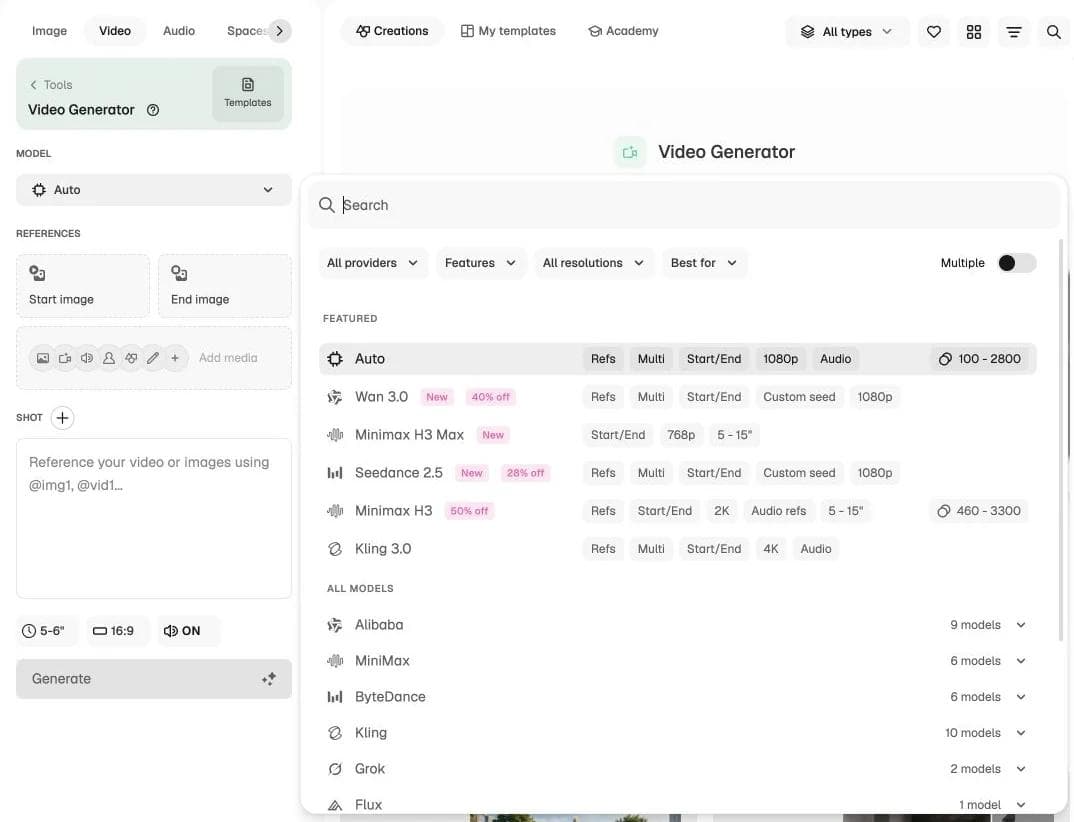
Here are nine alternatives, organized around the work you need to finish rather than a single overall winner.
Magnific alternatives at a glance
| Alternative | Put it on your shortlist for | Check before switching |
|---|---|---|
| Krea | Enhancement and visual experimentation | Are you changing the platform, the enhancement model, or both? |
| Topaz Gigapixel | Enlarging and refining existing images | Which models run locally on your hardware? |
| Higgsfield | Video-led, multi-model creative production | Which stock assets and saved workflows would you leave behind? |
| Moda | Editable ads, slides, campaign visuals, and motion | Do you need a design workspace or only an image upscaler? |
| OpenArt | Recurring characters and image-to-story workflows | Can your references survive changes of model and scene? |
| Photoshop + Firefly | Retouching, masks, layers, and Adobe workflows | Which app, model, and subscription entitlement do you need? |
| Figma Weave | Reusable generation and compositing graphs | Does your team want to work in nodes? |
| Upscayl Desktop | Free, local image upscaling | Is your GPU supported, and is the source image recoverable? |
| Let's Enhance | Browser-based batches and print preparation | What output size and batch volume does your plan allow? |
First decide what must stay unchanged
Before choosing a platform, decide how much freedom the AI should have over the source.
Preserve: A product label, architectural feature, or person's face needs to remain recognizable and accurate. Your priority is more usable resolution without unintended changes.
Reinterpret: A concept illustration or invented landscape can benefit from new texture and detail. Here, deviation can be the point rather than a defect.
Compose: The image is only one ingredient. You still need an exact headline, logo, layout, product description, or animated end card. Better pixels do not remove that editing work.
These are jobs, not fixed vendor categories. Magnific itself offers both Creative and Precision upscaling. Creative mode permits more interpretation; Precision is designed around faithful enlargement. Topaz also offers different model families. Picking the right mode can matter more than changing the subscription.
For a product campaign, split the work deliberately: keep the approved packshot and logo intact, explore backgrounds separately, then assemble the final asset with editable typography. Do not ask a single creative upscale to preserve every letter while also inventing an entirely richer scene. In a review, inspect the small print and product edges, not just the overall impression at thumbnail size.
1. Krea: enhancement without committing to one engine
Krea is a useful bridge between the original Magnific use case and a broader creative workspace. It combines enhancement with image and video generation, visual iteration, and asset management. Its enhancement entry point is a direct place to start when you already have an image to improve.
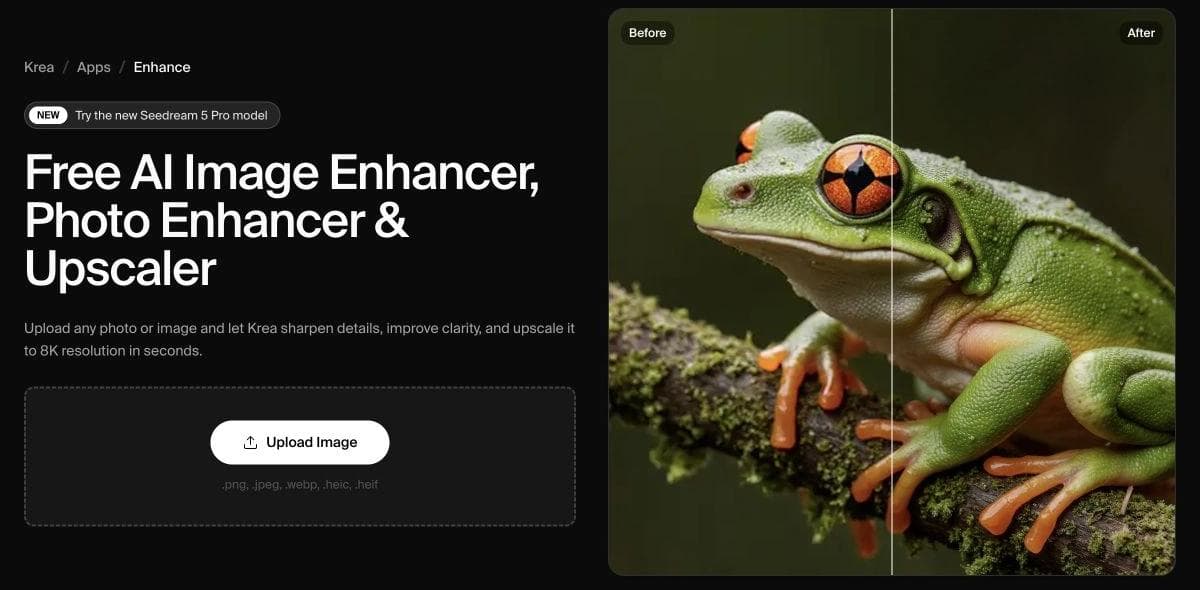
The surprising detail is that Krea can also run Magnific. Its own Magnific enhancement walkthrough shows the model selected inside Krea's Enhancer, with controls for the creative treatment.
That makes two different reasons to switch. You might prefer Krea's workspace while keeping the Magnific engine, or you might specifically want another enhancement model. If you dislike the engine's treatment of texture, moving to another interface that runs it may not solve your problem. Compare the actual job quote and exposed settings, not the two platforms' raw credit counts.
Krea is also more than a single upload box: its current plans include node workflows and reusable Apps at applicable tiers. Evaluate that broader workspace if enhancement is one step in a repeatable process.
Choose Krea when you want to explore enhancement and generation in one environment. Check first which engine you actually want, whether the necessary controls are exposed, and what the selected plan includes.
2. Topaz Gigapixel: an image-first desktop alternative
Topaz Gigapixel makes sense when your starting point is a folder of existing images, not a creative brief. It focuses on enlargement and enhancement and can run as a standalone desktop application or within supported photo-editing workflows.
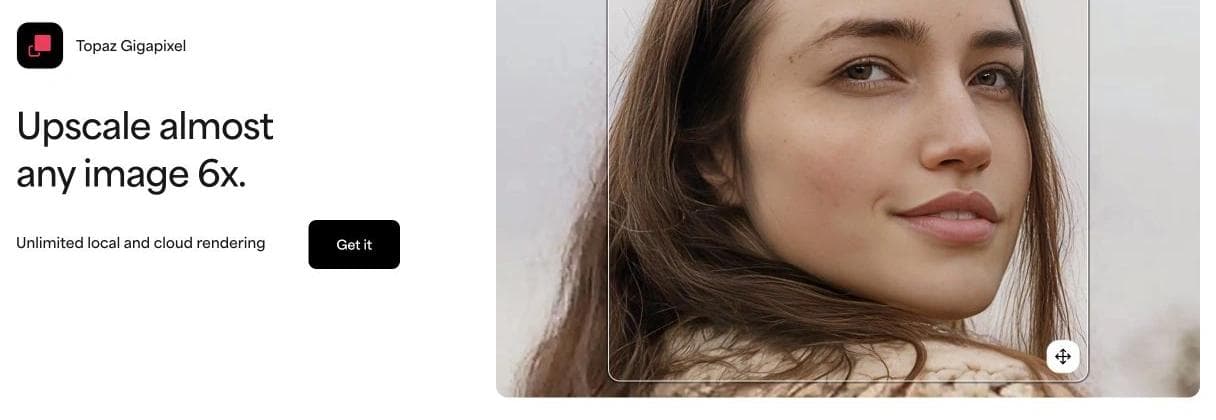
Local processing is a meaningful distinction for photographers and teams that cannot upload particular files. But it is not a blanket promise about every Topaz model. Read the current system requirements for your hardware and intended model, and distinguish local rendering from cloud rendering.
Also avoid the familiar oversimplification that Magnific invents detail while Topaz only preserves it. Gigapixel's model documentation includes different enhancement approaches. The selected model and settings matter.
Choose Gigapixel when the recurring task is improving existing photographs or preparing larger image files. Check first a difficult sample from your real work, your local processing requirements, and the current purchase terms. An old review's one-time price is not a reliable description of today's offer.
3. Higgsfield: a close alternative to the generation suite
If you use Magnific mainly to generate images and video across model families, compare it with Higgsfield. Higgsfield combines model access with directed creative workflows, including Cinema Studio and effect-led starting points.
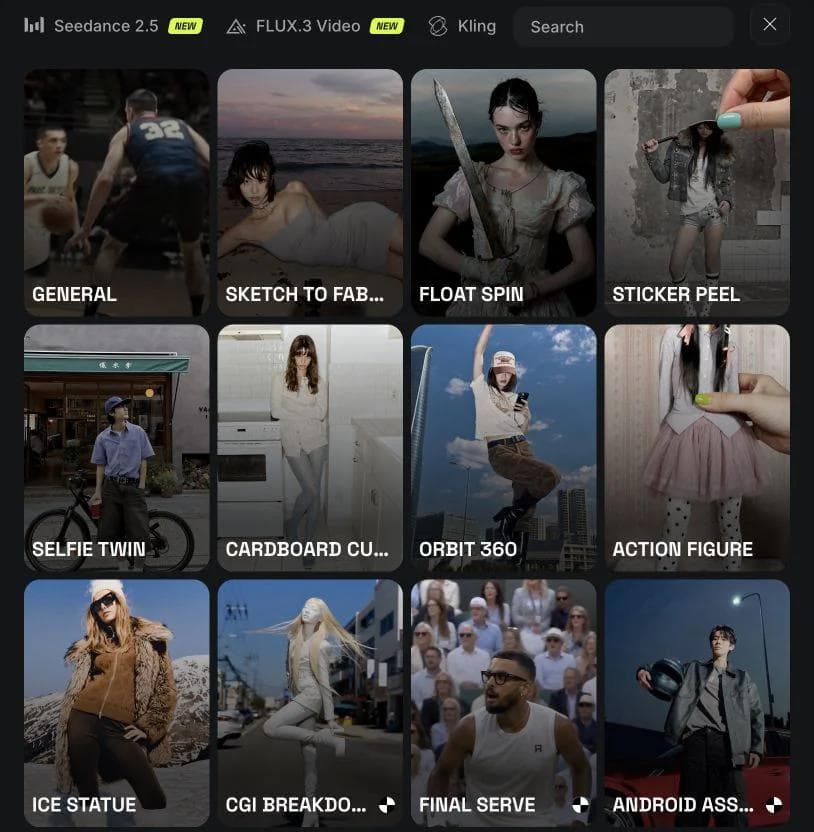
The distinction is not simply whether a platform has your preferred video model. Consider how you start: a reference image, a cinematic shot, a visual effect, or a campaign idea. An opinionated starting point can be helpful when you want a direction to work from; it can be unnecessary when you already know the exact request.
Magnific's stock library is a separate consideration. If you regularly mix licensed photographs, vectors, templates, and generated material, a model hub alone does not replace that source library. Audit what you actually use before moving the generation portion of your workflow.
Choose Higgsfield when your main job is generating and directing creative shots. Check first the exact model modes and references you need, plus how your existing source assets will move. Our Higgsfield alternatives guide goes deeper on generation workflows and prompt control.
4. Moda: when the image must become an editable campaign
Moda is relevant when the finished work includes layouts, slides, social ads, one-pagers, or motion compositions. Its AI works on an editable design canvas, where text, images, shapes, and layout remain things you can revise.
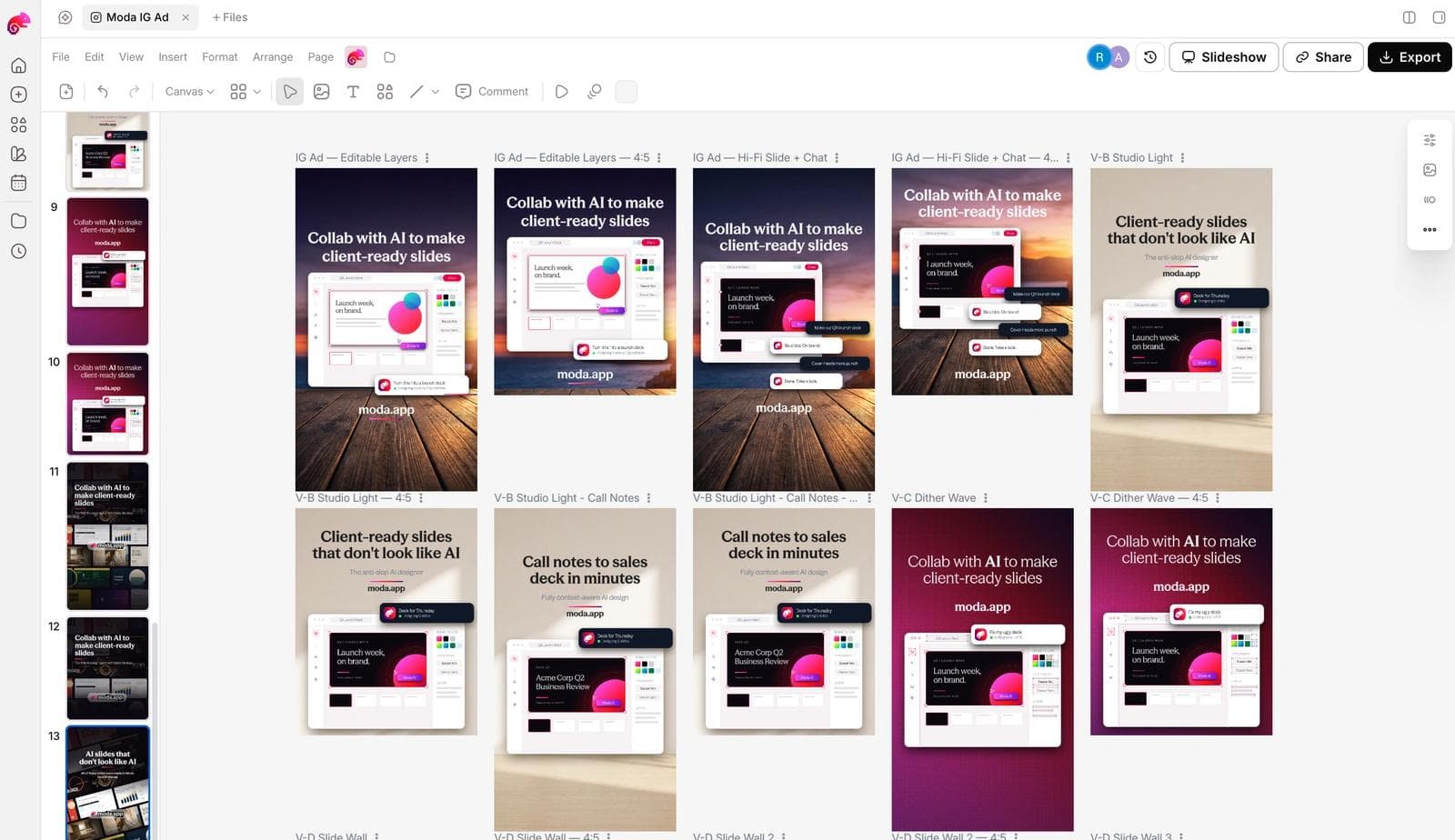
Imagine the client approves the product image but changes the headline, price, and call to action. That is a design-editing task, not an enhancement task. Keeping those elements separate lets you change the message without asking an image model to regenerate the entire advertisement.
Moda also supports image, video, and audio generation. Generated clips can become part of layered compositions with typography and animation. The point is continuity from creative material into finished design, rather than a claim that the same image model suddenly produces better results inside Moda.
This is not a contrast between an editor and a product with no editing. Magnific has Designer, image and video editors, and collaborative Spaces. Compare a representative deliverable in each: can you make the final layout changes, preserve the elements you care about, and produce the formats your team uses?
Choose Moda when you want AI-assisted creation followed by precise edits to campaign assets. Keep an upscaler on the shortlist instead if your entire requirement is enlarging photographs. Moda is not a like-for-like replacement for every Magnific enhancement engine or its stock catalog.
5. OpenArt: when recurring characters drive the workflow
OpenArt is worth comparing when the recurring creative problem is a character or subject that needs to appear across images and scenes. Its product combines image and video generation with character and story workflows, rather than treating every output as an unrelated prompt.
For example, a series of mascot-led posts needs recognizable subject references across different settings. That is a different requirement from making one approved portrait larger. OpenArt also offers an image upscaler, so enhancement can sit inside the wider creation process.
Character tools are not a guarantee of perfect consistency. Before committing, inspect how references are supplied for the model and workflow you intend to use. Model access, reference support, and a final sequence that actually matches are separate things.
Choose OpenArt when recurring subjects and story creation matter more than bulk enlargement. Check first how you will carry references between scenes and where you will assemble or retouch the approved outputs.
6. Photoshop + Firefly: for layered retouching and finishing
If most of your finishing already happens in Photoshop, adding another standalone workspace is not always necessary. Layers, masks, selections, and retouching tools let you decide exactly which areas change and which remain untouched.
Adobe's Generative Upscale documentation lists Firefly Upscaler and Topaz partner options. This creates another platform-versus-engine choice: using a Topaz model inside Photoshop is not the same purchase as the standalone Gigapixel application.
For a product composite, the advantage is the surrounding editing workflow. You can isolate the background, preserve an approved product layer, refine an edge, and keep the logo separate. Upscaling is one operation inside the file rather than the end of the process.
Choose this route when layered retouching and existing Adobe files dominate the job. Check first premium-model access, output limits, and which subscription covers the app and generation feature. Photoshop plus Firefly is an ecosystem choice, not a promise that one plan includes every Adobe tool.
7. Figma Weave: reusable generation plus node-based compositing
Figma Weave, formerly Weavy, is worth comparing with Magnific Spaces when the workflow itself is part of the deliverable. A graph can preserve the relationship between an input, an edit, a composite, and a downstream generation.
Weave's Compositor node supports layered compositions and works with image, video, and audio assets. This matters for a team that wants to build a repeatable setup rather than reproduce a sequence of isolated prompts.
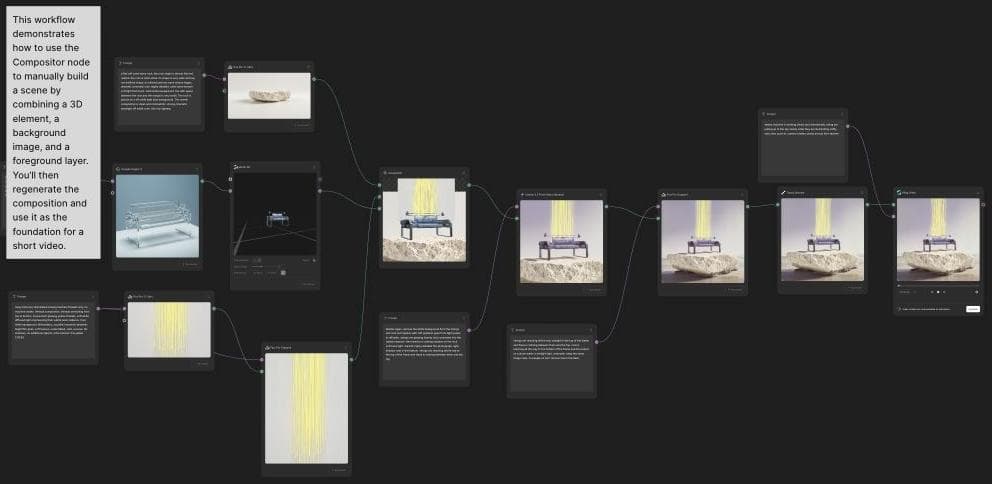
Picture a product shot feeding several background treatments, followed by a shared composition step. The benefit is being able to see and reuse the construction. That is different from enlarging a finished JPEG.
Magnific already has node-based Spaces, so nodes alone are not a reason to switch. Compare the operations, handoffs, and editor interaction your team needs. Figma's Weave integration announcement also makes it relevant to designers already working in that ecosystem.
Choose Weave when reusable graphs and compositing are central. Check first whether everyone who must revise the work is comfortable with nodes. A graph that only its author understands is not automatically a better team workflow.
8. Upscayl Desktop: the free local option
Upscayl Desktop is a free, open-source upscaler for macOS, Windows, and Linux. It belongs on the shortlist when you want to enlarge images locally without subscribing to a creative suite.
Be precise about the product: Upscayl Desktop and Upscayl's cloud offering are not interchangeable. The desktop application's hardware requirements matter. Its project documentation calls out the need for compatible graphics support.
This is a narrower replacement than Higgsfield or Krea. You are replacing an enhancement step, not Magnific's generation, stock, collaboration, or campaign tools. That narrower scope can be exactly what makes it useful.
Choose Upscayl Desktop when budget and local processing are the main requirements. Check first hardware compatibility and a sample with difficult text or edges. Free software cannot recover information that the source never contained with guaranteed accuracy.
9. Let's Enhance: batches and print-oriented image preparation
Let's Enhance is a practical browser-based candidate when you have multiple existing files and a defined output requirement. Its workflow includes batch enhancement and print-oriented sizing, with limits depending on the plan.
That fits a different working rhythm from generating cinematic shots or branching a creative graph. The question might be: can these product images meet the required dimensions, or can this illustration support the intended print size?
Start from the destination, not the largest advertised upscale factor. A print shop's requested dimensions and resolution are more useful than producing the biggest file the tool permits. Check fine details after processing, especially where the image contains lettering or product information.
Choose Let's Enhance when browser-based batches and delivery specifications dominate. Check first the required dimensions, file format, batch volume, and plan allowance. A stronger-looking preview is not proof that the file meets the printer's requirements.
How to switch without rebuilding everything
Do a small workflow audit before buying another subscription:
- Name what must survive. The source image, exact logo, character reference, layered file, saved graph, or stock license may matter more than the model list.
- Separate the engine from the interface. Krea can expose Magnific; Photoshop can expose Topaz. Decide whether your problem is the model's behavior or the surrounding workspace.
- Use one representative deliverable. Review an approved packshot, a campaign layout, or a print file. Inspect the settings and export path before spending on a larger batch.
- Count the handoffs. If you already finish in Photoshop, a compatible enhancement step may be enough. If the deliverable keeps changing across layouts and motion, evaluate the working canvas too.
Magnific remains a sensible choice when its combination of generation, enhancement, stock, and collaborative workflows is useful to you. Switching only makes sense if it improves a specific part of that process. Sometimes the best answer is keeping the suite and adding a specialist for one difficult job.
For existing-image enlargement, start with Krea, Gigapixel, Upscayl, or Let's Enhance. For a broader generation workspace, compare Higgsfield and OpenArt. For the finished editable asset, look at Moda, Photoshop, or Weave. Choose based on what you must deliver and what must remain under your control.
Frequently asked questions
Is Freepik an alternative to Magnific?
Not as an independent competing platform in this comparison. Freepik is now Magnific. The current website also links separately to the legacy Magnific service, so check which account and product surface you use before comparing plans.
What is a free Magnific alternative?
Upscayl Desktop is a free, open-source option for local image upscaling on compatible hardware. It replaces that specific task, not Magnific's full creative suite. Krea also provides limited free enhancement access, with broader capabilities subject to its plans.
Can I use Magnific through another platform?
Yes. Krea documents selecting Magnific inside its Enhancer. That can change the interface and surrounding workflow without changing the underlying enhancement engine. Verify the settings and allowance for the actual integration you plan to use.
Which Magnific alternative is best for brand work?
It depends on the deliverable. For an approved photo that needs enlargement, compare fidelity-oriented enhancement options. For exact copy, logos, and layouts, evaluate Moda or Photoshop. For reusable generation-and-compositing graphs, compare Figma Weave with Magnific Spaces. Keep critical brand elements editable rather than treating a generated image as the entire finished design.

Real editable visuals. Real canvas. Full control.
Fly through design work