15 Higgsfield Alternatives, Chosen by the Job You Need Done
Compare Higgsfield alternatives for video generation, reusable workflows, and editing. Find the right tool for your task, with screenshots and honest tradeoffs.
 Anvisha Pai, Co-founder & CEO, Moda
If you want Higgsfield's range of models in another workspace, start with Magnific, OpenArt, or Krea. If you already have good clips and need to cut them into a video, start with an editor such as CapCut. If you need to reuse a sequence of prompts, references, and edits across a campaign, look at FLORA, Melius, or Figma Weave.
Those are different reasons to switch. This guide groups 15 Higgsfield alternatives by the work they help you do, rather than declaring one winner for everyone.
We build Moda, which is included below for design and motion work. This is a comparison of documented capabilities and visible controls, not a head-to-head test of video quality. Screenshots show interfaces or labeled vendor demonstrations, not results we generated for this article. Features were checked in August 2026.
Start with the part of Higgsfield you want to replace
| Your main job | Shortlist | The deciding question |
|---|---|---|
| Try several image and video models | Magnific, OpenArt, Krea | Can you use the exact references and settings you need? |
| Develop a campaign or storyboard with an agent | Hedra, Morphic | Can you review and change the plan before generating? |
| Reuse a visual workflow across many assets | FLORA, Melius, Figma Weave | Can another teammate understand and rerun it? |
| Work with a specific model family | Kling AI, Hailuo AI, Google Flow, Runway | Does the first-party app offer controls missing from your current provider? |
| Turn clips into social videos or designed motion | CapCut, Adobe Firefly, Moda | Which exact editing and export steps must happen in the tool? |
These groups overlap. Magnific also has a node canvas; FLORA and Weave include editing tools; Higgsfield itself offers more than a model picker. A category describes why you might try a product, not everything it can do.
When staying with Higgsfield makes sense
Higgsfield's Cinema Studio combines camera and genre controls, reference assets, an assistant, and collaborative production features. Its presets are useful when you can recognize the shot you want more easily than you can describe it from scratch.
If you already get usable footage and know your way around those controls, a competing model catalog alone is a weak reason to move. First identify a recurring problem: an unavailable reference mode, hard-to-predict spending, or a time-consuming step after generation. Keep Higgsfield if none of those is costing you much.
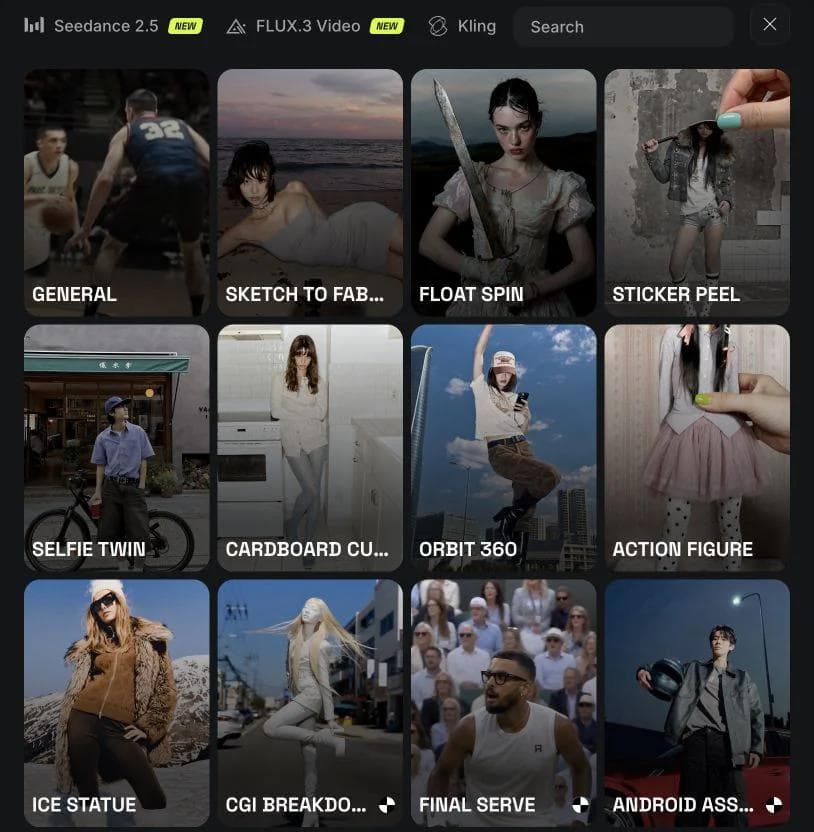
Multi-model alternatives
1. Magnific: a broad creative suite, not just an upscaler
Magnific now includes the former Freepik platform. Alongside image and video generation, it offers upscaling, stock assets, audio tools, clip and project editors, and Spaces for connected workflows. This is the broader magnific.com product, not just the older magnific.ai upscaler.
It is a sensible first comparison if you use several parts of Higgsfield. For example, you can look for a stock reference, generate a shot, and keep its variations in a shared workspace. That avoids evaluating a separate subscription for every step.
Before switching, compare your actual model settings and editing needs. A large catalog does not tell you whether a particular reference mode is included, or whether a project's export will fit the editor your team already uses.
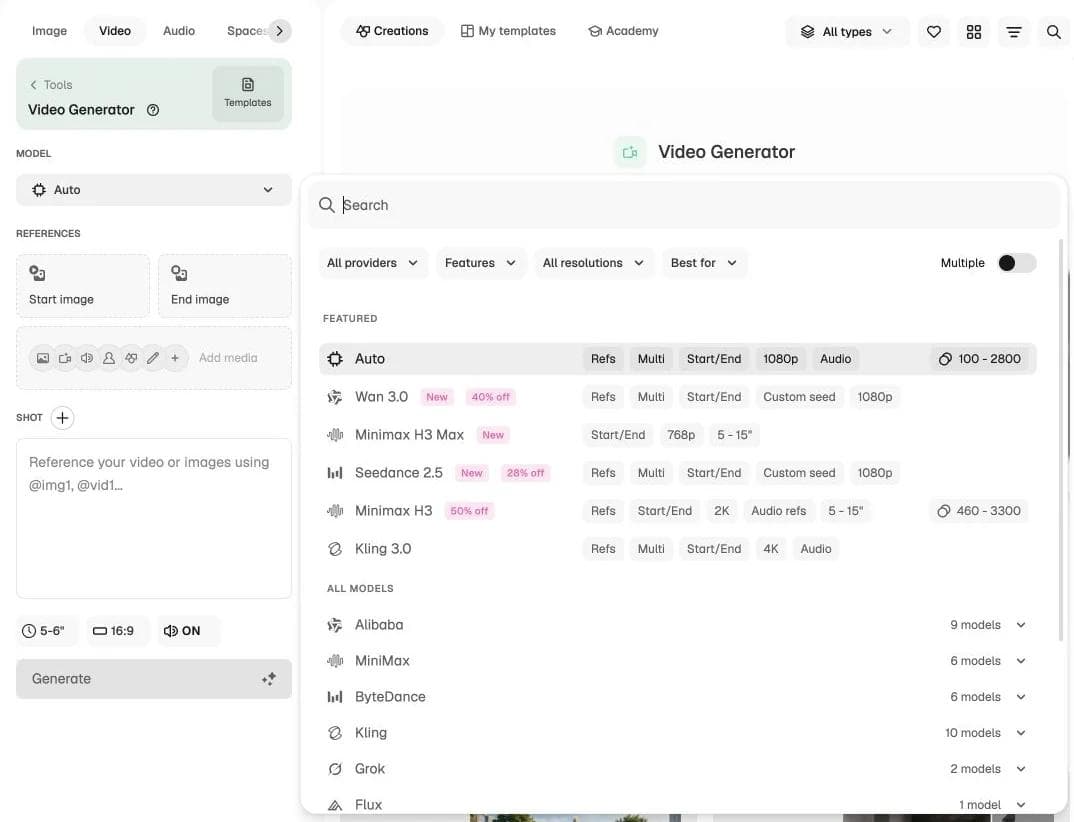
2. OpenArt: visible prompt assistance and reference-led generation
OpenArt's video generation workspace includes text-to-video, image-to-video, reference inputs, and transformation tools such as restyling, extending, and lip-syncing clips. OpenArt does not support direct video editing, so export the clips to a separate editor when you need sequencing, trimming, audio, or final assembly.
One useful detail is visible in the captured generation panel: Auto Polish is a switch, and it is off. If you are comparing a carefully written prompt across tools, being able to see that choice matters. It does not prove every OpenArt model uses the same settings.
Consider OpenArt when you want assistance you can inspect, or when your task is to modify an existing clip rather than generate another one. Check the supported inputs for that task before buying a plan: character replacement and reference-based generation are different operations.

3. Krea: comparing models and reference inputs
Krea's model library separates video generation, restyling, motion transfer, lip-sync, and audio. That organization is useful if you have a specific input and need to find the right operation: animating a still is not the same as transferring an actor's movement.
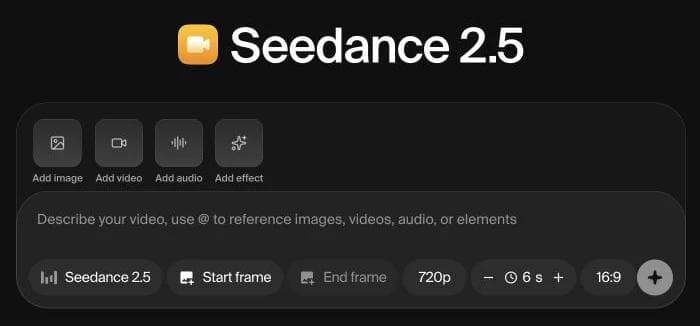
The Seedance panel below puts image, video, audio, and effect references near the duration and framing controls. It gives you a concrete set of inputs to compare with your current workflow.
Krea is worth shortlisting for visual exploration and reference-led work. Do not assume every listed model accepts all those inputs, or that switching models preserves the same controls. Pick the operation first, then check the model.
Agent-led campaigns and storyboards
4. Hedra: shared creative work with reusable references
Hedra Studio combines an agent with a shared canvas. Its documented Elements store characters, products, and visual references; Skills preserve instructions and workflows that a team repeats.
That is relevant when the task is a set of related assets, not one isolated shot. For a product launch, you might want the same packaging and character to appear across several concepts, with teammates reviewing the work in one place.
Reusable references help communicate the intended identity; they do not guarantee identical products or faces in every generation. Review those details before approving a campaign. For this use case, compare Hedra directly with Morphic and Melius, not just with standalone video generators.

5. Morphic: from a storyboard to an assembled sequence
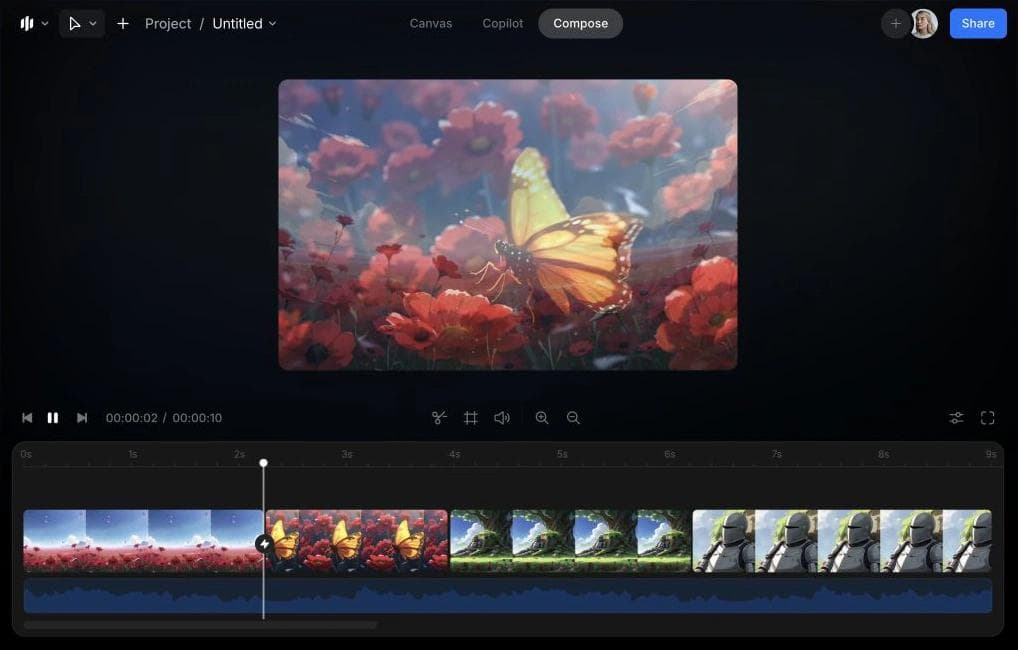
Morphic combines Copilot, a shared Canvas, and Compose. The useful distinction is the path from planning shots to arranging the generated clips, rather than repeatedly downloading and uploading assets between tools.
Its Compose documentation describes sequencing, trimming, and previewing a video. It also explicitly distinguishes that from the wider effects, grading, audio mixing, and compositing capabilities of professional editors.
Choose it for a short narrative or product video where storyboarding and basic assembly are much of the work. If the brief calls for an intricate sound mix or detailed finishing, budget for another editor. That is a workflow boundary, not a reason to discount the planning and assembly tools.
Reusable workflows on a node canvas
A node canvas shows the steps and connections: a product photo feeds several prompts, selected outputs feed animation, and the resulting clips remain connected to their inputs. This is useful when you will repeat the process. For one quick clip, building that structure can be unnecessary work.
6. FLORA: connect generation and editing steps
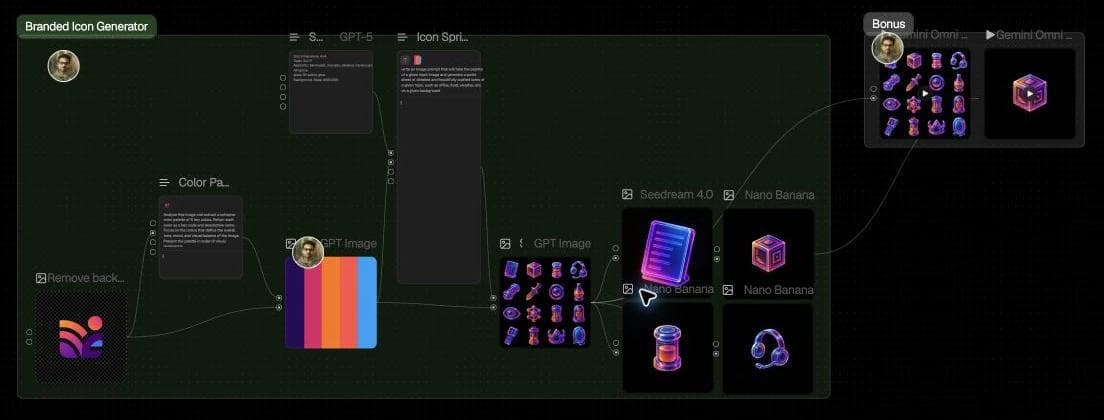
FLORA combines text, image, video, and audio nodes. It also documents reusable Elements, batch operations, editing actions such as trimming and grading, and a layer editor for compositing and masks.
The public workflow below connects a logo and color palette to icon variants and animation branches. That makes the creative recipe visible: a teammate can see what a variation depends on instead of searching through a chat history.
Use FLORA when the recipe is part of the deliverable. For a one-off camera effect, Higgsfield's presets may be a simpler starting point. A saved graph also needs upkeep when models or inputs change; it is not a promise of identical output on every run.
7. Melius: have an agent help build the workflow
Melius pairs a creative canvas with an agent called Mel. Its product examples show connected work such as product mockups, studio shots, and motion concepts, using different models for different steps.
It is worth considering when you want to direct a campaign without manually wiring every branch. Compare how easily you can change one step, inspect what feeds it, and reuse the useful parts for the next brief.
Agent-built does not mean review-free. A change to a shared reference can affect several outputs, and rerunning a branch can spend generation credits. Understand what will run before approving a large batch.
8. Figma Weave: generation connected to compositing
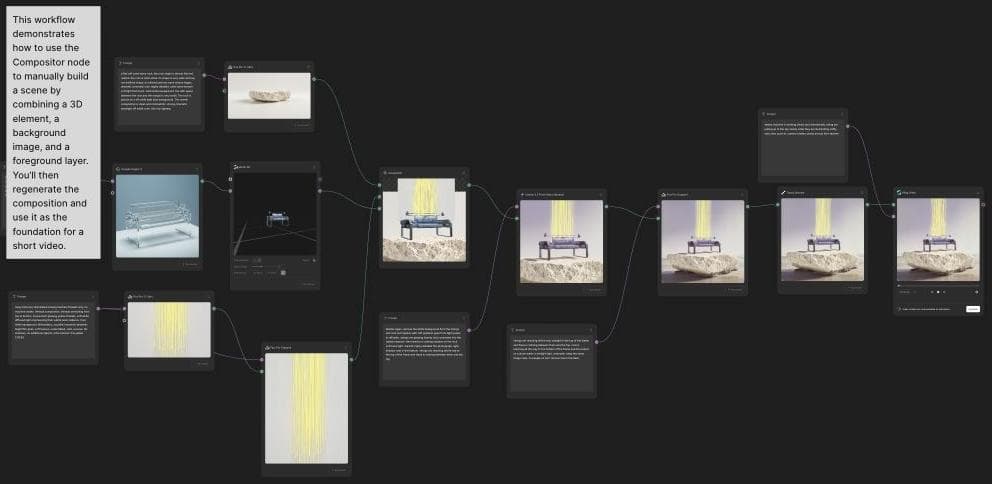
Figma Weave, formerly Weavy, combines generative models with compositing, masking, and color-grading tools in a node canvas. Its appeal is not merely being associated with Figma: editing steps can be part of the same process as generation.
The public example below builds a scene from image and 3D inputs, refines the composite, and feeds it into a video step. This is relevant when you need to establish a composition before asking a model to animate it.
Shortlist it for repeatable visual asset production. If your main task is cutting dialogue against music, a conventional timeline may be easier to work in. Neither interface is inherently more advanced; they make different parts of the job easier to see.
First-party model tools
If you already know which model produces the kind of shot you need, compare its own application with the version inside Higgsfield. The deciding factors can be controls, availability, or plan allowances rather than output quality. The same model name does not guarantee the same inputs or defaults.
9. Kling AI: go directly to the Kling workspace
Kling AI is the first-party application for the Kling model family. It belongs on the shortlist if your work already centers on Kling and you want to compare its native workflow with third-party access.
Use a concrete shot for that comparison: which reference types can you supply, which motion controls are available, and what does that configuration cost? Native access is not automatically cheaper or better. If you regularly move between model families, a multi-model subscription may still be more convenient.
10. Hailuo AI: direct access to MiniMax's video tools
Hailuo AI is MiniMax's creative application. Its current site emphasizes reference-guided video generation. Consider it when MiniMax's video models are the reason you are choosing a tool, rather than one occasional option in a larger catalog.
The practical comparison is the same: use the model version and input mode you actually need. Do not compare a first-party reference workflow with a cheaper text-only configuration elsewhere and call them equivalent. Keep a broader platform if one account for several model families matters more to you.
11. Google Flow: build scenes around Google's models
Google Flow combines Google's image and video models with reference assets and scene-building tools. It is relevant when your task is developing connected shots with Google's models, not simply selecting Veo from a menu.
For a sequence, compare how references carry from one shot to the next and how easily you can revise a scene. That can matter more than the first generation. Check which models and modes your account can use; the product's advertised range is not a guarantee that every plan includes every capability.
12. Runway: generation plus editing existing footage
Runway offers Gen-4.5 generation and Edit Studio, powered by Aleph 2.0, for changing existing video. Documented editing uses include relighting, background replacement, restyling, and visual effects.
That makes it a serious candidate when you have a shot you want to transform, not just an idea for a new shot. Ask whether the requested change can preserve the parts of the footage that matter to you, then inspect the result for unwanted changes.
Generative editing is not the same as a deterministic correction. For an exact logo, label, or legal line, placing a conventional graphic over the footage may be preferable to regenerating those pixels.
Editing and designed motion
13. CapCut: assemble short-form social video
CapCut offers timeline editing alongside captions, templates, background removal, and AI tools. It is a practical shortlist choice when you already have footage and the remaining work is cutting it to length, adding readable captions, and preparing a social post.
It may complement Higgsfield rather than replace it. Generating clips in one tool and editing in another is reasonable if the second tool makes the finishing work easier. Check the features, exports, and paid restrictions on the device and plan you intend to use.
14. Adobe Firefly: generation alongside an Adobe workflow
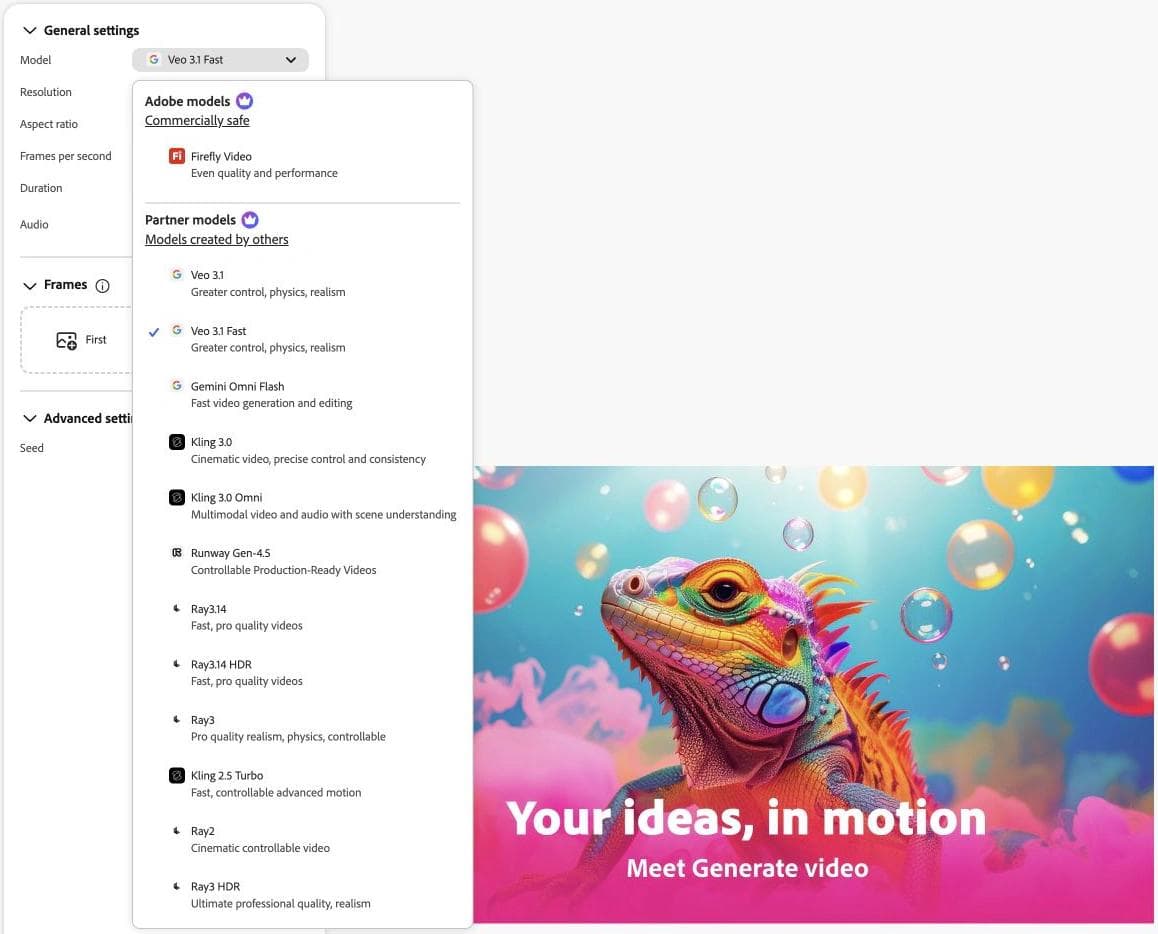
Adobe Firefly offers Adobe and partner models, plus a video editor. It belongs on the shortlist if your team already finishes work in Adobe applications and wants to assess how generated material enters that process.
The screenshot distinguishes Adobe's model from partner models. Do not assume that because two models appear in the same workspace, they have identical commercial terms, entitlements, or controls. For client work, check the selected model and your plan rather than relying on a general platform description.
For detailed post-production, compare the full workflow with Premiere Pro or After Effects as appropriate, not just Firefly's generation screen.
15. Moda: generated media inside editable designs
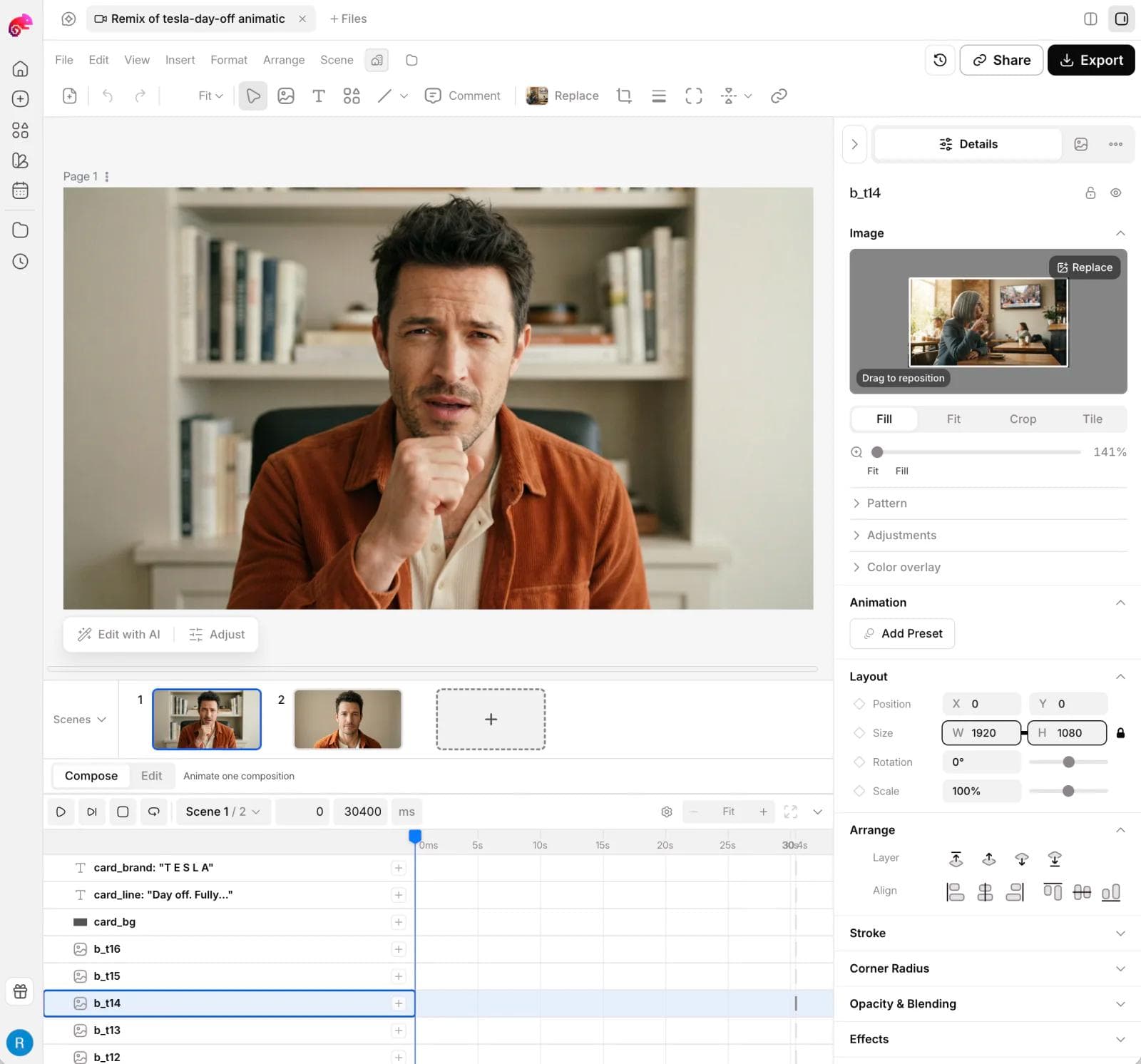
Moda combines AI media generation with an editable design canvas and animation tools. Its useful role here is composition: placing video or images alongside text, shapes, and other design elements, then controlling their layout and motion.
For example, a generated product shot can sit behind a separately editable headline and end card. Keeping that text as a design object lets you change the offer without asking a video model to reproduce exact typography.
Moda is not the recommendation here for replacing a dedicated professional video editor. Do not assume its scene timeline includes every captioning, raw-footage, grading, or audio-mixing operation your project needs. Choose it for the editable design work, not a promise of universally better generations.
Compare two tools with one real deliverable
Pick the task that brought you here. For example: a 15-second product announcement with two generated shots, an exact headline, music, and a vertical export. Then compare your current tool with one alternative, not all 15.
- Write down what must stay unchanged: product appearance, spoken words, logo, headline, or timing. Separate requirements that need exact editing from those where a generative interpretation is acceptable.
- Match the generation inputs. Record model version, references, duration, resolution, audio, and any prompt-enhancement setting. If a tool cannot accept the same inputs, note that difference rather than calling the outputs a fair quality test.
- Finish the video. Replace a shot, correct the headline, change the aspect ratio, and export. A promising preview does not establish that the final file meets the brief.
- Count the whole cost: subscription allowance, retries, upscaling, and the time spent moving work between applications. Credits are vendor-defined units, not a common currency.
If you only need better model access, choose between the multi-model or first-party options. If finishing is the painful part, an editor may solve more than another generator. If repeating the process is the hard part, try an agent or node-based workspace.
For broader work beyond image and video production, see our guides to Genspark alternatives and Manus alternatives. Those comparisons cover research, documents, and automation rather than treating every AI tool as a substitute for a creative workspace.

Real editable visuals. Real canvas. Full control.
Fly through design work