Canva vs Google Slides: Which Is Better for Presentations?
Compare Canva and Google Slides for presentation design, collaboration, AI, Workspace handoff, templates, and cross-format content production.
 Anvisha Pai, Co-founder & CEO, Moda
Canva and Google Slides overlap more than they used to. Both support real-time collaboration, editable presentation templates, AI-assisted creation, image tools, and PowerPoint export. The useful distinction is no longer “design versus collaboration.” It is where the presentation fits in the rest of your work.
Choose Canva when the deck is part of a broader visual campaign and you want a large template and media ecosystem in the same editor. Choose Google Slides when the deck is a shared working document connected to Drive, Sheets, Meet, and the rest of Google Workspace.
Last reviewed: September 1, 2026. This is a documentation-based comparison, not a hands-on benchmark. Product capabilities were checked against current Canva and Google documentation, plus an independent Google Slides review. AI features, usage limits, languages, and plan eligibility change frequently, so confirm access in your own account before choosing a paid plan.
Quick answer
Choose Canva for marketing presentations, event decks, proposals, and other work that will reuse the same visual system across social posts, documents, video, or web content.
Choose Google Slides for team updates, planning decks, sales presentations, and other files that will be reviewed, revised, and presented inside Google Workspace.
For AI-assisted presentation creation, test both. Canva can generate editable visual work and presentation starting points. Gemini in Slides can now generate an editable presentation, create or revise individual slides, and use Drive files as sources. The better result depends on your source material, visual expectations, account access, and how much editing you plan to do.
Canva vs Google Slides at a glance
| Canva | Google Slides | |
|---|---|---|
| Best fit | A presentation within a wider visual-content workflow | A presentation within a Workspace collaboration workflow |
| Design system | Large template, asset, media, and cross-format ecosystem | Themes, layouts, and reusable Slides templates |
| Collaboration | Live editing, comments, and link sharing | Live editing, comments, sharing, and Drive version history |
| Connected data | Charts and data tools within Canva | Linked charts, tables, and slides from Sheets and other Google files |
| AI | Design and media generation with editable output; some newer capabilities may be previews | Editable presentation and slide generation, rewriting, images, and Drive references on eligible plans |
| Handoff | Present in Canva or export; check complex PowerPoint output | Native handoff for teams already using Slides, Drive, and Meet |
| Main tradeoff | More visual options can mean more design decisions | A narrower visual-production environment than Canva |
Where Canva is the better fit
You are producing more than a slide deck
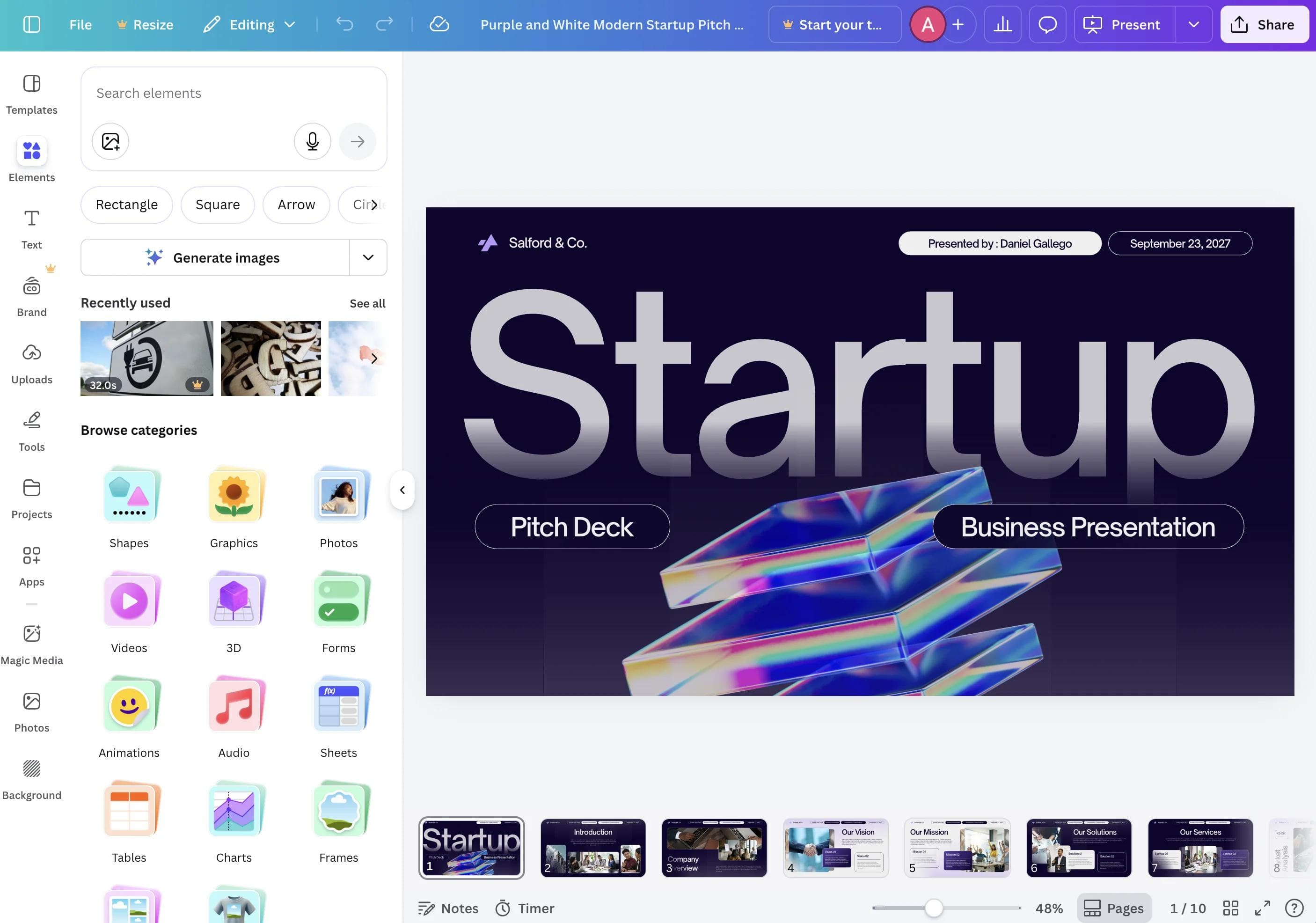
Canva is a visual-content platform, not only a presentation editor. A team can build a deck, social graphics, a one-page handout, short video, and other campaign assets in the same environment. That makes Canva useful when consistency across formats matters more than a presentation-specific workflow.
Its template, stock-media, illustration, animation, and layout tools also provide more ready-made visual directions. That does not automatically make every Canva deck better. It means a non-designer has more starting material and more ways to adapt it without leaving the editor.
You want a broader visual editor
Canva gives you more tools for composing pages with photography, illustration, video, audio, animation, and graphic elements. It is usually the more natural option for a launch deck, event presentation, portfolio, or branded proposal where the slides are expected to carry a strong visual identity.
The tradeoff is choice. A large asset and template library can speed up production, but it can also produce inconsistent slides if a team mixes styles without a clear system. Paid team plans add more brand and governance features, but you should compare those features with the controls your organization actually needs.
You want to reuse the same design in several formats
A presentation often becomes a PDF, social carousel, event screen, or set of campaign graphics. Canva is designed around that kind of reuse. If the deck is only one output in a larger content package, this can matter more than the difference between the slide editors themselves.
Where Google Slides is the better fit
The deck is a shared working document
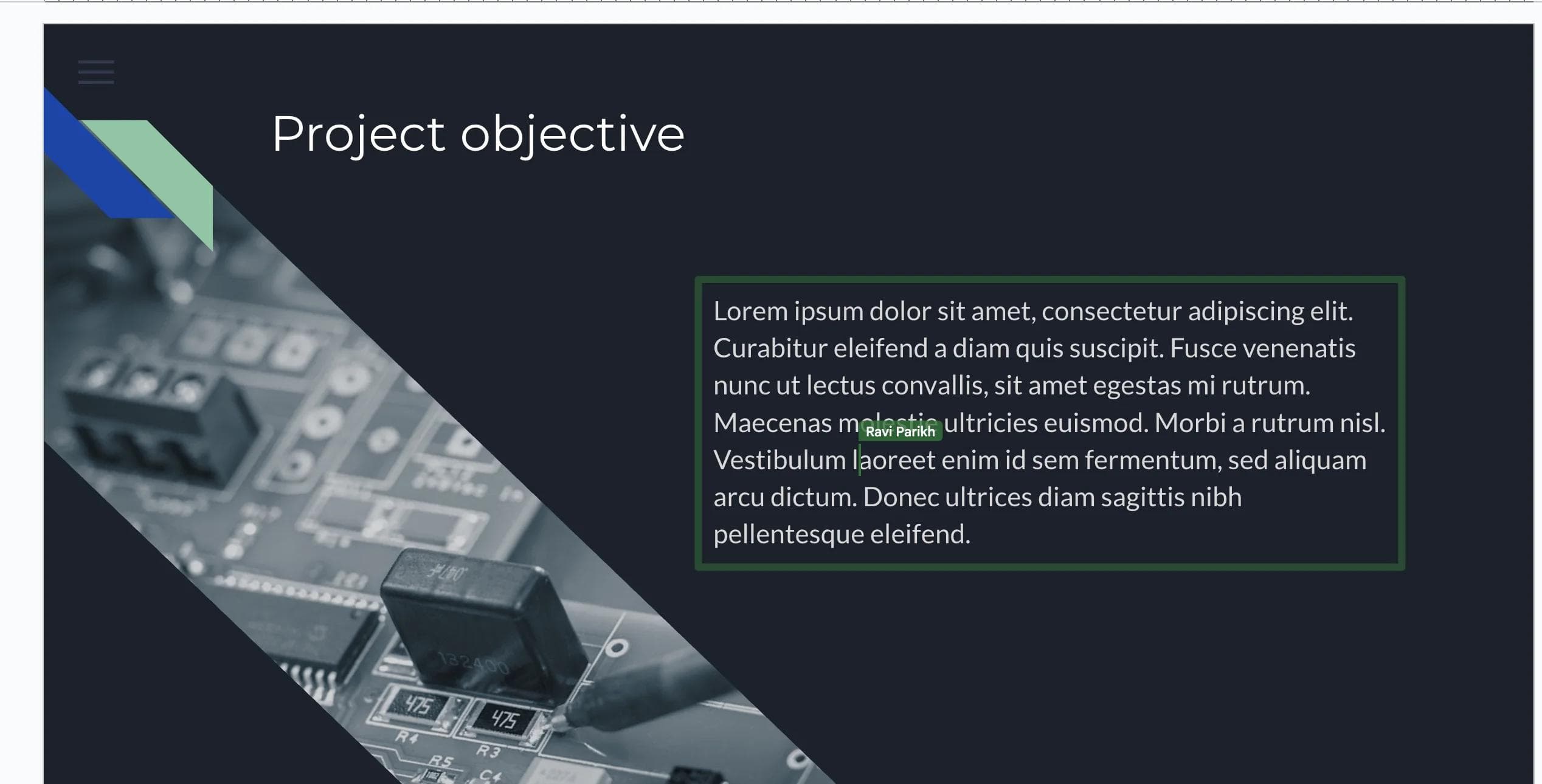
Google Slides is strongest when the presentation changes through many rounds of input. Sharing permissions, comments, simultaneous editing, and version history sit in the same workflow people already use for Docs and Sheets. Canva also supports live editing and comments, so collaboration is not exclusive to Google. Slides wins when the surrounding team process already runs through Workspace.
Your source material already lives in Google Workspace
Slides can link charts, tables, and slides from Sheets and other presentations. When the source data changes, an editor can update the linked object instead of rebuilding it. Google also notes an important permissions detail: people who can view the destination deck can see its linked objects even when they cannot open the source file. Treat the presentation as a published view of that data, not as a permission boundary around the underlying chart.
Linked objects still require an explicit refresh and a final review before presenting. Test what happens when the source owner changes sharing settings, a chart range changes, or a collaborator duplicates the deck.
The final handoff is a Google Slides file
If clients, coworkers, or executives will comment in Slides, building there avoids a conversion step. Exporting from Canva to PowerPoint and then importing into Slides can work, but custom fonts, effects, animation, video, speaker notes, charts, and layout may change between formats. An independent hands-on Google Slides review likewise observed formatting inconsistencies after importing files from other presentation apps. For an important delivery, test a representative deck before committing to that path.
Permissions, offline work, and the source of truth
Google Slides uses Drive’s viewer, commenter, and editor access levels. That makes the native Slides file a practical source of truth when review and ownership already live in Workspace. A Canva design can also be shared and collaboratively edited, but a converted Slides copy becomes a separate editable artifact. Changes do not round-trip automatically between the two products.
Slides can work offline, but offline access must be configured in advance on desktop using Chrome or Edge and the Google Docs Offline extension. Administrators can disable it, and only one account per browser profile can have offline access enabled. If travel or venue connectivity matters, make the specific deck available offline and open it before leaving a reliable connection.
The AI comparison is no longer simple
The old summary that Canva has visual AI while Google Slides only helps with text is out of date. Both products now generate and edit presentation content, but they approach the job from different ecosystems.
Canva AI
Canva’s Magic Design suggests editable presentation templates from a prompt, images, or supplied content, while other Canva AI tools handle writing and generated media. Canva says Free and Education accounts receive some AI access with monthly limits, while full Canva AI 2.0 access requires a paid plan. Pro assets included by a generated design may also require replacement or payment on a free account.
Do not buy a plan from an AI demo alone. Check the exact tool, monthly usage allowance, brand controls, and asset licensing available to your account, region, and organization.
Gemini in Google Slides
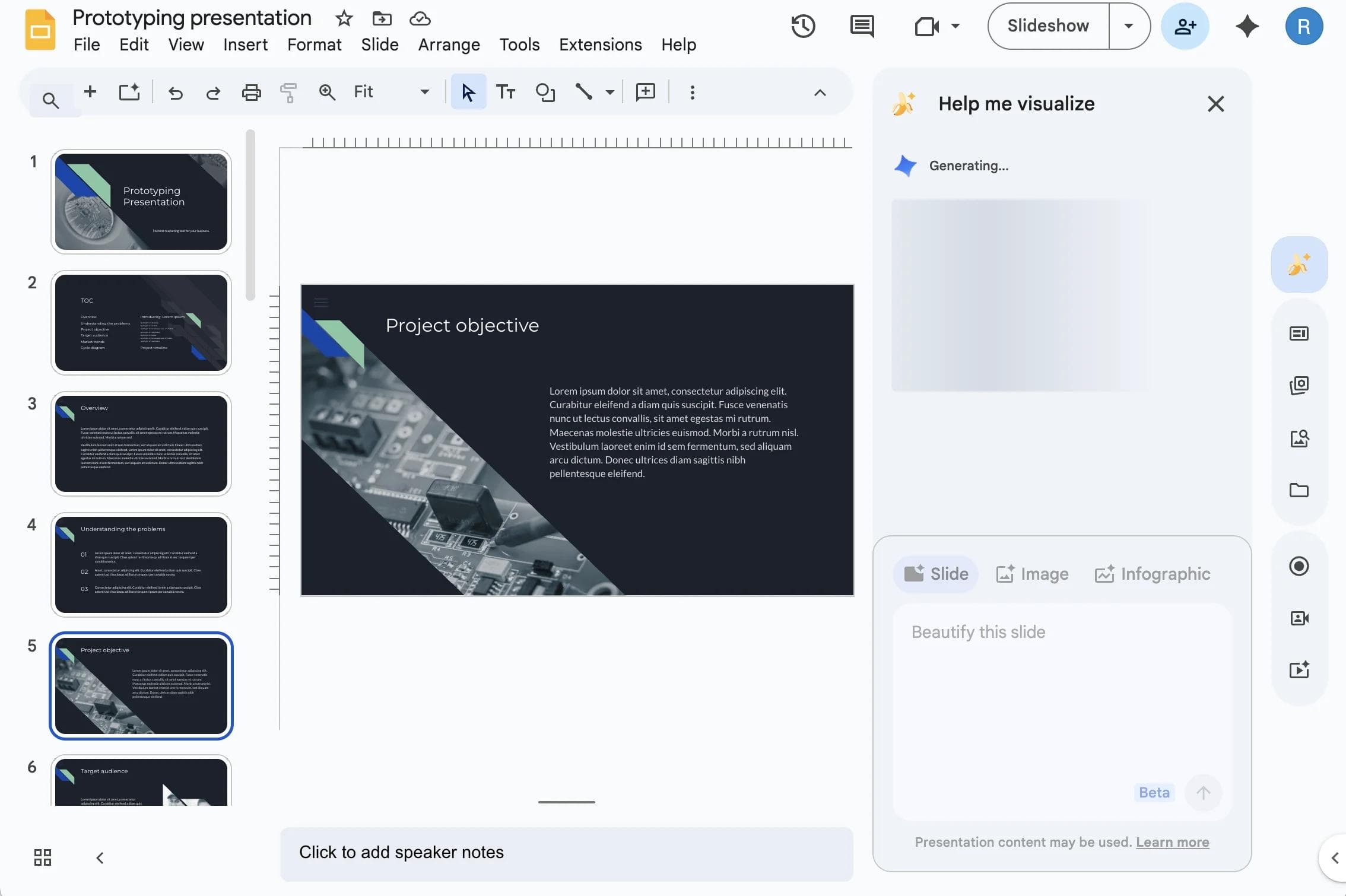
On an eligible Google Workspace or Google AI plan, Gemini can generate a fully editable presentation, build or revise individual slides, create and edit images, and reference Drive files. Google’s documented full-presentation workflow is currently desktop-only and English-only. Personal accounts may encounter it through Google Workspace Experiments rather than as general free-plan access.
Gemini can make mistakes, and access can vary by administrator settings and rollout. Confirm that the feature appears for the people who will actually author the deck, not only for one account used during evaluation.

How to compare the AI output
Do not choose from a demo prompt alone. Give both tools the same short brief and the same source material, then compare:
- Whether the outline reflects your actual argument rather than generic topic coverage
- Whether facts from source documents remain accurate and traceable
- How much of the output is genuinely editable
- Whether the visual system remains consistent across ten or more slides
- How quickly a reviewer can make a precise change
- Whether the final file survives the handoff format your audience requires
AI can accelerate the first draft in either product. It does not remove the need to verify claims, simplify crowded slides, and rehearse the story.
Which should you use?
Use Canva when
- The presentation belongs to a wider set of visual assets
- Template variety, stock media, and visual experimentation are central to the job
- A marketing or creative team will own the final design
- You expect to adapt the work into several formats
Use Google Slides when
- The deck will be revised by many people inside Google Workspace
- Charts or tables need to stay connected to Google Sheets
- The final reviewer or presenter expects a native Slides file
- The presentation is an ongoing team document rather than a finished campaign asset
Use both when the handoff is deliberate
Some teams design a polished visual system in Canva and move the result into Slides for review or delivery. That can be reasonable, but it is not a lossless workflow. Decide which tool owns the final editable file, test the conversion early, and avoid last-minute format changes.
Run this representative handoff test
Before standardizing on a Canva-to-Slides workflow, build a short deck that contains the elements your real work depends on. Export it from Canva as PPTX, import it into Google Slides, and inspect both editing and presentation mode. This article did not run that test, so treat it as a pre-purchase checklist rather than a reported result.
- Fonts: use a brand font, mixed weights, tight text boxes, and one text-heavy slide. Check substitutions, line breaks, clipping, and text editability.
- Charts and data: include a chart plus a small table. Check labels and colors, then decide whether recurring data should be rebuilt as a native linked Sheets chart.
- Speaker notes: add notes to several slides and confirm they reach the file the presenter will use. Do not assume notes survive every conversion path.
- Media: include a cropped image, transparent graphic, audio or video clip, and hyperlink. Verify playback, cropping, and access permissions from a second account.
- Animation: use one object animation and one slide transition. Check timing and sequence in Slides presentation mode, not only in the editor.
- Ownership: have a reviewer comment, an editor revise a chart, and a presenter open the deck offline. Confirm which file is authoritative before anyone makes parallel edits.
Bottom line
Canva is usually the better environment for broad visual production. Google Slides is usually the better environment for a presentation that lives inside Google Workspace. Both now offer serious collaboration and AI features, so those capabilities alone no longer settle the decision.
Start with the final handoff: where will people edit, review, present, and reuse the work? The answer to that question is more useful than comparing template counts or isolated AI demos.
FAQ
Is Canva or Google Slides better for presentations?
Canva is usually a better fit for visually rich work that will be reused across formats. Google Slides is usually a better fit for collaborative decks that live in Google Workspace. Both can handle many ordinary presentations.
Can Canva and Google Slides both collaborate in real time?
Yes. Both support live editing, comments, and link sharing. Google Slides has the advantage when the rest of the workflow already uses Drive, Docs, Sheets, and Meet.
Can Gemini create a complete Google Slides presentation?
Yes, on eligible plans and supported accounts. Google documents a workflow for generating a fully editable presentation, as well as tools for creating and revising individual slides. Availability and language support should be checked in your account.
Can I move a Canva presentation into Google Slides?
You can export a Canva presentation and import it into Google Slides, but the conversion may change fonts, effects, animation, media, or layout. Test a representative deck and inspect every slide before delivery.

Real editable visuals. Real canvas. Full control.
Fly through design work