How to Edit an AI-Generated Image Without Starting Over
Edit an AI-generated image without starting over. Choose generative editing, raster tools, or layout reconstruction based on the part that needs to change.
 Anvisha Pai, Co-founder & CEO, Moda
The best way to edit an AI-generated image depends on what is wrong. Use a generative edit when part of the scene needs to change, a normal image editor for crop, color, masking, and retouching, and a layout tool when the problem is text, a logo, spacing, or another design element that should remain editable.
These methods can overlap, but they solve different problems. Choosing the method before opening a tool prevents a small correction from turning into repeated full-image generations.
Decide what kind of edit you need
| What needs to change | Best starting approach | What to watch |
| Remove or replace an object | Select the area and make a generative edit | Nearby details can change or be invented |
| Extend the image beyond its border | Generative expand or outpainting | Perspective, anatomy, and repeated patterns need inspection |
| Crop, resize, brighten, recolor, sharpen, or mask | Ordinary raster editor | Repeated exports can reduce quality |
| Fix a headline, price, logo, or button | Rebuild that element in a layout tool | The old pixels still need removal or covering |
| Make a reusable ad, slide, or flyer | Rebuild the composition with live text and objects | Automatic layer recovery is approximate |
| Correct factual or branded detail | Use a verified source asset and manual control | A prompt is not a reliable source of truth |
Use a generative edit for scene-level changes
Generative editing is useful when the pixels themselves need to change: remove a person from the background, replace a chair, add more sky, change a material, or repair an awkward region.
In ChatGPT Images, OpenAI's image editor supports selecting an area and describing the change. OpenAI notes that a selection is not always exact and edits can extend beyond the highlighted region. Photoshop's Generative Fill also starts with a selection and prompt, and returns variations on a generative layer.
For a controlled edit:
- Duplicate the original first.
- Select only the region that needs work, with enough context around the edge for a clean blend.
- Describe the change and the details that should remain unchanged.
- Compare the result with the original outside the selected area.
- Check faces, hands, logos, product geometry, shadows, reflections, and repeated patterns at full size.
Even a good-looking result is generated content, not a restoration of what was behind the object. Do not use it where the removed or invented detail would change the truth of a record.
Use ordinary image editing for ordinary image problems
AI is unnecessary for many corrections. Crop and straighten tools fix framing. Curves and levels adjust tone. Hue and saturation adjust color. Masks limit an adjustment to one region. Clone and healing tools repair small areas using pixels you control.
A dedicated image editor is often the better choice when you need repeatability or precise boundaries. Adjustment layers and masks also make revisions easier because the change remains separate from the base image.
Use one master working file and export delivery copies from it. Avoid opening and resaving a JPEG after every change. JPEG compression is lossy, and repeated saves can accumulate artifacts. PNG avoids that kind of loss but is not automatically the right format for photographs. Keep the highest-quality original available.
Our guide to Photoshop alternatives by editing task separates desktop retouching, browser PSD editing, RAW development, painting, and graphic layout.
Rebuild text and layout instead of asking the image model to typeset
If the image is an ad, slide, poster, or social graphic, the pixels may look good while the wording is wrong. Treat text and logos as layout elements, not scene details.
First remove or cover the old lettering. Then add the correct copy as a live text box in Canva, Figma, PowerPoint, Photoshop, Moda, or another layout-capable editor. This preserves exact spelling and makes later changes straightforward. Use the approved logo file rather than asking a model to redraw it.
When the background behind the text is complex, reconstruct that region with retouching or a selected generative fill before adding live type. The companion guide explains how to change text in a flat image, including font matching and the limits of OCR.
Do not expect an automatic decomposition tool to recover the original source file. It may create useful editable text, shapes, and background regions, but those are inferred from the flattened pixels. Proofread and inspect every result.
When a full regeneration is actually better
Targeted edits are not always the efficient path. Regenerate when the central composition is wrong, the subject's anatomy is broken across a large area, the lighting is inconsistent throughout, or several dependent elements need to change together.
Keep the original prompt and references, then describe the desired composition more clearly. If the tool supports image references, use the strongest existing version as guidance. Expect variation. A seed, reference, or preserved prompt can improve continuity, but it does not guarantee an identical image with one detail changed.
For important work, compare several candidates at the actual delivery size rather than judging only a reduced preview.
A practical workflow for an AI-generated marketing graphic
Suppose an image model gives you a strong product scene, but the headline is misspelled, the product color is slightly wrong, and the logo is distorted.
- Protect the strongest pixels. Save the original and duplicate it for editing.
- Fix the photographic region. Select the product area and use a color adjustment or careful generative edit. Check the label, edges, shadow, and reflections.
- Remove generated lettering. Reconstruct only the background behind the headline and distorted logo.
- Add approved assets. Place the real logo file and create the headline as live text.
- Build the final layout. Adjust spacing, hierarchy, contrast, and safe margins in a layout tool.
- Export and inspect. Check the output at the social, web, presentation, or print dimensions where it will appear.
This hybrid approach accepts what the image generator did well and uses deterministic tools for the parts that must be exact.
Where Moda fits
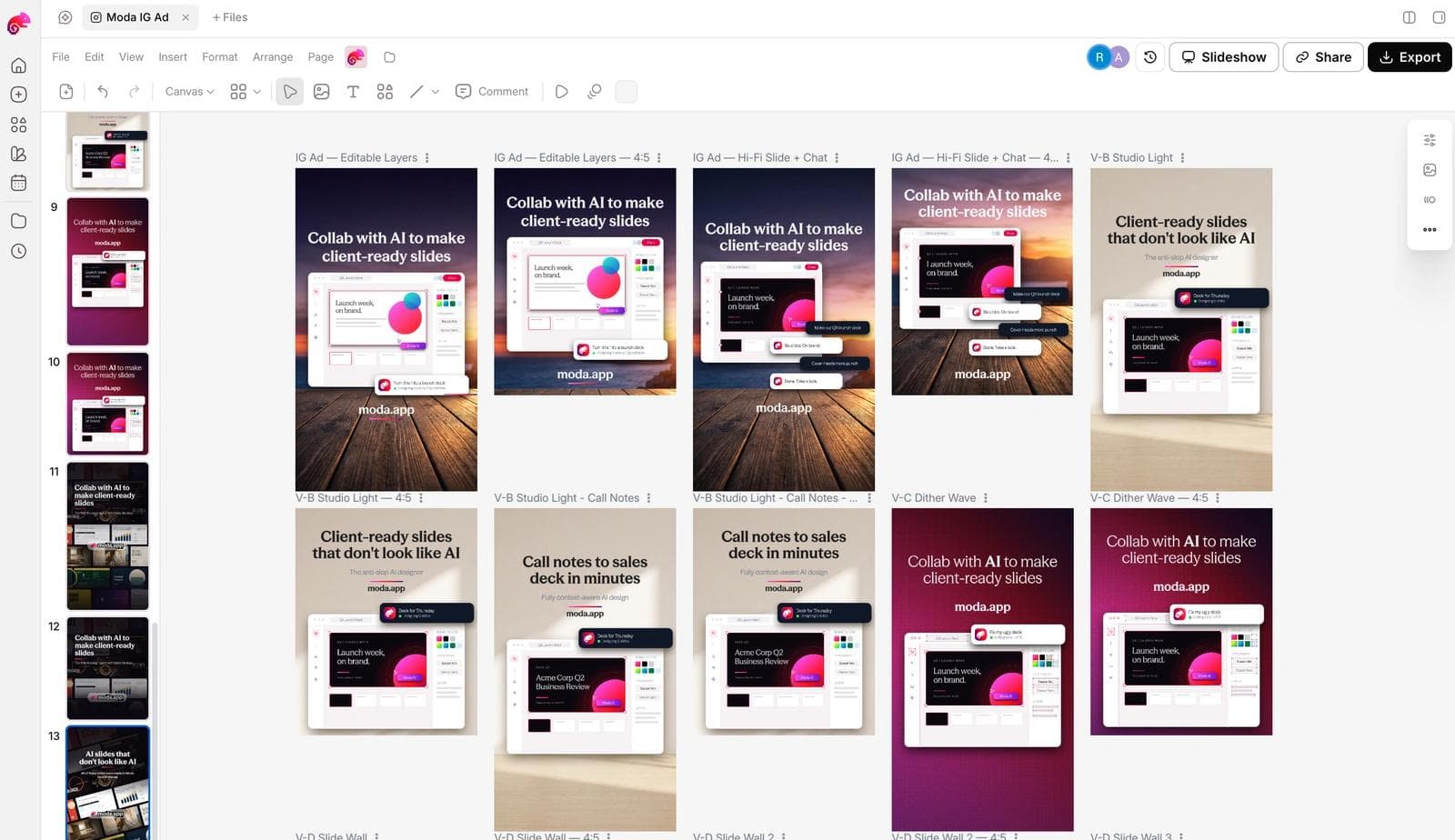
Moda is relevant when the output needs to become a continuing design: an ad, slide, one-pager, or social graphic with editable copy and canvas elements. It can help rebuild or arrange a composition after the photographic part is ready.
It is not a substitute for every specialist editor. Use Photoshop, Affinity, GIMP, or another raster editor for detailed retouching. Use Lightroom or darktable for a photo collection and RAW development. Use the image generator's own editor when a prompt-directed scene change is the shortest route.
The useful boundary is simple: use image tools to change the image, and use a design canvas to control the message and layout around it.
Accuracy, permission, and disclosure
Edit images you own or have permission to use. Do not copy another company's creative and merely replace its identity. A visual reference can inform your own hierarchy or composition, but the result should be an original design, not a disguised duplicate.
Do not make deceptive changes to evidence, journalism, identification, receipts, medical images, product claims, or screenshots of real people. If an edited image is presented as documentary or factual, disclose material generative changes. Preserve the unedited original and, where supported, provenance information such as Adobe Content Credentials.
For product images, check that the edited result still represents what a customer receives. For people, obtain appropriate consent and avoid creating harmful or misleading depictions.
Choose control over novelty
Editing an AI-generated image is not one technique. Generative tools are strong at changing scene content. Raster editors are strong at measured pixel changes. Layout tools are strong at exact type, logos, spacing, and reusable compositions.
Start by naming the error. Then choose the tool that exposes that part of the work directly. The goal is not to use more AI. It is to make the smallest reliable change while preserving everything that already works.

Real editable visuals. Real canvas. Full control.
Fly through design work