How to Add Audio to Google Slides
Add audio to Google Slides step by step, with the supported formats, the Drive permission trap that silences audio for viewers, playback settings, and what survives export.
 Anvisha Pai, Co-founder & CEO, Moda
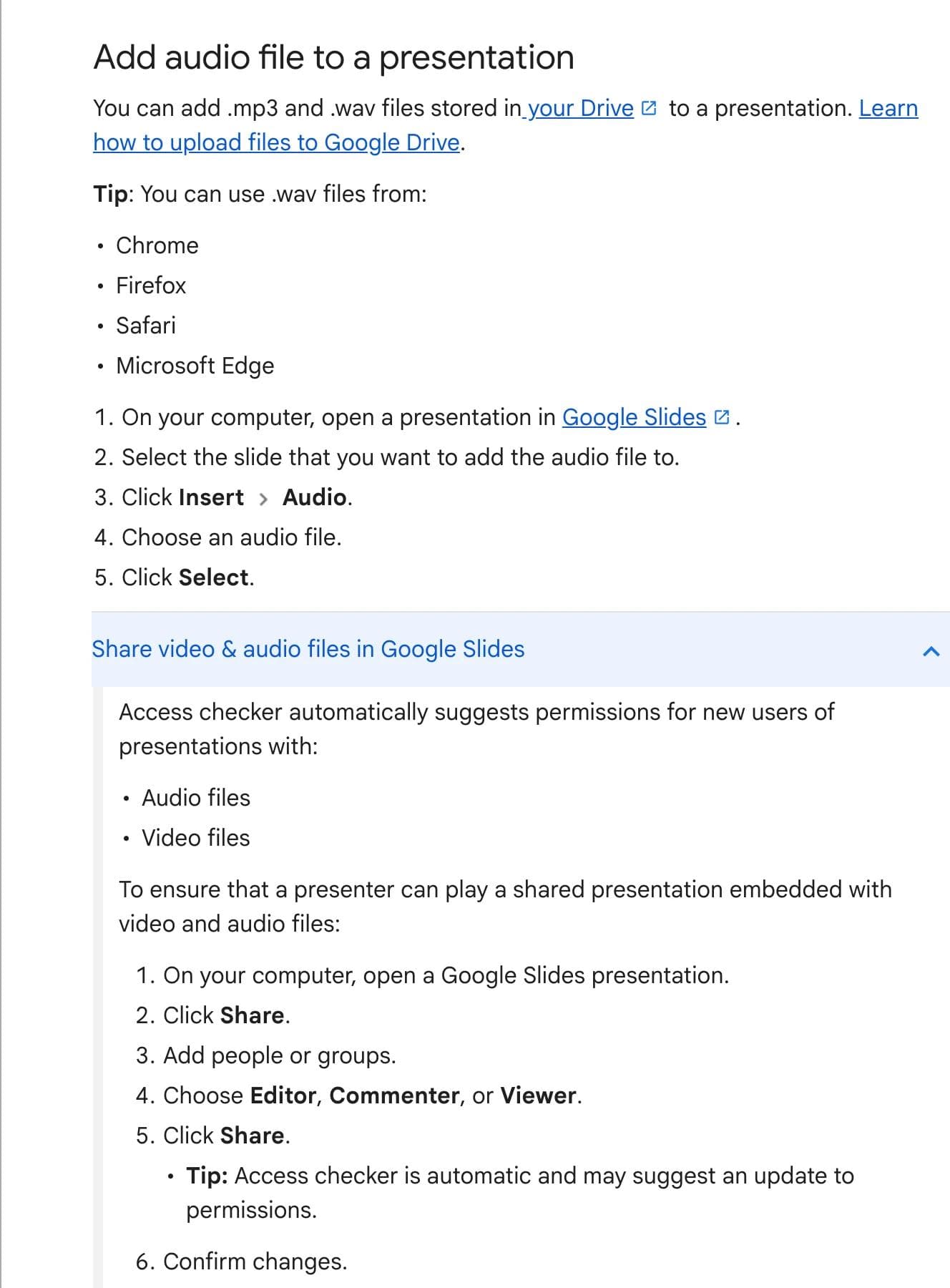
To add audio to Google Slides, upload an .mp3 or .wav file to Google Drive, open your presentation, select the slide, then click Insert and Audio and choose the file. There is no way to insert audio straight from your computer. The file has to live in Drive first, and it has to be one of those two formats.
That is the short answer, and it is where most of the trouble starts rather than ends. The audio you insert is not copied into the slide. It stays in Drive, and the slide points at it. Almost every problem people hit with Slides audio follows from that one design decision: the silent playback for viewers, the file that refuses to show up in the picker, the deck that arrives at a conference with no sound. This guide walks the whole thing through, including the parts Google's documentation does not spell out.
Before you start
You need three things:
- A desktop browser. Inserting audio is a computer-only action. The Slides mobile apps can play a deck that already has audio in it, but they cannot add one.
- An audio file in `.mp3` or `.wav` format. Nothing else works.
- The file already uploaded to Google Drive, in an account you can reach from the presentation.
Trim and edit the audio before you upload it. Google Slides has no trimming, fading, or splitting controls. Whatever you insert plays from the first sample to the last, at whatever level it was recorded, so get the file right first in Audacity, GarageBand, or whatever you already use.
Step 1: Put the audio file in Google Drive
Go to drive.google.com, click New, then File upload, and pick your .mp3 or .wav.
Two things are worth doing here rather than later:
- Put it somewhere you will find it again. A folder next to the presentation is fine. If the audio is buried in a folder you later clean out, the slide goes quiet and the deck gives you no warning.
- Upload it to the same account that owns the presentation where you can. Cross-account audio works, but only if the sharing is right, and it is the most common source of the silent-for-everyone-else problem covered below.
Step 2: Insert the audio onto a slide
- Open the presentation in Google Slides on a computer.
- Click the slide you want the audio on.
- Click Insert, then Audio.
- Find the file in the Drive picker and select it.
A small speaker icon appears on the slide. You can drag it anywhere, resize it, and it behaves like any other object on the canvas.
The audio is attached to that slide, not to the deck. If you want the same track running under several slides, that is a playback setting rather than a second insert, and it is covered further down.
Which audio formats Google Slides accepts
Only .mp3 and .wav. Google's documentation states this directly and it has not changed.
This trips people up because Google Drive is much more permissive than Google Slides is. Drive previews and plays MP3, MPEG, WAV, `.ogg` and `.opus`, so an .m4a voice memo or an .ogg sound effect can sit happily in your Drive, play perfectly when you click it, and still be completely invisible in the Slides Insert picker.
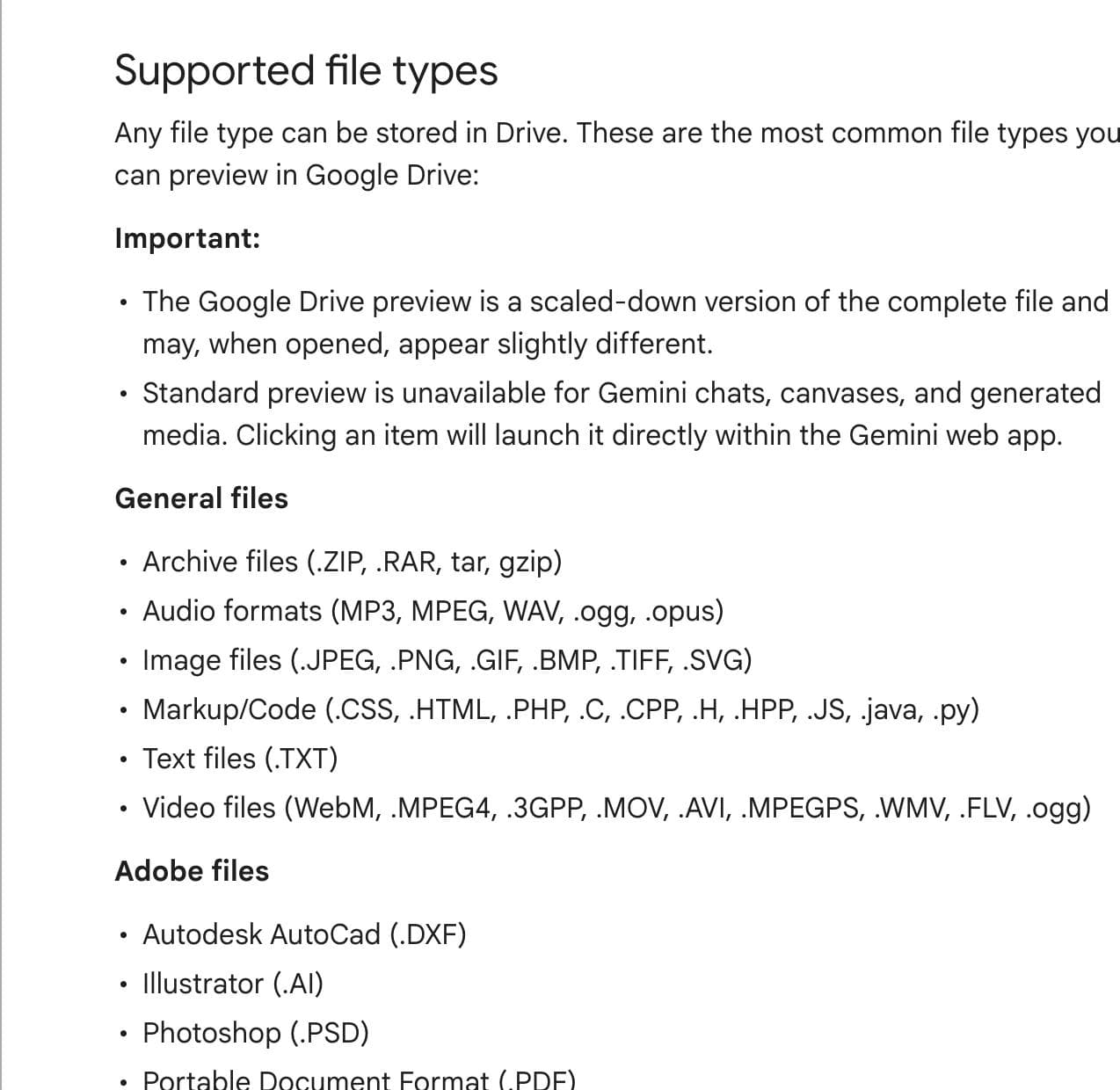
If a file you can hear in Drive will not appear in Slides, the format is almost always the reason. .m4a is the usual culprit, because it is what an iPhone Voice Memo and most screen recorders produce by default. Convert it to .mp3 and re-upload. Renaming the extension does not work; the file has to be genuinely re-encoded.
Google also notes that .wav playback is supported in Chrome, Firefox, Safari, and Microsoft Edge. In practice .mp3 is the safer choice for anything you are sharing widely, and the files are a fraction of the size.
Set how the audio plays
Click the speaker icon, then click Format options in the toolbar. You can also right-click the icon and choose Format options. The sidebar that opens gives you the audio playback controls:
| Control | What it does | When to use it |
|---|---|---|
| Start playing: On click | The audio waits for you to click the speaker icon during the presentation | Sound effects, a clip you want to introduce first |
| Start playing: Automatically | The audio starts when you land on the slide in present mode | Narration, background music |
| Volume when presenting | Sets the playback level for the presentation | Pulling a music bed under your own voice |
| Loop audio | Restarts the track when it ends | A short music loop under a long slide |
| Stop on slide change | Cuts the audio when you advance | Leave this on for per-slide narration, turn it off to carry audio forward |
| Hide icon when presenting | Removes the speaker graphic from the presented slide | Anything where the icon would be a distraction |
Two notes on these:
Autoplay only applies in present mode. In the editing view you always have to click the speaker to hear anything, regardless of the setting. This causes a lot of false alarms. Before you conclude the autoplay is broken, start the slideshow and check there.
Hide icon when presenting only works with autoplay. If you are hiding the icon, nothing is left to click, so the audio has to start on its own. Slides will not stop you from setting up a hidden click-to-play speaker, and the result is a slide that simply never makes a sound.
How to make audio play across multiple slides
This is the part people usually give up on, and it is a single checkbox.
- Insert the audio on the first slide you want it to cover.
- Open Format options on the speaker icon.
- Set start playing to Automatically.
- Uncheck Stop on slide change.
- Turn on Loop audio if the track is shorter than the section it needs to cover.
The audio now carries on as you advance. It stops when the track ends, when you jump back to the slide that holds it, or when you exit the slideshow.
Two limits are worth knowing before you build a deck around this:
- You cannot stop it on a chosen slide. There is no end point. Once it is playing across slides it runs until it finishes or the presentation ends. If you need the music to stop at slide 12, the practical workaround is an audio file that is exactly as long as slides 1 to 11.
- Jumping backwards restarts it. If you return to the slide that carries the audio, it plays again from the beginning. In a live Q&A where you flip back to an earlier slide, that is an unwelcome surprise.
The permission trap: why your audio is silent for everyone else
This is the failure that ruins presentations, and it is worth understanding rather than just following a fix.
The slide does not contain the audio. It contains a pointer to a Drive file. When somebody else opens your deck, their browser has to fetch that Drive file under their own account. If they do not have access to it, nothing tells them so. The speaker icon is there, the slide looks correct, and there is no sound and no error.
Google now runs an access checker that catches most of this. Its own documentation says the checker "automatically suggests permissions for new users of presentations with audio files and video files," which is exactly the moment it matters: you click Share, add someone, and Slides offers to grant them access to the linked media as well. Accept that prompt.
Where it still goes wrong:
- Sharing by link instead of by person. If you turn on link sharing for the presentation, the audio file's own permissions do not follow. Open the audio file in Drive and share it the same way.
- The audio lives in someone else's Drive. A colleague sent you an MP3, you inserted it from a shared folder, and now your access depends on theirs. If they move, rename, or unshare it, your deck goes silent.
- Personal account audio in a work deck, or the reverse. Organisation sharing policies frequently block cross-domain access to the file while leaving the presentation itself perfectly readable.
- Presenting from a machine signed in to a different account. The conference laptop is the classic case.
The check that actually works: open the presentation in an incognito window, or ask a colleague who is not you to run the slideshow and tell you whether they hear it. Testing on your own machine proves nothing, because you own the file.
What happens when you export or share the deck
Because the audio is a Drive reference rather than embedded data, the deck is not self-contained. That has consequences at every exit.
PDF. A PDF has no sound. File then Download then PDF Document gives you the slides and nothing else. If the speaker icon is visible on the slide it will be printed as a small graphic, which is worth hiding before you export.
PowerPoint (`.pptx`). Do not assume the audio arrives with it. The sound is not stored inside the Google Slides file, so a download cannot simply carry it across, and PowerPoint cannot resolve a Google Drive media reference. Treat the audio as something you will need to re-add in PowerPoint, using Insert then Audio (Audio on My PC on Windows, Audio from File on Mac), which does embed the file properly. Whatever route you take, open the downloaded file in PowerPoint and play it before the meeting rather than trusting the conversion. The same principle applies to fonts, animations, and charts, which is covered in more depth in our guide to converting between PowerPoint and Google Slides.
Offline. Google Slides can be made available offline, but the audio is fetched from Drive at playback time. A deck presented on a plane will not make a sound. If you are presenting somewhere without reliable connectivity, this is the single biggest reason not to depend on Slides audio at all.
Published to the web or embedded. Audio settings carry across, but browser autoplay rules do not care about them. Chrome only allows autoplay with sound after the visitor has interacted with the page or has a strong history with the site, and a cross-origin embed needs `allow="autoplay"` on the iframe or the play request is rejected outright. Presenting from the Slides interface is fine, because clicking into the slideshow is itself the interaction. An auto-advancing deck embedded silently in a page is a different situation, and often stays silent.
Copying the deck. If someone makes a copy of your presentation, the copy still points at your original Drive file. Their copy depends on your file staying shared forever.
Google Slides audio on phones and tablets
Playback works. Insertion does not.
The Google Slides help pages for Android and for iPhone and iPad list images only under insertable items; audio appears only under the computer instructions. Google said the same when the feature launched: adding an audio file is desktop only, though audio plays on all platforms.
So you can build a narrated deck on a laptop and present it from a phone, but you cannot fix a missing track on the way to the meeting. The mobile apps also give you no access to the format options, so playback behaves according to whatever was set on desktop.
How to remove or replace audio
To remove it, click the speaker icon on the slide and press Delete or Backspace. That removes the reference only. The audio file itself stays in Drive, which is usually what you want, and is worth remembering when you are trying to clean up storage.
To replace it, delete the speaker icon and insert the new file. There is no swap-in-place option, so you will need to reapply the format options afterwards. If you are refining a narration through several takes, it is much less work to keep the same filename in Drive and upload new versions through Drive's Manage versions menu. The slide keeps pointing at the same file and picks up the new recording.
Troubleshooting checklist
Work through these in order.
- The file does not appear in the Insert picker. It is not
.mp3or.wav, or it is in a Drive account the presentation cannot reach. Re-encode and re-upload. - No sound in the editor. Expected behaviour. Autoplay only runs in present mode. Click the speaker icon, or start the slideshow.
- No sound in present mode, on your own machine. Check the format options: a hidden icon with click-to-play produces exactly this. Then check your system output device and the volume-when-presenting slider.
- Sound for you, silence for everyone else. Permissions. Share the audio file in Drive itself, not just the presentation, and verify in an incognito window.
- Audio stops when you advance. Uncheck Stop on slide change.
- Audio restarts when you go back. There is no fix inside Slides. Design around it, or move the deck to a format that has a real timeline.
- It worked last month and does not now. Someone moved, renamed, or unshared the file in Drive, or the account that owned it was deprovisioned.
When Google Slides is the wrong tool for the job
Slides audio is well suited to one thing: a short clip attached to a specific slide, presented live, by you, from a connected machine. Push past that and it starts to fight you. Here is what to use instead, by job.
You want to narrate a whole deck for people to watch on their own
Slides has a built-in recorder that is a better fit than a pile of per-slide audio files. Click Rec at the top right, then Record new video, and it captures your voice, your camera, and your slide advances as a single video saved to a Drive folder called Slides recordings. That gets you one artifact instead of forty linked audio files with forty chances to break.
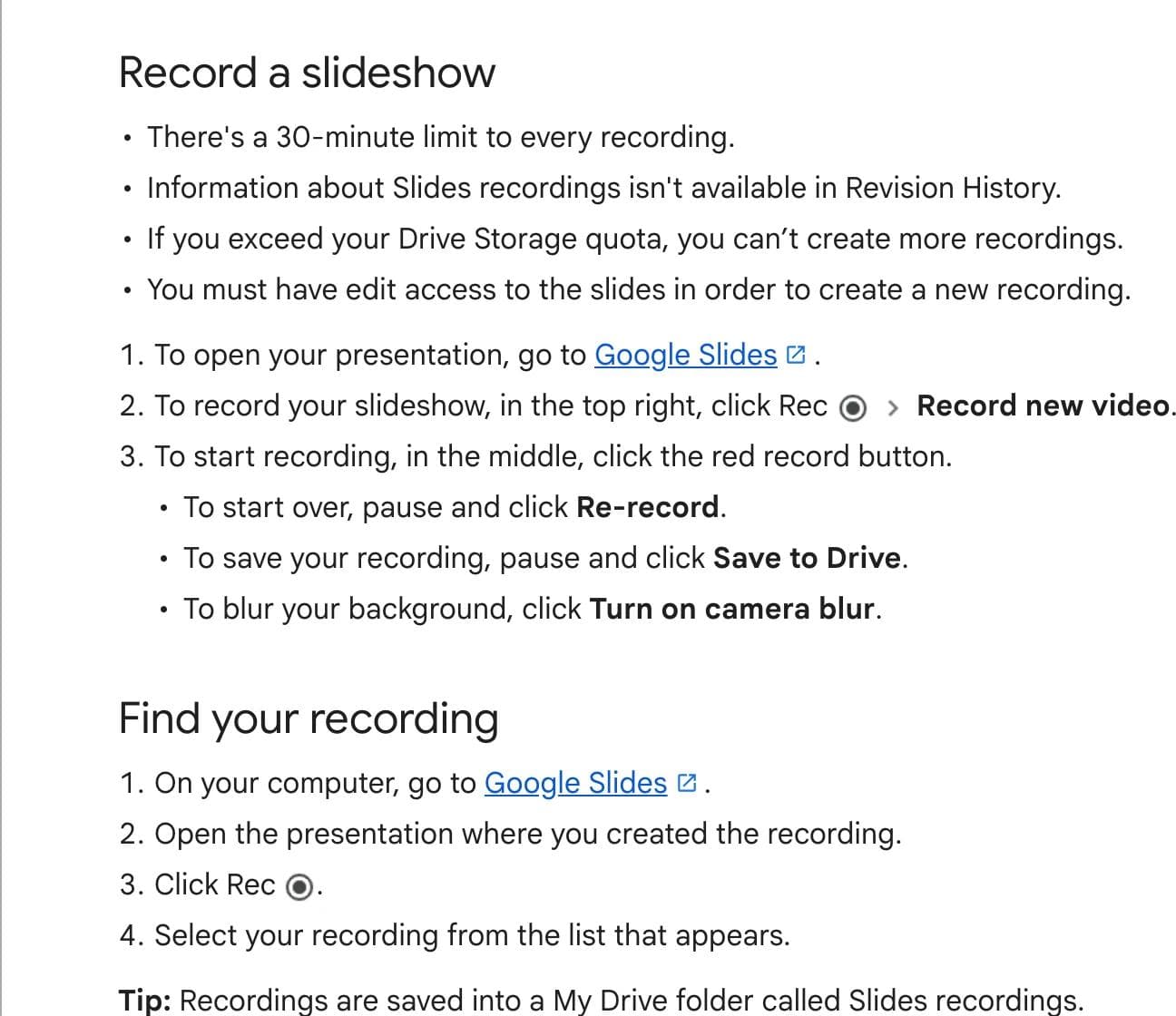
The constraints are real and Google states them plainly: recordings are 30 minutes maximum, they only work in Chrome and Edge, they consume your Drive storage, and the feature "may only be available on certain work or school accounts." Check whether you have the Rec button before you plan around it.
If you do not, Loom, Descript, or OBS will record the same thing from any browser, and Descript in particular lets you edit the narration by editing its transcript, which is a much faster way to fix a fluffed line than re-recording the run.
You want background music under an unattended deck
This is the one case where Slides genuinely holds up. Set the audio to play automatically, uncheck stop on slide change, turn on looping, and combine it with auto-advance under Slideshow options. For a kiosk or lobby screen playing from a signed-in, connected machine, that works. Just confirm the machine stays signed in to an account that can read the audio file, because that is what fails at 6am on a Monday.
You want to end up with a video file
Google's own route is File then Convert to Video, which hands the deck to Google Vids. Each slide becomes a scene, and with an eligible Workspace or Google AI plan, Gemini can generate a script from your speaker notes, produce an AI voiceover, and add a background music bed. Google publishes the limits: videos are capped at 10 minutes, 45 slides per video when you use the AI features and 100 when you do not, 50 audio objects per video, and word art and video files do not come across. It requires a paid plan, and the output is a Vids project rather than a file you can hand to an editor, but for a narrated internal update it is the shortest path available inside Google Workspace.
Outside Google, exporting to PowerPoint and using its Export then Create a Video command is the traditional answer, and it does embed the audio properly, though you will be re-adding the audio in PowerPoint first.
You want fine control over timing
Slides has no audio timeline. You cannot trim a clip, fade it, duck music under a voice, or line a sound up with an animation. If any of that is part of the job, the deck is not the right container and no amount of format options will change that. Move to a video editor, or to a tool with a real timeline, and treat the slides as artwork.
If Slides is fighting you often enough that you are asking this question, it may be worth a broader look at Google Slides alternatives rather than another workaround.
Where Moda fits, and where it does not
Straight answer: Moda does not add audio to a slide deck, and if that is your job, Google Slides is the tool. Moda builds decks on a real canvas from a prompt and exports them to PowerPoint, Google Slides, and PDF, but a deck page has no audio slot. Audio in Moda lives on its animation canvases instead: it generates voiceover, music, and sound effects as files, and sound from video placed on an animation canvas is mixed into MP4 exports server-side. GIF and WebP exports carry no audio, and neither do PPTX or PDF. So the honest boundary is this. If you want a narrated video, that route exists. If you want a Google Slides deck that makes a sound on slide four, everything you need is in the steps above.
Frequently asked questions
What audio formats does Google Slides support?
Only .mp3 and .wav, and the file must already be stored in Google Drive. Google Drive itself previews more formats, including MPEG, .ogg, and .opus, so a file can play in Drive and still be unavailable in the Slides Insert picker. Convert anything else, .m4a especially, to .mp3 first.
Can I add audio to Google Slides from my computer?
Not directly. There is no upload-from-device option in the Insert Audio dialog. Upload the file to Google Drive first, then insert it from there.
How do I make audio play across all slides in Google Slides?
Insert the audio on the first slide it should cover, open Format options, set start playing to Automatically, and uncheck Stop on slide change. Turn on Loop audio if the track is shorter than the run of slides. There is no way to stop it on a chosen slide, so match the length of the audio to the section it covers.
Why can other people not hear the audio in my Google Slides?
The slide links to a Drive file rather than embedding it, so viewers need access to that file as well as to the presentation. Sharing the deck by link does not extend access to the linked audio. Open the audio file in Drive and share it the same way you shared the deck, then verify by opening the presentation in an incognito window.
Does audio work in the Google Slides mobile app?
It plays but you cannot add it. Inserting audio is a desktop-only action; Google's mobile help pages list images only. A deck built on a laptop will play its audio when you present from a phone or tablet.
Does audio survive when I download Google Slides as PowerPoint or PDF?
A PDF has no sound at all. For PowerPoint, do not rely on it: the audio is a Google Drive reference rather than data inside the file, and PowerPoint cannot resolve it. Plan to re-insert the audio in PowerPoint with Insert then Audio, choosing the from-file option, and test the file before you present from it.
Can I record audio directly into Google Slides?
Not as a per-slide audio clip. Slides has a Rec button that records your whole slideshow with voice and camera into a video saved in Drive, which is a different thing and often a better one. It is limited to 30 minutes, works only in Chrome and Edge, and may only be available on certain work or school accounts. To attach a recording to a single slide, record it elsewhere, save it as .mp3, and upload it to Drive.
How do I remove audio from a Google Slides presentation?
Click the speaker icon on the slide and press Delete. That removes the link only; the audio file stays in your Drive. To replace a track, delete the icon and insert the new file, then reapply the format options.

Real editable visuals. Real canvas. Full control.
Fly through design work