How to Convert PowerPoint to Google Slides and Preserve Formatting
Convert PowerPoint to Google Slides while minimizing formatting changes. Follow a practical checklist for fonts, layouts, media, animations, and file size.
 Anvisha Pai, Co-founder & CEO, Moda
You can convert PowerPoint to Google Slides without major formatting changes, but no conversion guarantees a perfect match. The safest method is to keep an untouched .pptx, convert a copy through Google Drive, and compare the two versions slide by slide. Fonts, text wrapping, diagrams, charts, media, and animations deserve the closest review.
First decide whether you need to convert the file
Google Drive supports two different workflows. You can upload a PowerPoint file and edit it in its original Office format, or convert it into a native Google Slides file. Google explains that conversion creates a copy, while Office editing keeps saving changes to the original .pptx.
- Keep it as .pptx if PowerPoint compatibility is the priority and you only need browser editing or collaboration.
- Convert it to Google Slides if you need Slides-specific features, Apps Script, add-ons, or a native Slides workflow.
If you convert, keep the original PowerPoint file. It is your reference when checking whether anything changed.
How to convert PowerPoint to Google Slides
- Save a separate copy of the original .pptx before changing or uploading anything.
- Upload the copied .pptx to Google Drive.
- Open the file with Google Slides. It may initially open in Office editing mode.
- In Google Slides, choose File, then Save as Google Slides. Drive creates a native Slides copy and leaves the original .pptx intact.
- Open the original in PowerPoint and the converted copy in Slides side by side. Review the checklist below before sharing or presenting.
What usually transfers and what you must inspect
Basic text, images, shapes, and simple slide layouts often transfer well. Problems are more likely when the PowerPoint depends on a font unavailable in Slides, sophisticated animation timing, linked or embedded media, editable SmartArt, unusual chart formatting, or master-layout behavior. Treat each item below as a review point rather than assuming it always survives or always breaks.
| Element | Often transfers | Check after conversion |
| Text | Words, basic formatting, text boxes | Font substitution, wrapping, line breaks, overflow |
| Images and shapes | Placement, crops, basic fills and outlines | Transparency, effects, masks, linked files |
| Layouts and themes | Slide size and much of the visible layout | Master layouts, placeholders, background elements |
| Tables and charts | Basic content and appearance | Labels, fonts, spacing, editability, linked data |
| Diagrams and SmartArt | Visible appearance may carry across | Whether individual parts remain editable |
| Audio and video | Some inserted media or links | Playback, trimming, start settings, permissions |
| Animations and transitions | Simple effects may carry across | Order, timing, triggers, motion paths, grouped objects |
| Notes and links | Speaker notes and standard hyperlinks often transfer | Internal slide links, linked files, access permissions |
Prepare the PowerPoint file before conversion
1. Keep fonts predictable
A PowerPoint file can use fonts installed on its creator's computer or embedded in the file. Google Slides has its own available font set. If Slides cannot use the original typeface, it may substitute another one, changing line lengths and text-box height.
For a high-stakes deck, test the exact fonts before converting the whole file. If a brand font is unavailable in Slides, choose a deliberate replacement and update the deck in PowerPoint first. Do not assume that a familiar font name guarantees identical metrics across platforms.
2. Preserve source assets
Keep original image, audio, and video files available. Linked assets can depend on paths or permissions that do not follow the presentation. After conversion, confirm that each important media item opens and plays for someone other than the file owner.
3. Simplify only the effects you can afford to change
If a complex build or transition is essential to the story, keep a reference recording or screenshots of the intended sequence. Simplifying motion before conversion can make the result more portable, but it also changes the original. Work on a copy.
4. Check the slide size, but do not change it automatically
PowerPoint supports standard, widescreen, and custom slide sizes. Conversion may preserve the visible dimensions, but custom layouts still need review. Changing between 4:3 and 16:9 can rescale or crop content in either application, so confirm the original size and change it only when the destination requires a different format. Microsoft documents how resizing can affect content.
How to handle files near the Google Slides size limit
Google currently allows presentations up to 100 MB when converting them to Google Slides. That is a conversion limit, not a general 100 MB browser-upload limit. Drive can store much larger non-Google files, subject to account storage and Drive's separate file limits.
If the .pptx is close to or above 100 MB, reduce a copy of the file before conversion:
- Remove unused media and duplicate high-resolution images.
- Compress pictures at a resolution appropriate for screens, then inspect small text and screenshots for lost detail.
- Delete cropped image data only if you are sure you will not need to restore the original crop.
- Compress embedded audio or video on Windows, or replace large embedded media with a supported hosted or linked workflow.
- Split a very large presentation into logical sections if one file remains impractical.
Compress pictures in PowerPoint for Windows
Microsoft's current Windows instructions are to select a picture, open Picture Format, and choose Compress Pictures. Clear “Apply only to this picture” to affect every picture. Choose a resolution that still keeps screenshots and charts readable. Microsoft suggests 150 ppi or lower when reducing overall file size, not a universal 96 ppi target.
Compress pictures in PowerPoint for Mac
Microsoft documents a separate Mac flow: use File, then Compress Pictures to compress all pictures, or select pictures and use Picture Format, then Compress Pictures. Choose whether to compress selected pictures or all pictures in the file. Picture compression is available in desktop Office, not PowerPoint for the web.
Compress audio and video
PowerPoint's Compress Media command is under File, Info on Windows. Microsoft explicitly says this feature is not available in PowerPoint for Mac or PowerPoint for the web. It can also remove embedded subtitles and alternate audio tracks, so use it on a copy and review the result.
Using Drive for desktop may change how a large file is uploaded, but it does not bypass the 100 MB limit for converting a presentation to native Google Slides.
Review the converted deck in the right order
- Page setup and master-dependent elements: confirm the canvas dimensions, backgrounds, headers, footers, logos, and recurring elements.
- Fonts and text flow: scan every slide for substitutions, clipped text, new line breaks, and changed bullet indentation.
- Images, shapes, and diagrams: compare crops, transparency, effects, alignment, grouping, and editability.
- Charts and tables: inspect labels, legends, axes, cell wrapping, and connections to source data.
- Media and links: test playback, external permissions, hyperlinks, and links to other slides.
- Animations and transitions: play the deck from beginning to end and rebuild only the effects that matter.
- Presenter view and export: test the exact way the audience will receive the deck, including PDF or a downloaded .pptx if required.
How to fix common formatting changes
Font substitutions and overflowing text
Choose an available replacement font, then fix text wrapping before adjusting box positions. A font change can alter every line, so moving boxes first often creates more work. Check title slides, dense tables, footnotes, and text placed inside shapes.
Shifted or misaligned objects
Use Google Slides alignment and distribution commands for simple objects. If a master-dependent object is wrong across many slides, fix the theme or layout instead of nudging the same logo or footer repeatedly.
Diagrams that are no longer editable
If the converted result is visually correct but flattened, decide whether it actually needs to remain editable. Keep it as a static reference when no updates are expected. Rebuild only diagrams that teammates must change later.
Broken media or animation
Reinsert media using a supported source and verify viewer permissions. Rebuild essential animations in Slides rather than trying to reproduce every decorative effect. A simple sequence that works reliably is better than a complex one that breaks during the meeting.
Should you use an online PowerPoint converter?
Usually, no. Google Drive already handles the conversion without a third-party service. An outside converter adds another copy of the file and may be inappropriate for confidential, customer, financial, or personnel material. Use one only when you understand its privacy terms and it solves a specific compatibility problem the first-party workflow cannot.
Converting Google Slides back to PowerPoint
In Google Slides, choose File, Download, then Microsoft PowerPoint (.pptx). Keep the native Slides file and review the downloaded PowerPoint in the desktop application. The same checks apply in reverse: fonts, wrapping, charts, diagrams, media, transitions, and linked files.
Where Moda fits
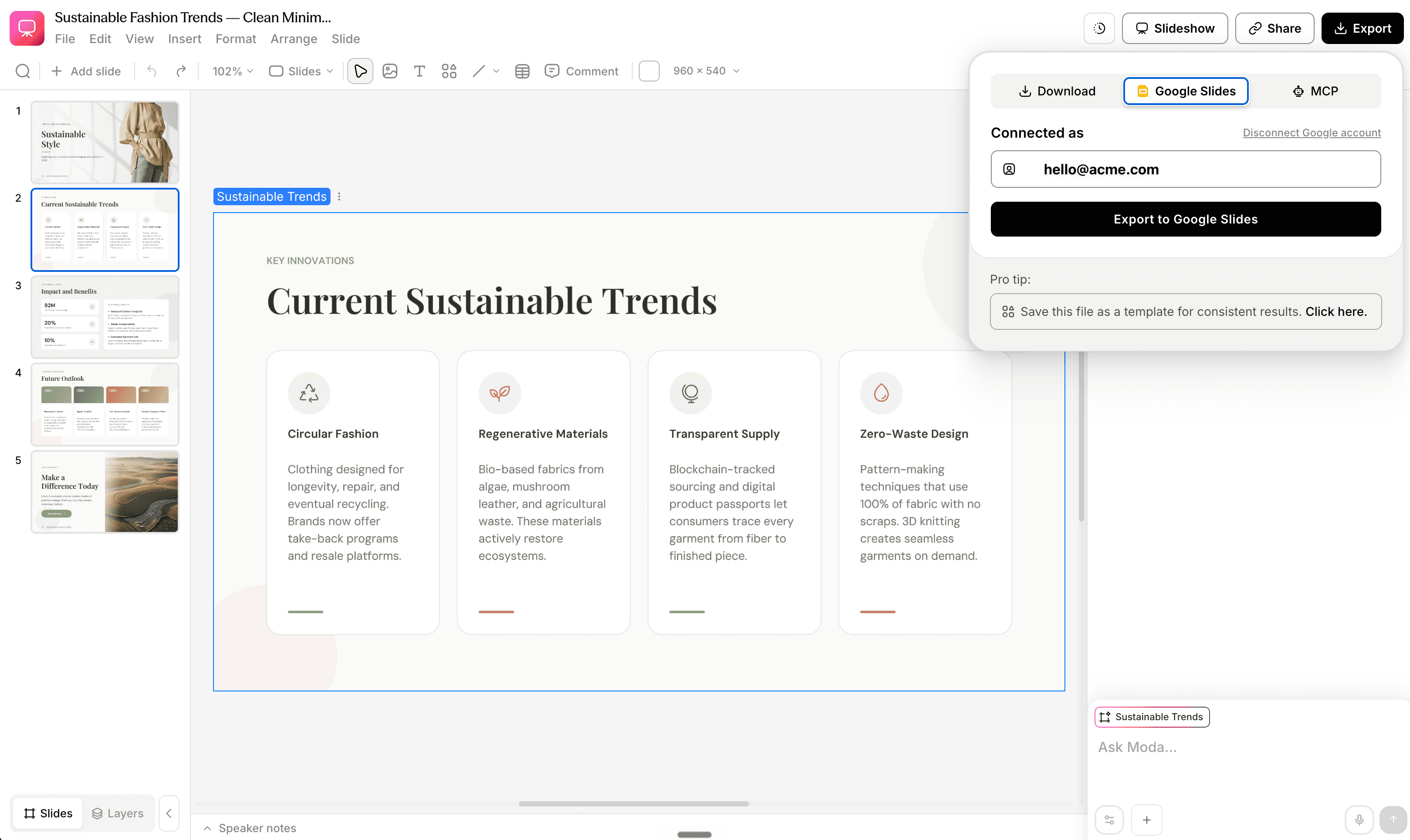
If you need to preserve an existing PowerPoint deck, use the Google and Microsoft workflow above. Moda is not a substitute for checking a conversion. It is relevant when you are rebuilding a presentation from a brief or source material and want an AI agent to create an editable deck on a canvas. You should still inspect any exported file in its destination application. For more context, compare Google Slides and PowerPoint as working environments.
Frequently asked questions
Can I convert PowerPoint to Google Slides without losing any formatting?
No method guarantees a perfect result for every file. Basic elements often transfer well, but fonts, master layouts, SmartArt, charts, media, and complex animations require manual inspection. Keep the original .pptx and compare the two versions.
What is the Google Slides conversion size limit?
Google documents a 100 MB maximum for presentations converted to Google Slides. Drive can store larger files in their original format, but Drive for desktop does not bypass the native Slides conversion limit.
Why do fonts change after conversion?
PowerPoint can use locally installed or embedded fonts that Google Slides may not provide. When the original font is unavailable, substitution can change line lengths, spacing, and text-box height. Test the exact typeface or choose a deliberate replacement before conversion.
Does Drive for desktop preserve formatting better?
No official documentation establishes a different conversion engine or better formatting fidelity for Drive for desktop. It can help synchronize Office files, but native Slides conversion still requires the same review.
Should I compress images to 96 ppi?
Not automatically. Microsoft recommends choosing a resolution appropriate to the intended use and documents 150 ppi or lower as a file-size reduction option. Small type and UI screenshots can become unreadable when compressed too aggressively. Save a copy and inspect the result.
The bottom line
Conversion works best as a controlled handoff, not a one-click promise. Keep the original, convert a copy, stay under Google's 100 MB conversion limit, and review the deck in a consistent order. Most cleanup becomes manageable when you fix fonts and master-level issues before adjusting individual slides.

Real editable visuals. Real canvas. Full control.
Fly through design work