Canva vs PowerPoint: Which Should Your Team Use in 2026?
Canva vs PowerPoint is really a source-of-truth decision. Compare PPTX handoff, brand reuse, collaboration, offline work, complex slides, and AI.
 Anvisha Pai, Co-founder & CEO, Moda
Canva vs PowerPoint is not mainly a contest between an easy tool and a powerful one. It is a decision about what your team will treat as the source of truth after the first draft is finished.
Choose Canva when the presentation belongs to a larger system of reusable visual content, such as social graphics, one-pagers, video, and campaign assets. Choose PowerPoint when the editable PPTX file itself is the deliverable, especially when colleagues will keep revising it, charts depend on Excel data, or advanced slide mechanics matter.
Both products now support serious collaboration, AI-assisted creation, presenting, brand controls, and offline work. Those old checklist distinctions no longer settle the choice. The useful question is where the work must live after handoff.
Last reviewed: September 1, 2026. We checked current official Canva and Microsoft documentation. We did not run a controlled export-fidelity, speed, or output-quality benchmark, so conversion advice below is a workflow recommendation rather than a measured failure rate.
Canva vs PowerPoint at a glance
| Decision | Canva | PowerPoint | Why it matters |
|---|---|---|---|
| Durable source | A hosted Canva design | A native PPTX file, often stored in OneDrive or SharePoint | This determines who can edit the work without converting it |
| Best operating model | A reusable visual-content system across formats | A presentation document inside Microsoft 365 | Pick the ecosystem where most later revisions will happen |
| Complex slides and data | Good for visually led slides and straightforward charts | Stronger for Excel-backed charts, slide masters, and detailed animation control | Native mechanics matter more than template count on recurring business decks |
| Collaboration | Live editing, comments, assignments, and sharing in Canva | Co-authoring, comments, and version history through Microsoft 365 storage | Both collaborate well when the file is kept in the intended cloud workflow |
| Offline work | Pre-enabled designs can be edited offline for up to seven days, with limits | The desktop app edits local files without a connection; cloud features still need one | Canva Offline narrowed the gap, but the setup and recovery model is different |
| Cross-format reuse | Strong native path from a design into multiple visual formats | Strong reuse through PPTX and PowerPoint templates | A campaign system and a presentation-file system optimize for different reuse |
Pricing is intentionally absent from this table. Both vendors change packaging and AI allowances, and many organizations already have one product through an existing plan. Compare the plan your team can actually deploy, not an isolated monthly sticker price.
The real decision: what owns the work after delivery?
A presentation rarely ends when someone clicks Present. A sales deck is localized, a board deck is updated next quarter, and a proposal is handed to a client who changes three slides. The best authoring tool is often the one that makes those later edits least fragile.
If the owner is the PPTX file, create and maintain the deck in PowerPoint. If the owner is a Canva project that feeds several channels, keep the Canva design authoritative and export delivery copies as needed. Problems usually begin when a team edits both versions and quietly creates two competing sources of truth.
This is also why our Canva vs Google Slides comparison reaches a different conclusion for some teams. The surrounding workspace and final handoff matter more than the shared feature names.
Choose PowerPoint when the PPTX is the product
PowerPoint wins when recipients expect to open, revise, and present a native PowerPoint file. You avoid a format conversion at the most important handoff, and the next editor receives the same document model you used.
That model is especially useful for data-heavy work. Microsoft documents that charts created in PowerPoint store their underlying data in an Excel worksheet, and Excel charts can also be copied into PowerPoint with or without a link to the source data. See Microsoft's chart documentation.
PowerPoint also has a mature template model. A Slide Master can control fonts, logos, placeholders, and layouts across slides, and a finished setup can be saved as a reusable PowerPoint template. This is less approachable than picking a Canva template, but it is valuable when a presentation system must survive years of editing by PowerPoint users.
For live delivery, Presenter View exposes the current slide, next slide, notes, timer, annotations, zoom, and navigation controls. PowerPoint is also the safer default when a deck relies on detailed animation sequences, Morph, macros, add-ins, or organization-specific presentation workflows.
PowerPoint is the better source of truth when:
- A client, executive, or partner expects an editable PPTX file.
- The deck contains recurring Excel-backed charts or financial data.
- Slide masters, precise animation timing, macros, or add-ins are part of the workflow.
- People will revise the deck in Microsoft 365 long after the original author hands it off.
- You need to create new local presentations or work for extended periods without connectivity.
Choose Canva when the deck is one expression of a broader content system
Canva wins when slides are only one output. A marketing team can keep logos, colors, fonts, imagery, and approved layouts in the same environment used for presentations, social posts, documents, video, and other campaign assets. That breadth is not a distraction if cross-format production is the actual job.
Canva's current brand features include Brand Kits, Brand Guidelines, Brand Templates, controls over fonts and colors, shared folders, approvals, and live collaboration. Availability varies by plan. For teams that want non-designers to produce approved visual content from a hosted system, those controls can be more practical than distributing PowerPoint templates and asking everyone to use them correctly.
Canva also treats format changes as a first-class workflow. Resize and Magic Switch can transform a design or presentation into other formats and sizes. That makes Canva a stronger home when a presentation needs to become a summary document, social asset, or other channel-specific output. It does not mean every transformed version is ready without review.
Its presentation workflow is more capable than the old “simple online deck” label suggests. Canva documents real-time editing and comments, recording, and live audience interaction. Canva Live works with presenter mode so the speaker can see notes, a timer, upcoming slides, and audience questions on a separate screen.
Canva is the better source of truth when:
- The same visual system must produce slides, social graphics, documents, video, or web assets.
- Most collaborators already review and edit work inside Canva.
- Brand templates, asset libraries, approvals, and constrained self-service matter more than PowerPoint-specific mechanics.
- You will present from Canva or share a Canva link instead of handing off an editable PPTX.
- Fast visual reuse across channels is a recurring need, not an occasional export.

Offline is no longer a simple PowerPoint win
Many comparisons still say Canva cannot work offline. That became outdated in 2026. Canva now lets users make designs available offline, perform essential edits, upload local images, and sync changes after reconnecting. Its offline help documentation says offline designs are stored per device, must be prepared in advance, can be edited for up to seven days before reconnecting, and cannot be created from scratch while offline. Video and embedded content still require a connection.
PowerPoint desktop remains the more flexible choice for long or unpredictable offline periods because Microsoft supports saving a presentation to a local drive and editing that local PPTX without first enabling the specific file for offline use. Real-time co-authoring, cloud version history, and access to shared OneDrive or SharePoint content still depend on connectivity.
The practical test is not “does it have offline mode?” Ask whether the exact deck is prepared on the device, whether every required asset works offline, how long the team may be disconnected, and what happens when several people reconnect with changes.
Both tools collaborate well, but in different systems
Canva keeps collaboration attached to a hosted visual project. People can edit together, comment, tag teammates, assign work, and share the design by link. Microsoft 365 co-authoring lets people edit a PowerPoint file together on Windows, Mac, or the web when it is stored in the supported cloud workflow, with comments and version history through OneDrive or SharePoint.
Neither is universally more collaborative. Canva is usually easier when the work already lives in Canva and collaborators need a browser-first visual workspace. PowerPoint is usually easier when the organization already governs identity, storage, sharing, and retention through Microsoft 365.
PPTX export does not make the systems interchangeable
Canva supports importing and downloading PPTX files. Canva's own PowerPoint import requirements note that some content, including 3D objects, WordArt, and pattern fills, may not import. More broadly, features native to one editor do not always have a direct equivalent in another editor.
Treat an exported PPTX as a fork, not a synchronized copy. After export, decide whether future edits belong in Canva or PowerPoint. If both versions continue to change, someone eventually has to reconcile them manually.
Before committing to a Canva-to-PowerPoint workflow, export one representative deck early and inspect:
- Corporate and uncommon fonts on the recipient's actual device.
- Charts, tables, diagrams, and grouped objects that must remain editable.
- Animations, transitions, audio, video, links, and presenter notes.
- Comments, review history, approvals, and permissions that do not travel with a downloaded file.
- The next revision, not just the first presentation. Who edits it, and in which tool?
This is not an argument against conversion. It is a reason to test the handoff before a deadline and declare which copy becomes authoritative afterward.
What AI changes, and what it does not
Canva and PowerPoint are both credible AI-assisted presentation tools now. It is no longer accurate to say either one only adds minor writing help.
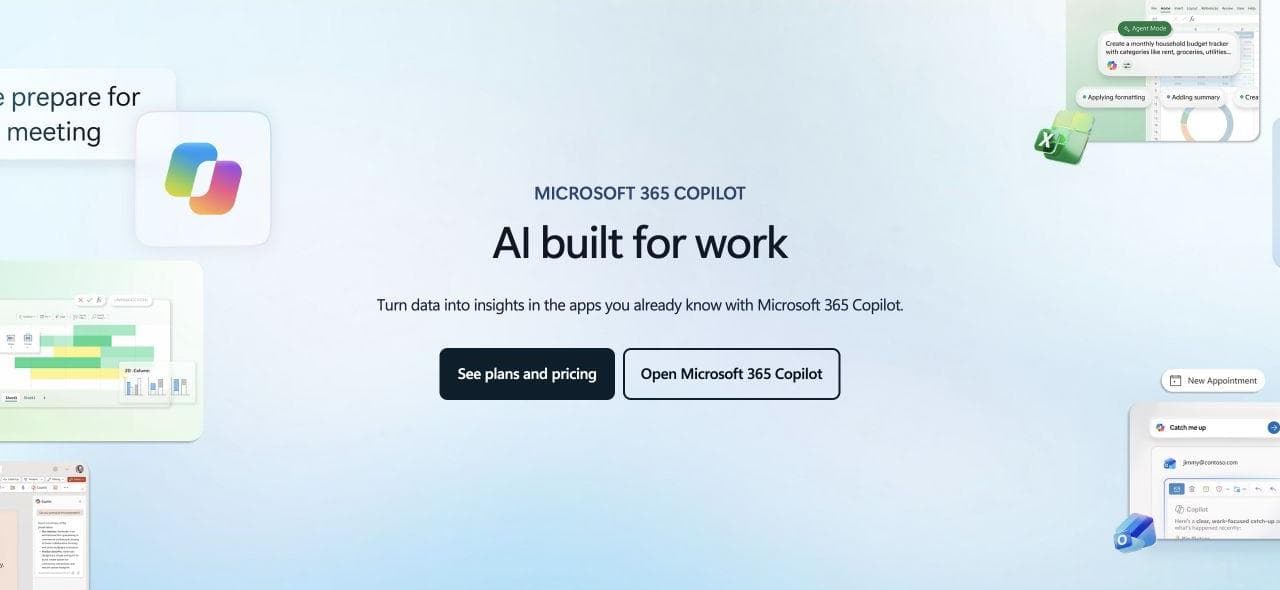
Canva combines AI creation with its visual suite and cross-format tools. Microsoft documents that Copilot in PowerPoint can add and reorganize slides, update content, generate or replace visuals, work from presentation context, and use enterprise Brand Kits when the required license and setup are available.
AI can reduce first-draft effort, but it does not answer the source-of-truth question. A generated deck still needs an owner, a review process, a durable format, and a place for future edits. Choose the downstream system first, then evaluate the AI inside that constraint.
If AI generation is the main decision, our AI presentation maker comparison looks at a broader set of authoring models. If the PPTX workflow is fixed but PowerPoint itself is not, see our PowerPoint alternatives guide.
Where Moda fits, and where it does not
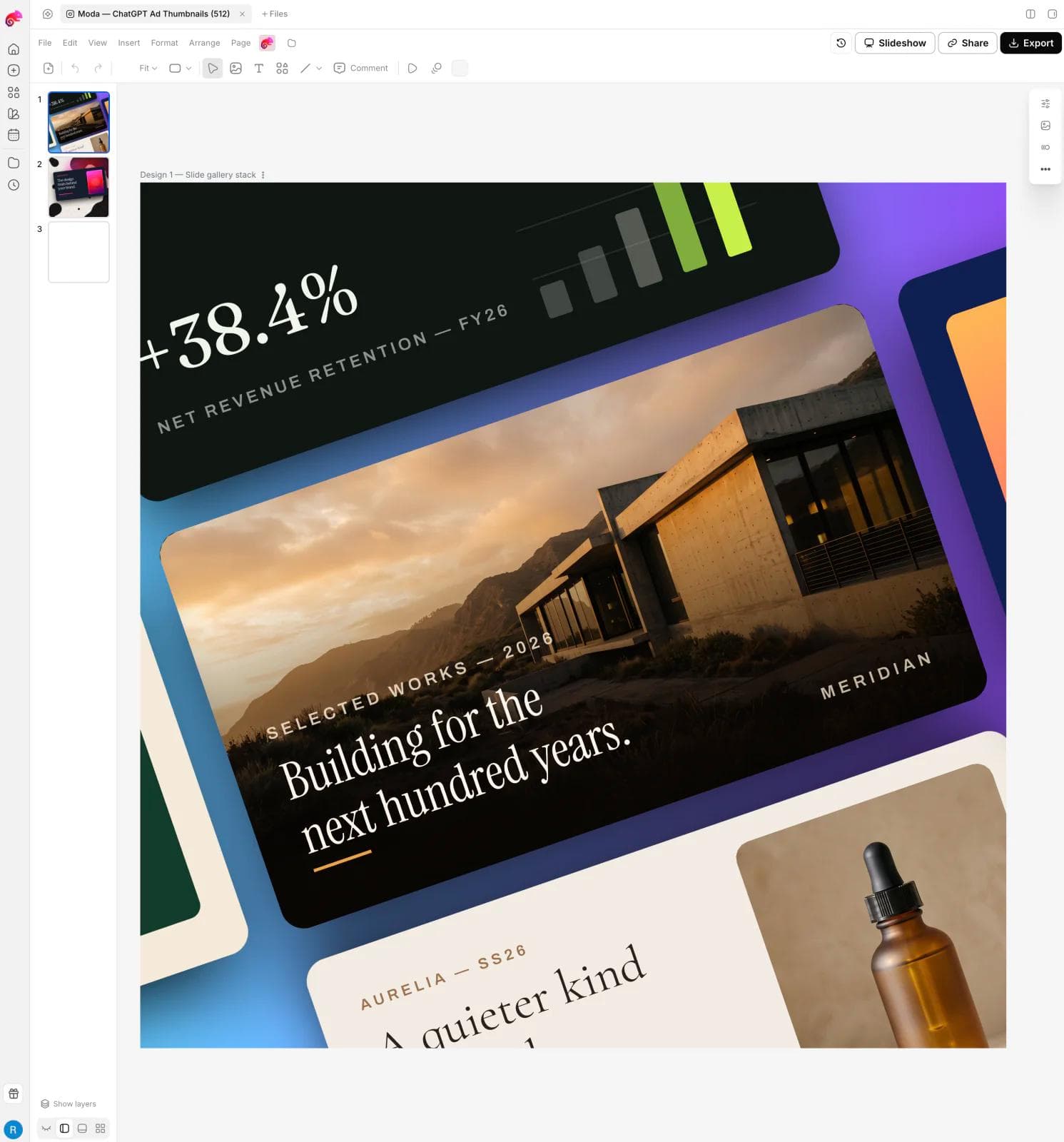
Moda is a third path when the bottleneck is producing the initial visual direction. In Moda, an AI agent can build and revise a presentation on an editable canvas, and the result can be exported as PPTX. That can suit teams that want prompt-driven visual creation before handoff.
Moda is not the better answer when the team needs PowerPoint-specific features such as native Slide Masters, macros, add-ins, or complex Excel-linked chart workflows. PowerPoint should remain the source of truth in those cases. Canva is also the stronger choice when its mature template marketplace, broad stock ecosystem, and established multi-format brand workflow are the main reasons for buying the tool.
If you use Moda and then export to PowerPoint, apply the same fork rule: test the PPTX in PowerPoint, make PowerPoint authoritative after handoff, and do not assume later changes flow back to the Moda canvas.
A practical decision checklist
- What file or link must the recipient receive?
- Where will most edits happen during the next six months?
- Do charts need live or repeatable connections to Excel data?
- Does the work need PowerPoint-specific animation, macros, add-ins, or presenter behavior?
- Will the visual system be reused outside slides across several formats?
- Which platform already owns identity, storage, approvals, and permissions for the team?
- What must still work without a connection, and for how long?
- Have you tested one realistic export in the final destination app?
The bottom line
Use PowerPoint when the deck is a durable business document that other PowerPoint users will keep editing. Use Canva when the deck is one output from a hosted brand and content system. Use both only when the handoff is deliberate and one version clearly becomes the source of truth.
That distinction is more durable than comparing template counts or declaring one editor easier. It follows the work past the attractive first draft and into the revisions, approvals, exports, and handoffs where presentation workflows usually succeed or fail.
Canva vs PowerPoint FAQ
Is Canva better than PowerPoint for presentations?
Canva is usually better when slides are part of a broader visual-content workflow. PowerPoint is usually better when the native PPTX file, advanced presentation mechanics, Excel-backed charts, or long-term editing in Microsoft 365 matter most.
Can Canva replace PowerPoint?
Yes for teams that present from Canva, share Canva links, and keep the hosted Canva design as the source of truth. It is not a full replacement when recipients require a deeply editable PPTX or the workflow depends on PowerPoint-specific features.
Can Canva work offline?
Yes. Canva Offline lets you edit designs that were made available on the device in advance. Canva says you can remain offline for up to seven days, cannot create a new design offline, and need a connection for some content such as video and embeds.
Should I design in Canva and finish in PowerPoint?
That can work if you export early, inspect a representative PPTX, and make PowerPoint the source of truth after the handoff. Avoid editing both versions in parallel because the files do not stay synchronized.

Real editable visuals. Real canvas. Full control.
Fly through design work