10 Photoshop Alternatives, Chosen by What You Need to Edit
Compare 10 Photoshop alternatives for retouching, PSD editing, painting, RAW photography, and graphic design, organized by task.
 Anvisha Pai, Co-founder & CEO, Moda
The best Photoshop alternative depends on what you need to change. For detailed photo editing, start with Affinity. For an occasional PSD edit in a browser, try Photopea. For digital painting, look at Krita. For a social post built from a photo, headline, and logo, Canva may be all you need.
Those are different jobs. Removing a reflection from a product photo requires control over the photograph. Adding a price beside that photo requires control over the layout. Sorting and correcting a whole shoot calls for a photo-library workflow. A tool can be excellent at one without being your first choice for the others.
Choose by the file and the job
| What you need to do | Start here | The deciding detail |
| Retouch photos or combine images on a desktop | Affinity | Photo tools without a paid core app; check any Photoshop handoff |
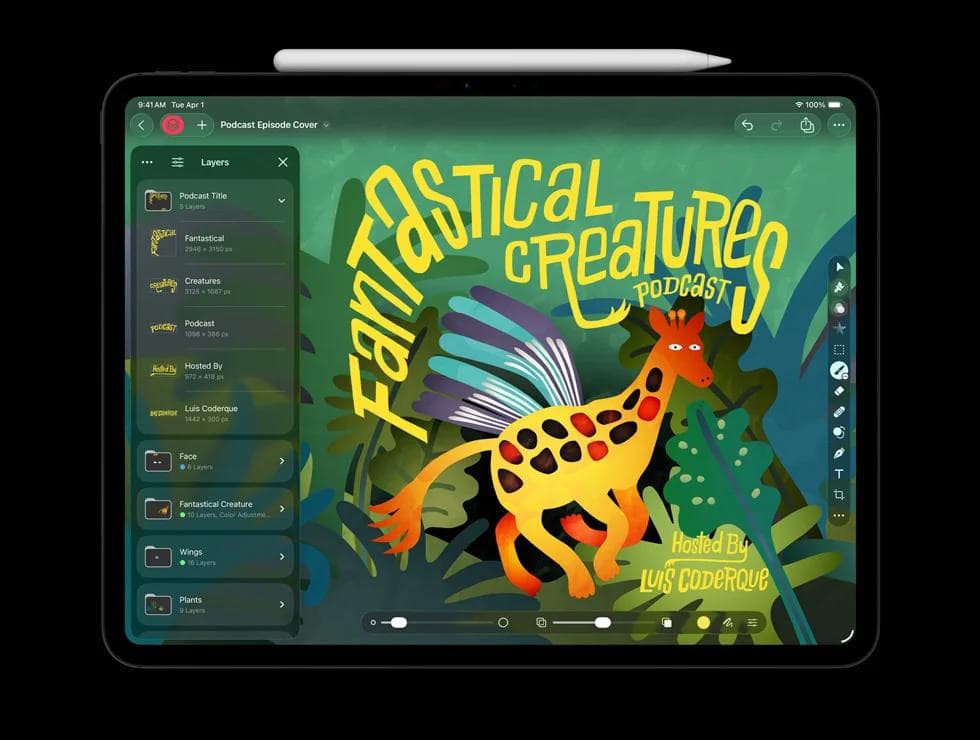
| Edit and compose images across a Mac and iPad | Pixelmator Pro | Apple Pencil and Apple-device workflow; subscription and one-time Mac purchase differ |
| Update a layered PSD without installing an editor | Photopea | Opens and saves PSDs in the browser |
| Edit images with free, open-source software, including on Linux | GIMP | A complete editing workflow built around its own XCF project files |
| Make straightforward layered edits on Windows | Paint.NET | Cropping, selections, text, and layers without adopting an entire creative suite |
| Apply quick photo adjustments and effects online | Pixlr | Express for guided edits; Editor for more direct layer control |
| Draw or paint with a pen tablet | Krita | Brush engines, stabilization, assistants, and animation tools |
| Organize and develop a collection of photos | Lightroom | Photo management and repeatable edits; still an Adobe product |
| Develop RAW photos in an open-source workflow | darktable | Detailed processing controls and library management, with a workflow to learn |
| Make a flyer or social graphic from photos and text | Canva | Templates and layout tools, with photo editing alongside them |
| Keep delivering complex, editable Photoshop files to a client | Photoshop | Staying in the recipient's app avoids cross-app conversion |
These are recommendations for particular tasks, not a ranking of image quality. The product details below were checked against official documentation in August 2026.
Desktop editors for retouching and layered images
These are the closest matches when you actually want to edit pixels, masks, and a stack of layers. Pick among them based on your operating system, required files, and the kind of controls you want to learn.
Affinity: for retouching and photo composites
If you want to keep working with selections, masks, and adjustments but leave Photoshop, Affinity is the first desktop option I'd consider. Its photo-editing toolkit includes RAW development, healing and cloning, adjustment layers, and live filters. Those are tools for changing the photograph itself, not just arranging it on a page.
The current product is the unified Affinity app, with Pixel, Vector, and Layout studios. Its core tools are free on Windows and macOS; a Canva account is required. Canva AI features inside Affinity require an eligible premium Canva plan. Older advice to buy Affinity Photo 2 describes a different product.
The important caveat is PSD compatibility. Affinity says imported Photoshop Smart Objects and advanced filters can flatten. A file that looks right when opened may no longer offer the same editable controls.
For your own photo projects, that may not matter. For client work, agree on the editable file format before switching. A finished PNG is not a substitute for a layered source file someone needs to revise.
Pixelmator Pro: for a Mac-and-iPad workflow
Pixelmator Pro is worth considering if you move between an Apple desktop and an iPad. It combines layered compositions, color adjustments, RAW-image support, selection and masking tools, and retouching. Apple Pencil support makes the iPad version relevant when you would rather draw or refine a mask with a stylus than a mouse.
For example, you could work on the composition of a poster on a Mac and refine its illustration on an iPad. That device choice is a more useful reason to shortlist it than a claim that it is universally easier than Photoshop.
Check the version you are buying. Apple's Creator Studio announcement distinguishes the Mac app's one-time purchase from subscription access to Mac and iPad, with some features reserved for subscribers. This is not a Windows or Linux recommendation.
GIMP: for an open-source editing workflow
GIMP is a free, open-source image editor for Linux, Windows, and macOS. It covers retouching and compositing, and its scripting and plug-in support can be useful when you repeat the same operations across many images.
It is not limited to permanently applying every effect to a layer. GIMP 3 introduced non-destructive filters: most GEGL filters can remain adjustable, and those settings can be saved in an XCF project and reopened later.
I'd choose it when open-source software or Linux support is important, and the working files can stay in GIMP. Save the XCF as your editable original, then export the image format you need to deliver. GIMP supports PSD import and export, but that does not make every Photoshop-specific effect portable.
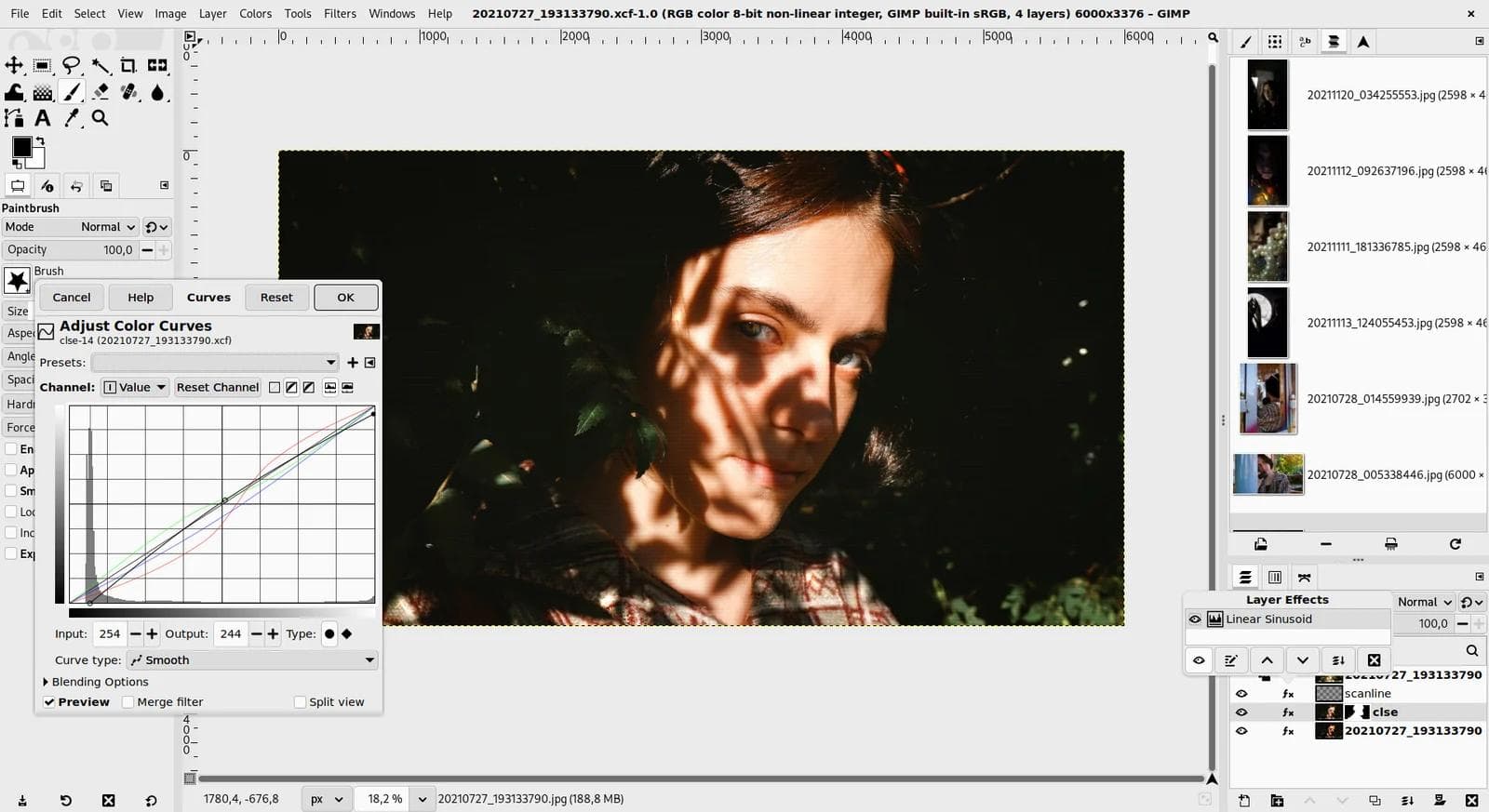
Screenshot from the GIMP 3.0 release notes, by the GIMP team; portrait photo by Sofia. CC BY-SA 4.0. Resized and converted to WebP; this image remains under that license.
Paint.NET: for everyday layered edits on Windows
Paint.NET sits between a basic paint program and a larger image-editing suite. It provides selections, effects, text, and layers, making it a sensible option for combining screenshots, cleaning up an illustration, or adding labels to a diagram on Windows.
Its Layers window lets you reorder elements and control their visibility and blending. Keep a PDN project file while you work so those layers remain available. A PNG export is the finished image, not the working project.
The standard download is free; the Microsoft Store version is paid. It is a Windows application, not the similarly named Microsoft Paint or a browser service. I would shortlist it for modest layered-image work, not assume it can take over a client's complex PSD workflow.
Browser editors when you do not want an installation
Photopea: for the PSD you need to edit today
Someone sends you a Photoshop mockup and asks you to replace the artwork. Installing and learning a different desktop app may be unnecessary. Photopea runs in a browser, opens and saves PSDs, and supports text layers, masks, adjustment layers, and Smart Objects.
That last feature matters for mockups. A Smart Object can hold the artwork separately from the perspective, scaling, or other treatment applied to it. You change the artwork inside the object instead of painting over the finished mockup.
Photopea documents this Smart Object editing workflow:
- Open the PSD and find the artwork's Smart Object in the Layers panel.
- Double-click its thumbnail to open the contents in a separate document.
- Replace or edit the artwork, then use File → Save in that document.
- Return to the main document to see the updated mockup.
Then use File → Save as PSD to keep an editable copy. Export a PNG or JPEG separately for sharing.
This works when the supplied file actually contains the relevant Smart Object. Opening a flattened preview image will not recreate it. And even with a PSD, verify that the fonts, effects, and updated artwork look right before returning it. Browser access removes installation; it doesn't remove the need to understand the file.
Pixlr: for quick photo adjustments and effects
Pixlr Express groups adjustments, filters, and effects in a browser-based photo editor. Pixlr also offers a separate Editor for more direct work with layers. If you just need to crop a photograph, adjust its exposure, and prepare a graphic for sharing, this is an option to try without committing to a desktop application.
For a supplied PSD mockup, I would start with Photopea's documented Smart Object workflow. For a single photo and an effect-led edit, compare Pixlr Express's controls with the result you want.
Check the current plan details before relying on it for recurring production. Ad-free use, unlimited saves, and AI allowances appear in paid plans. Access to an editing screen does not establish that every save or AI operation is unlimited and free.
When the job is a photo shoot, not one image
If you have a folder of photographs to select, correct, and deliver, opening each in a layer editor is not necessarily the right starting point. A library and RAW-development application lets you keep the collection organized while working through the edits. It can complement a layer editor rather than replace every part of one.
Lightroom: for organizing and developing a photo collection
Adobe's Lightroom comparison makes this distinction directly: Lightroom combines photo organization with non-destructive processing, while Photoshop is the place for more involved image manipulation and composites.
For event photographs, that could mean choosing the keepers, correcting exposure and white balance, and applying a consistent treatment across the set before exporting. You may still send an individual image to Photoshop for a composite. Lightroom is not included here as a way to leave Adobe; it is an alternative to using Photoshop for work better suited to a photo-library application.
Also distinguish Lightroom from Lightroom Classic. Their storage and cross-device workflows differ. Decide where you want the originals to live and how you will back them up before moving a collection, not after importing it.
darktable: for open-source RAW development
darktable combines a photo library with non-destructive RAW processing. Its modules give you detailed control over how a photograph is developed, making it worth considering when you want an open-source photography workflow rather than a subscription service.
It is not a free copy of Lightroom. darktable's own FAQ warns that the workflow is different and learning it takes effort. If you are comfortable learning the processing tools, that control can be a reason to choose it. If you want familiar Lightroom adjustments and catalog behavior, expect a transition rather than a drop-in replacement.
For a portrait shoot, darktable can handle selection and development; a separate layer editor can handle a composite or graphic made from the finished photograph. It is not the first tool I'd open to change a flyer's headline.
When you mainly draw and paint
Krita: for illustration, brushes, and pen-tablet work
Krita is a free painting application with configurable brush engines, stroke stabilizers, perspective assistants, and animation tools. If Photoshop is primarily where you sketch characters, paint illustrations, or make frame-by-frame animation, those features deserve more attention than a photo-retouching comparison table.
The advantage is a workflow built around drawing. A stabilizer helps control a stroke; a perspective assistant helps place lines; layers let you separate a sketch, inks, and color. You can choose brushes and a workspace around how you paint instead of selecting a tool because it appears in every photography roundup.
Krita can load and save PSDs, but keep your native working file and check any cross-app delivery. For developing a large RAW collection, choose the photography tools above. For an illustration that will later appear in a flyer, paint it in Krita and assemble the flyer in a layout tool.
When you need a graphic made from photos and text
Canva: for templates and layout
If the assignment is “put this product photo, offer, and logo into a social post,” I'd start with a layout tool. Canva's social design tools combine templates, text, and graphics, so you can begin from a composition instead of an empty image document.
Canva also has substantive photo-editing tools, including background removal, object editing, and text editing in images. Choosing it for layout doesn't mean its photo features are trivial. Specific premium features and usage limits depend on the plan.
The distinction is the level of control the job calls for. A product cutout against a colored background is a different assignment from repairing reflections while preserving the exact printed label on a bottle. For the latter, I'd start in a dedicated photo editor and place the finished photograph into Canva afterward.
Using two tools is perfectly reasonable. You don't have to make the layout app do every retouch, or make the photo editor do every layout. Our guide to placing text on a photo covers that composition step; Figma vs Canva looks more closely at choosing a layout environment.
Where Moda fits
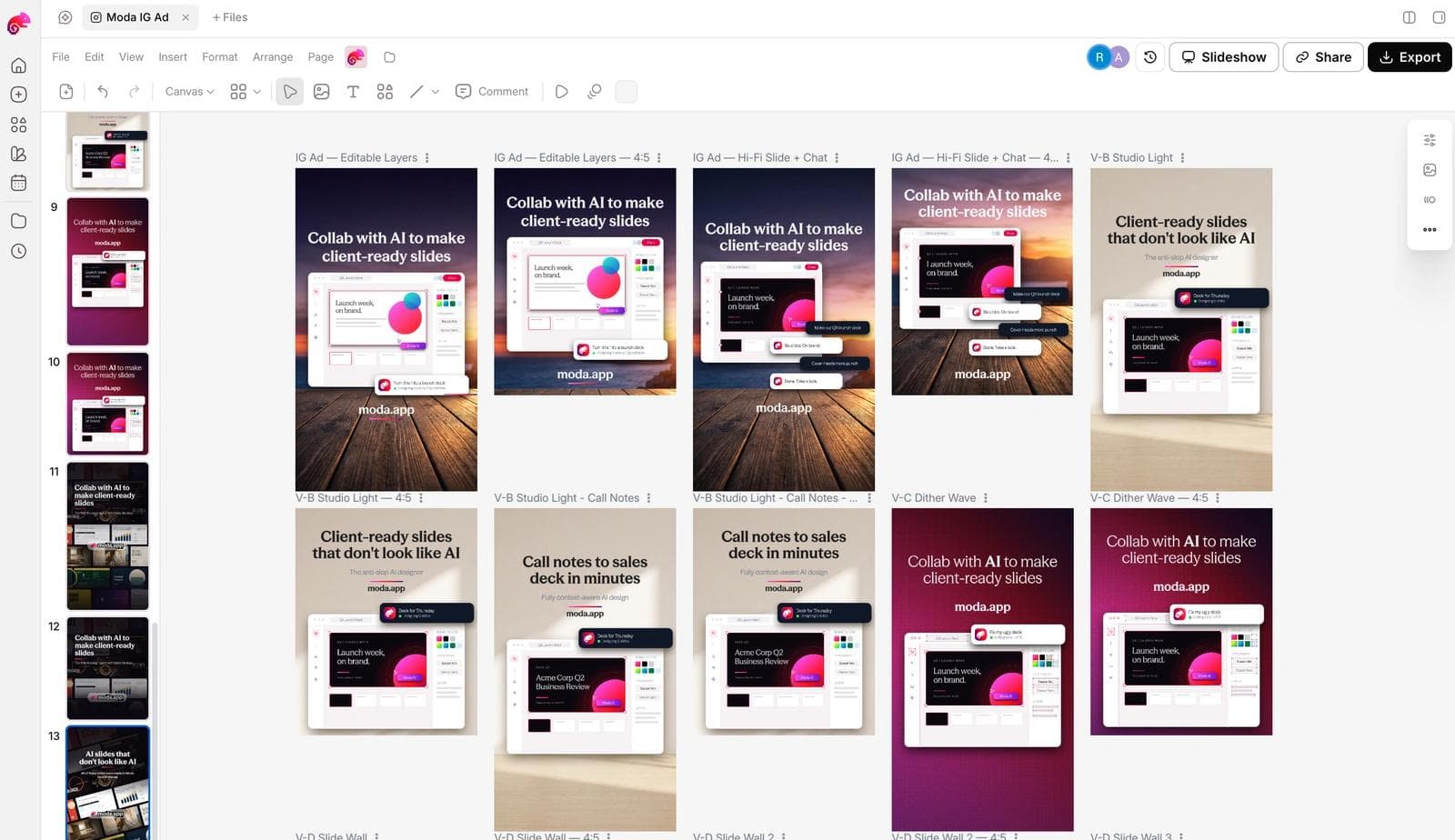
Moda is another option for the layout part: you can ask an agent to compose a graphic, then revise text and other canvas elements. That is useful when you want help arranging supplied photos, copy, and branding rather than selecting and adapting a template yourself.
It is not the tool I'd recommend replacing Photoshop with for detailed retouching or a Photoshop-based client workflow. An image placed on a Moda canvas is still an image; separately editable text around it does not make everything inside the photograph independently editable. Choose Canva if its templates and editing workflow already suit you. Choose a dedicated photo editor when the photograph itself needs careful work.
When keeping Photoshop makes more sense
Keep Photoshop if the work depends on it, not because every image requires it. A client who needs to reopen your PSD and adjust particular effects is a concrete reason. So is an established workflow that relies on specific Photoshop actions or plug-ins.
You also don't need to leave Photoshop to get AI-assisted editing. Its Generative Fill can change a selected part of an image from a prompt. Whether that helps depends on the edit: removing an unwanted object and reproducing a product's exact lettering are not interchangeable tasks.
Before moving recurring work, take one completed project, make the next revision in the alternative, and return it in the required format. For a mockup, replace the artwork. For a portrait, revisit an adjustment. For a flyer, change the offer and send the editable file to the person who will maintain it.
If that succeeds, you have a reason to switch. If it fails, you have found the specific requirement your replacement needs to meet. That tells you more than another feature-count comparison.

Real editable visuals. Real canvas. Full control.
Fly through design work