Figma vs Canva: Which Should Your Team Use in 2026?
Compare Figma and Canva for product design, marketing production, presentations, AI workflows, brand governance, developer handoff, and team adoption.
 Anvisha Pai, Co-founder & CEO, Moda
Choose Figma when the work must become a product interface, reusable design system, interactive prototype, or developer handoff. Choose Canva when many people need to turn approved content and brand assets into presentations, social posts, video, print, and other campaign formats quickly.
That answer is less absolute than it used to be. Figma now reaches into presentations and marketing production through Slides and Buzz. Canva now offers components, layered AI editing, websites, documents, and a much broader workplace suite. The decisive question is not which product has more features. It is which system should own the working file after the first draft.
Last reviewed: September 1, 2026. We compared current official documentation, plan pages, independent reviews, and practitioner discussions. We did not run a controlled benchmark of output quality, speed, export fidelity, or AI reliability. Product and plan details can change, so verify the current terms before a team rollout.
Figma vs Canva at a glance
| Figma | Canva | |
|---|---|---|
| Best fit | Product design and design-to-code workflows | Visual communication and campaign production |
| Core working unit | Frames, components, variables, prototypes, and code context | Designs, templates, brand assets, media, and publishable formats |
| Design systems | Deep component libraries, variables, modes, and reusable UI patterns | Brand Kits, Brand Templates, controls, and newer components |
| Presentations | Slides tied to product-design files and interactive prototypes | Mature presentation workflow inside a broad content suite |
| Marketing production | Buzz supports governed templates and asset variations | Broader templates, stock media, resizing, scheduling, print, and video |
| AI direction | Product UI, prototypes, apps, design context, and developer workflow | Visual content, images, layouts, workplace formats, and campaign adaptation |
| Developer handoff | Dev Mode, inspection, variables, Code Connect, and integrations | Not the product's primary workflow |
| Free access | Starter plan with product and file limits | Free plan with editor, templates, assets, and usage limits |
| Best reason to use both | Figma owns product truth | Canva owns distributed campaign production |
The real choice is what the file must become
Most comparisons stop at templates versus precision. That distinction still matters, but it misses the operational decision. A design file is not only a picture. It can be a reusable product specification, a campaign template, a presentation, a print asset, or the source from which developers build software.
Ask these questions before comparing individual features:
- Will engineers implement this work? If yes, component structure, responsive behavior, variables, inspectability, and design-to-code context matter.
- Will dozens of occasional creators adapt it? If yes, safe templates, approved assets, resizing, simple editing, and distribution matter more than maximal control.
- Is the output one product experience or many communication formats? An interface system and a campaign content system optimize for different kinds of reuse.
- Which file remains authoritative? Exporting a PNG or PDF moves an artifact, not its component logic, brand governance, or revision history.
A recent independent comparison made the same broad point: treating the products as if one should win outright “does a disservice to both tools.” That conclusion is useful, but teams still need a sharper boundary than “use both.” The sections below define that boundary. See the TechSifted comparison.
Where Figma is the stronger system
Product interfaces and responsive layout
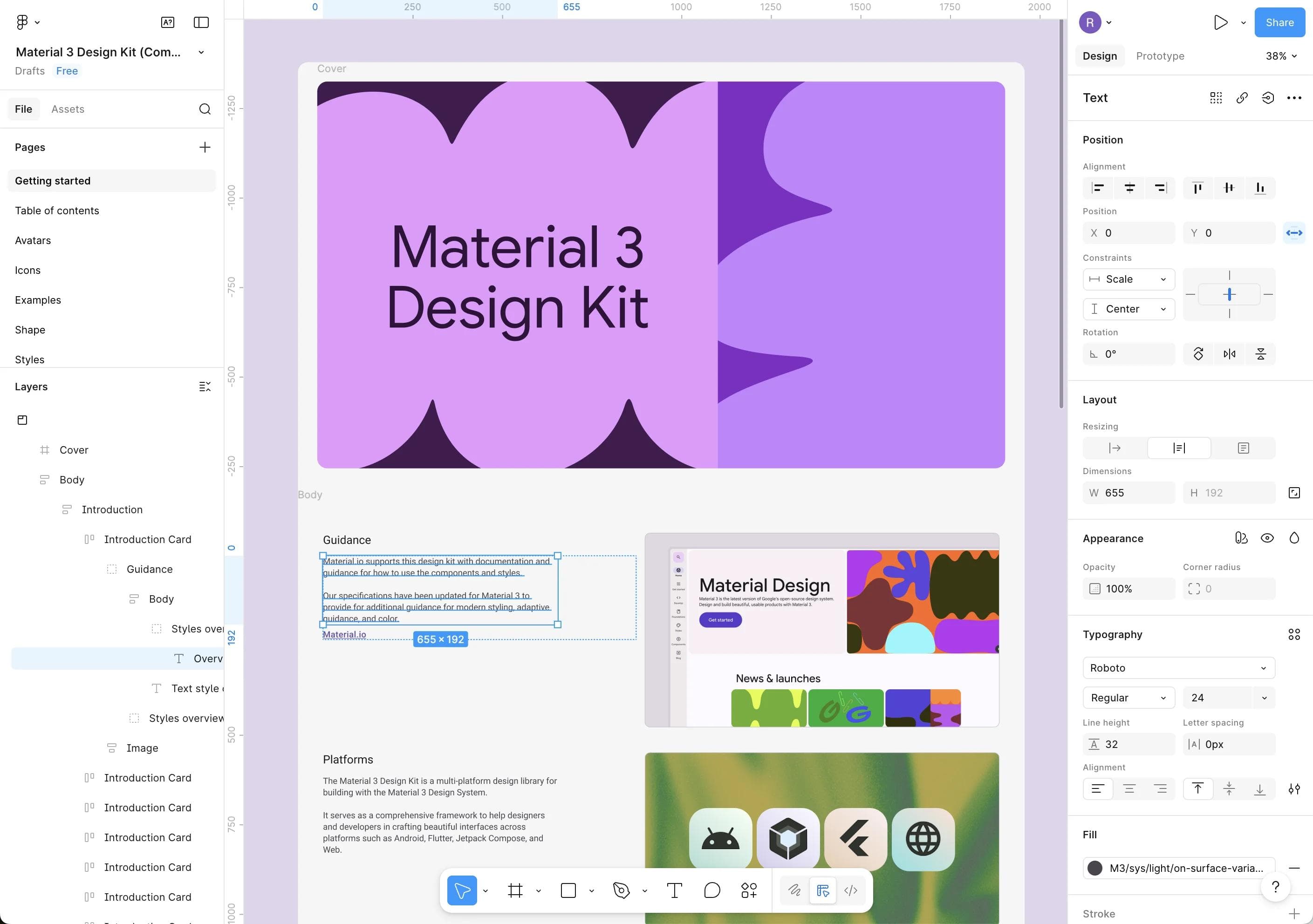
Figma is designed around the structure of digital products. Auto layout can control direction, spacing, padding, alignment, wrapping, and resizing as content or frame dimensions change. Components and instances make interface elements reusable instead of repeatedly copied. These are not merely faster drawing tools. They describe how a design should behave when labels, states, and screen sizes change. Figma’s auto layout guide documents the current behavior.
Design systems that map to product decisions
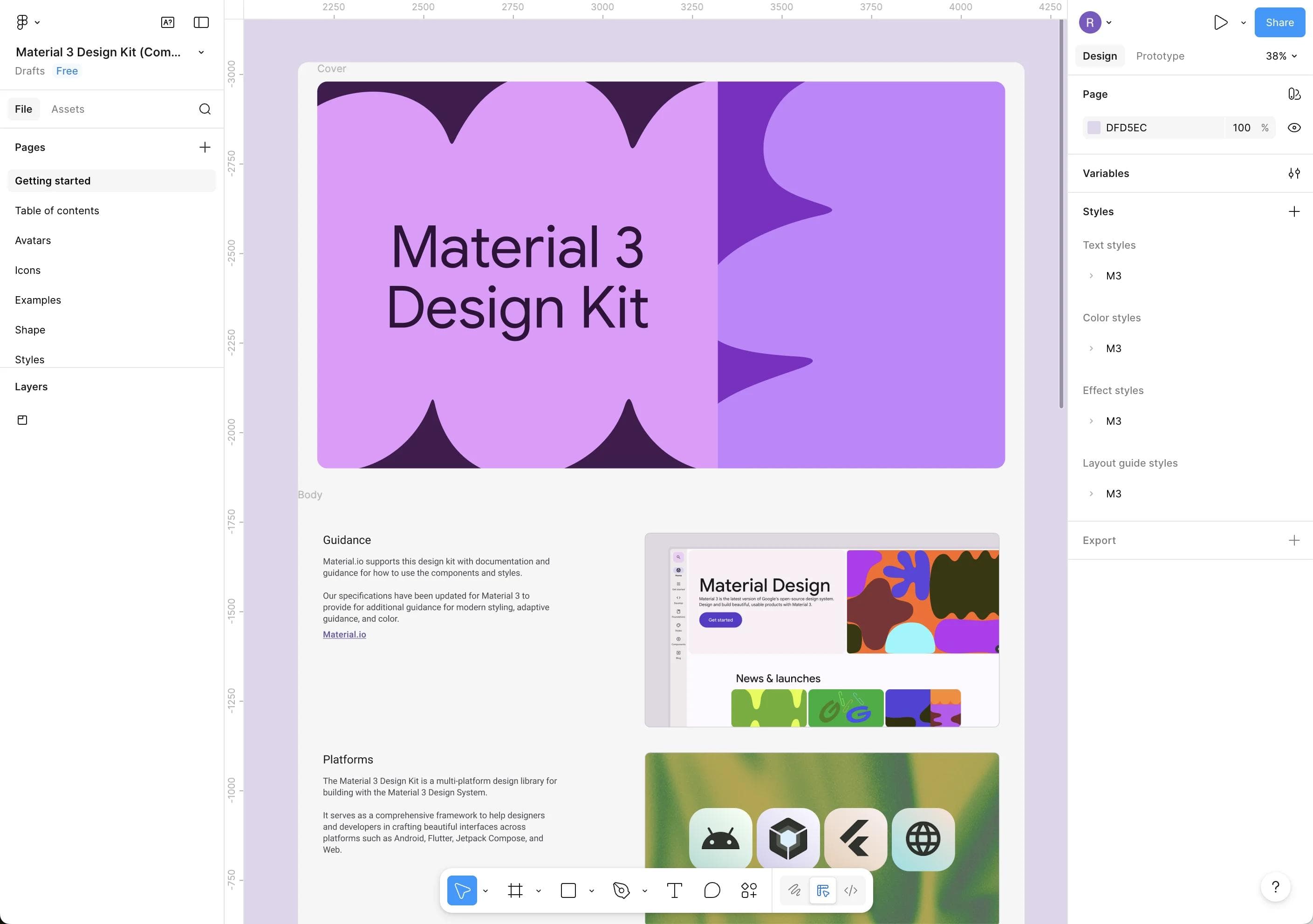
Variables can represent colors, spacing, dimensions, text, booleans, and modes. Figma documents using them as design tokens, switching themes and device contexts, and driving prototype state. Component properties and libraries then expose controlled variation across many screens. Canva’s brand and component features can govern communication assets, but they do not replace a product system that must encode UI state and feed implementation. Review Figma’s current variables documentation.
Prototype behavior and developer handoff
Figma prototypes support interactions, variables, expressions, and conditional logic on eligible plans. Dev Mode gives developers a dedicated view for inspecting designs and comparing changes, while Figma’s broader developer workflow includes code-oriented context and integrations. This makes the file part of a product-delivery process rather than only a visual reference. See the official Dev Mode guide.
Choose Figma when the costly failure is not “this post took too long.” Choose it when inconsistent components, ambiguous behavior, or poor handoff can become inconsistent software.
Where Canva is the stronger system
High-volume visual communication
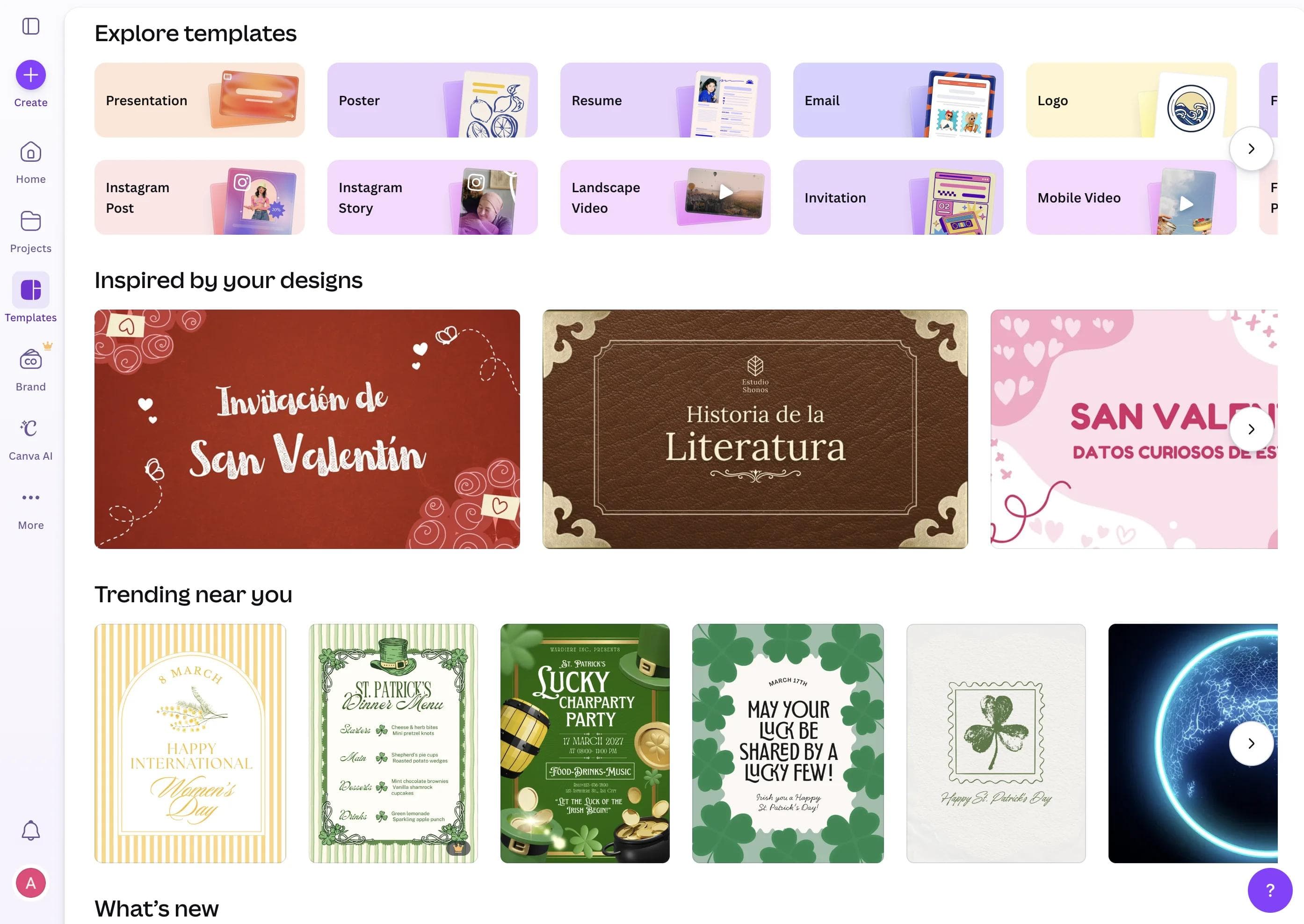
Canva’s advantage is the breadth surrounding the editor. Its current Visual Suite spans presentations, social graphics, video, print, websites, whiteboards, documents, sheets, email, and other workplace formats. A team can start with approved content and adapt it across many channels without asking every contributor to learn product-design concepts. Canva’s official Visual Suite page shows the current scope.
Templates, media, and delivery are part of the workflow
Canva combines editable templates with stock photos, video, audio, graphics, resizing, presentation delivery, social publishing, and print-oriented exports. The exact library and feature limits depend on plan. Canva’s pricing page currently lists millions of templates and media assets, but the important purchase question is whether your recurring formats and licensed assets are included, not the largest headline count. Check Canva’s live plan comparison.
Brand governance for occasional creators
Canva’s Brand Kits, Brand Templates, written guidelines, element locking, and plan-dependent controls are designed to let more people create without starting from a blank canvas. That operating model is valuable when marketing, sales, recruiting, events, and regional teams all need approved assets. Figma can support governed marketing templates through Buzz, but Canva remains the broader distribution and publishing environment. Canva explains its Brand Hub controls here.
Choose Canva when the costly failure is a creative bottleneck: every small copy change, event graphic, social resize, or sales asset waiting on a specialist.
The overlap is real, but it is not symmetrical
Figma Buzz moves Figma closer to Canva
Figma Buzz gives brand designers and marketers a shared space for social posts, digital ads, event materials, one-pagers, and other branded assets. Designers can bring templates from Figma Design, while marketers edit the allowed content. Figma also documents templates connected to design systems, plugin support, and video trimming. This is a serious answer to the old complaint that every marketing variation requires a designer. Read Figma’s Buzz introduction.
Buzz does not automatically give Figma Canva’s full content ecosystem. Canva still packages a broader template marketplace, stock catalog, print workflow, publishing tools, and everyday formats. Evaluate Buzz as a governed extension of a Figma brand system, not as proof that the two suites are interchangeable.
Canva components move Canva closer to reusable systems
Canva’s current paid plans list components alongside Brand Kits, Brand Templates, controls, and approvals. That can make repeated campaign elements easier to maintain. It still serves a different downstream system from Figma variables, interactive states, responsive UI patterns, and Dev Mode. A reusable social card and a reusable application component may look similar on a canvas while carrying very different implementation obligations. Compare Canva’s current plan features.
Figma vs Canva for presentations
Canva is usually the better default when the presentation is one part of a marketing or communication campaign. Its presentation editor sits beside templates, stock media, video, brand assets, and other formats that may reuse the same material. It is also the more familiar environment for occasional creators who already produce Canva content. Canva documents its presentation workflow here.
Figma Slides is stronger when the deck belongs to a product-design workflow. Design Mode exposes auto layout, layers, and advanced properties. Teams can include interactive prototypes and live objects, collaborate through comments, chat, and audio, and use product-design assets already maintained in Figma. See the current Figma Slides feature page.
Use this practical split:
- Choose Figma Slides for design reviews, product narratives, prototype demos, and decks that must stay connected to a Figma system.
- Choose Canva for campaign decks, training materials, sales content, event presentations, and teams that need adjacent social, video, or print assets.
- Choose PowerPoint or Google Slides directly when the native presentation file is the durable source of truth. Test any cross-tool export with the real fonts, charts, media, and animations.
For a wider presentation-focused decision, see our AI presentation maker comparison.
How AI changes the comparison
Figma AI is increasingly product-contextual
Figma’s current AI direction includes an agent inside Design, design-system-aware generation, image and vector workflows, and Figma Make for functional prototypes and web apps. Figma Make can accept existing designs, components, images, and other context, then generate an interactive result that can be refined through conversation, visual editing, and code. Figma’s Make documentation describes the current workflow and availability.
Canva AI is increasingly format and campaign oriented
Canva’s AI tools span writing, layouts, images, video, resizing, editing, and workplace formats. Magic Layers can convert a flat image into editable text and separated design elements in supported regions and rollout stages. Canva also uses shared monthly AI allowances whose effective consumption depends on the tool and model tier, so a simple feature checkbox does not reveal production cost or reliability. Canva explains Magic Layers and its rollout. Its live pricing page explains current AI allowances.
Do not choose either product because it can generate a first draft. Test whether the generated result lands in the structure your team must maintain. For Figma, inspect component use, auto layout, variables, and prototype behavior. For Canva, inspect editable layers, brand compliance, resizing, media rights, and the downstream publishing workflow.
Precision, print, and export
Figma provides deeper control for interface geometry and reusable digital systems. Canva provides more direct paths to common marketing, print, and publishing outputs. Neither statement means one product is universally more “professional.” Professional work is work that survives its required production process.
Practitioner discussions expose the edge case clearly. In a recent Figma community thread about marketing and print, one user summarized the limitation as “there’s no direct path” to print, noting reliance on plugins for CMYK-related workflows. That is one practitioner report, not a controlled test, but it identifies the right validation step: if print is contractual, test color mode, bleed, crop marks, fonts, image resolution, and the printer’s required PDF before choosing the authoring tool. Read the discussion on Reddit.
Cross-tool portability is also limited. A PNG, SVG, PDF, or presentation export can preserve appearance while discarding the logic that made the source maintainable. Do not promise a two-way Figma-to-Canva workflow. Name one source of truth, export approved assets deliberately, and test the receiving application.
Pricing is a seat-design problem, not one sticker price
Both products have free entry points and multiple paid tiers. Figma separates Full, Dev, and Collab seats, with access varying across Design, Dev Mode, Slides, Buzz, Make, and other products. Canva separates individual, business, and enterprise use, with differences in brand governance, AI allowances, storage, approvals, and team administration. See Figma’s live pricing page. See Canva’s live pricing page.
Model the actual team instead of multiplying one headline price:
- How many people create product designs, inspect them, comment, or only view?
- How many people create campaign assets, and how many only request or approve them?
- Which brand controls, libraries, AI allowances, exports, and admin features require a higher plan?
- Will adopting both tools reduce bottlenecks, or simply add duplicate files and governance work?
When using both is the right answer
Many teams should not force consolidation. A sensible division is for Figma to own product interfaces, design-system primitives, prototypes, and developer handoff, while Canva owns approved campaign templates and downstream communication assets.
Make the boundary explicit:
- Keep logos, icons, screenshots, product renders, and other shared assets in a governed source library.
- Decide whether Figma or a dedicated brand repository owns each master asset.
- Export approved SVG, PNG, video, or other derivatives into Canva with dates or version labels.
- Do not maintain editable “master” versions of the same deliverable in both products.
- Assign owners for product components, marketing templates, and presentation themes separately.
This is especially important for screenshots and product-launch assets. The product UI may change in Figma while an older export remains embedded in Canva. A clear refresh owner prevents campaigns from drifting away from the current product.
Where Moda fits
Moda belongs in this decision when the bottleneck is turning a brief into an original presentation, social asset, one-pager, diagram, or other branded design with an AI agent, while keeping the result editable on a real canvas. The agent can research, write, compose, and revise the artifact rather than asking the user to begin with a template or construct every object manually. Explore Moda’s design workflow.
Moda does not replace Figma’s mature product-design systems, interactive UI prototyping, or developer handoff. It also does not match Canva’s enormous template, stock, app, print, and publishing ecosystem. Choose Moda for agent-led creation and revision, Figma for product-design truth, and Canva for broad template-led visual production.
If your broader question is how to replace Canva rather than whether Figma fits, compare the workflow categories in our Canva alternatives guide.
Who should choose Figma, Canva, or both?
Choose Figma
- You design apps, websites, dashboards, or interactive product experiences.
- Reusable components, variables, responsive behavior, and design-system governance are essential.
- Developers need inspectable specifications and product context.
- Presentations frequently include live prototypes or design-system assets.
Choose Canva
- Marketing, sales, recruiting, education, or operations teams produce many visual formats.
- Occasional creators need templates, stock media, resizing, publishing, and simple handoff.
- Brand governance must enable broad self-service content production.
- Print, social, video, presentations, and everyday communications belong in one suite.
Use both
- Product and marketing have distinct owners and clearly different deliverables.
- Figma supplies approved product and brand assets, while Canva distributes them across campaigns.
- The organization can maintain a source-of-truth map and manage access in two systems.
Run this trial before committing a team
- Build one responsive product flow with repeated components, multiple states, and a developer handoff.
- Turn the same launch into a presentation, square post, vertical story, short video, and printable one-pager.
- Ask an occasional creator to change copy and imagery without breaking the approved brand structure.
- Ask a developer to identify spacing, component variants, state changes, and implementation context.
- Export the hardest deliverable into the format your client, printer, executive, or engineer actually requires.
- Record where the source of truth lives and how an approved asset moves between systems.
This trial reveals the important cost: not how quickly an expert creates the first attractive screen, but how reliably the next person can revise, implement, distribute, and govern it.
Frequently asked questions
Is Figma better than Canva?
Figma is better for product interface design, design systems, interactive prototypes, and developer handoff. Canva is better for broad visual communication, templates, stock media, presentations, social content, print, and organization-wide self-service creation.
Can Canva replace Figma for UI design?
Canva can create interface-looking graphics and simple web experiences, but it is not a substitute for a Figma workflow built around responsive UI components, variables, prototype logic, design libraries, and developer handoff.
Can Figma replace Canva for marketing?
Figma Design and Buzz can support serious brand and marketing workflows, especially when assets should stay tied to a Figma design system. Canva is usually stronger when a broad group needs templates, stock media, resizing, publishing, video, print, and many everyday formats.
Which is better for presentations, Figma or Canva?
Use Figma Slides for product reviews, prototype demonstrations, and decks connected to Figma design assets. Use Canva when presentations belong to a broader campaign workflow with templates, stock media, video, social, and print derivatives.
Can teams use Figma and Canva together?
Yes. Keep Figma as the source of truth for product design and reusable interface assets, then export approved derivatives for Canva campaign templates. Avoid maintaining two editable masters of the same deliverable.
The bottom line
Figma and Canva now overlap enough that old “professional versus beginner” comparisons are misleading. Figma is becoming a broader creation suite, and Canva is adding more structured, editable, and governed workflows. Their centers of gravity still differ.
Choose Figma when the design must become a functioning digital product or remain connected to one. Choose Canva when the design must become many pieces of communication in the hands of many creators. Use both when those responsibilities are distinct and your team can name which system owns each working file.

Real editable visuals. Real canvas. Full control.
Fly through design work