Twitch offline screen size
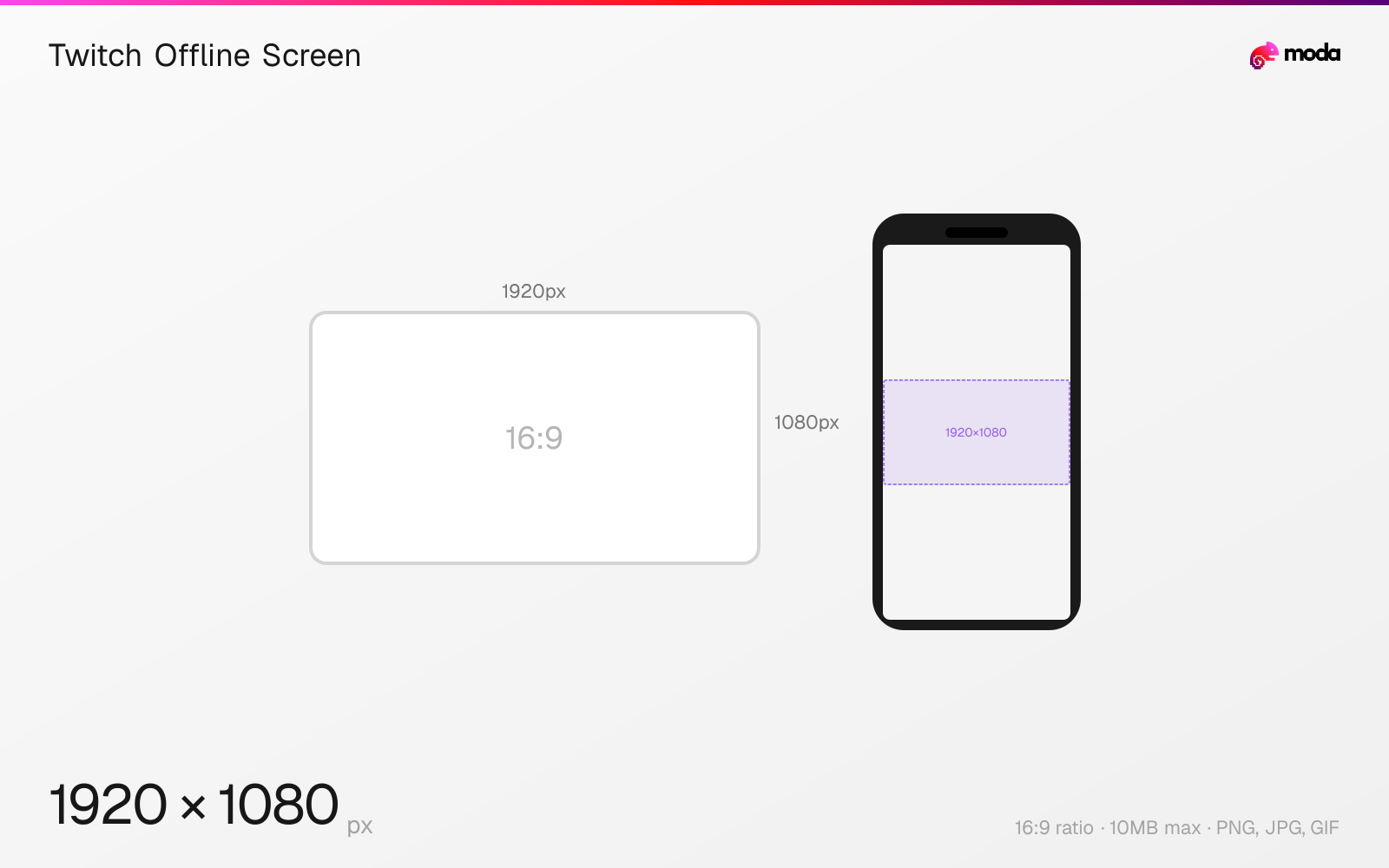
The recommended Twitch offline screen size is 1920 × 1080 pixels (16:9 aspect ratio).
Last updated:
Specifications
| Spec | Value |
|---|---|
| Dimensions (px) | 1920 × 1080 px |
| Aspect ratio | 16:9 |
| Max file size | 10MB |
| Supported formats | PNG, JPG, GIF |
| Minimum resolution | 1920x1080 |
| Color mode | sRGB |
Design at this size with Moda
Start with a canvas pre-set to 1920×1080px and let AI generate your design.
Create a Twitch offline screen →Design tips
Twitch offline screens (video player banners) are 1920×1080 pixels with a 16:9 aspect ratio. This image displays in the video player area when you're not currently streaming. It's prime real estate for promoting your schedule, social links, or next stream — viewers who visit your channel while you're offline see this first.
- •Include your streaming schedule and social links — this is what offline visitors see first.
- •Avoid important content in the bottom-left corner where Twitch's 'Offline' badge overlaps.
- •Design at 1920×1080 (full HD) — the offline screen fills the entire video player area.
What you need to know
The offline screen fills the video player area on your channel page when you're not live. It's displayed at the same 16:9 aspect ratio as a live stream, so it feels like a natural extension of your channel branding. Many streamers use it to show their streaming schedule, social media handles, or a 'Be Back Soon' message.
Unlike the profile banner which is partially obscured by UI elements, the offline screen displays cleanly in the full video player area. However, Twitch overlays a small 'Offline' badge and the channel name at the bottom-left. Keep important text away from the bottom-left corner to avoid overlap with these UI elements.
The offline screen is set in your Twitch Dashboard under Settings > Channel > Brand. You can upload a static image (PNG/JPG) or an animated GIF. Some streamers use animated offline screens with subtle motion to make their channel feel more alive even when not streaming — a looping animation of their mascot or a particle effect over their schedule.
How to create a Twitch offline screen at the right size
- 1Open Moda and create a new canvas at 1920×1080 pixels.
- 2Design your Twitch offline screen using AI generation or start from a blank canvas.
- 3Export as PNG and upload to Twitch.
Frequently asked questions
What size is a Twitch offline screen?
Twitch offline screens are 1920×1080 pixels (16:9 aspect ratio). Maximum file size is 10MB. PNG, JPG, and GIF are supported.
Where do I set my Twitch offline screen?
Go to your Twitch Dashboard > Settings > Channel > Brand. Upload the image under 'Video Player Banner' (the official name for the offline screen).
Can Twitch offline screens be animated?
Yes. Upload an animated GIF under 10MB. The animation loops continuously while your channel is offline.
Specs last verified: March 19, 2026. Dimensions may change as platforms update their requirements.