Canva Magic Studio: What Each AI Feature Actually Does
Canva Magic Studio is the 2023 name for Canva's AI tools. Here is what each feature does now, which ones are free, and how far the monthly AI allowance goes.
 Anvisha Pai, Co-founder & CEO, Moda
Canva Magic Studio was the umbrella name Canva gave its AI features when it launched them on October 4, 2023. It is not the name Canva uses any more. On September 9, 2026, canva.com/magic serves a page titled Canva AI 2.0, canva.com/magic-studio returns a 404, and the phrase "Magic Studio" survives only in a couple of help articles. Most of the individual tools are still there, and most still carry Magic names on Canva's own pricing comparison.
That matters because almost every guide ranking for this query describes the 2023 lineup. This one goes through what is actually in the product now, sorted by the job you would reach for it to do, with two things the feature roundups leave out: exactly which tools are free and which are not, and how the monthly AI allowance runs out.
Everything below was read from Canva's own product, pricing and help pages on September 8 and 9, 2026, signed out. Nothing was generated, so this covers what the tools are documented to do and what controls they expose. It does not rate their output quality.
What happened to the name Magic Studio
Magic Studio was a launch brand. Melanie Perkins announced it in October 2023 as "one of our biggest product launches ever", bundling Magic Design, Magic Switch, Magic Media, Magic Animate, Magic Write and the photo editing tools under one banner.
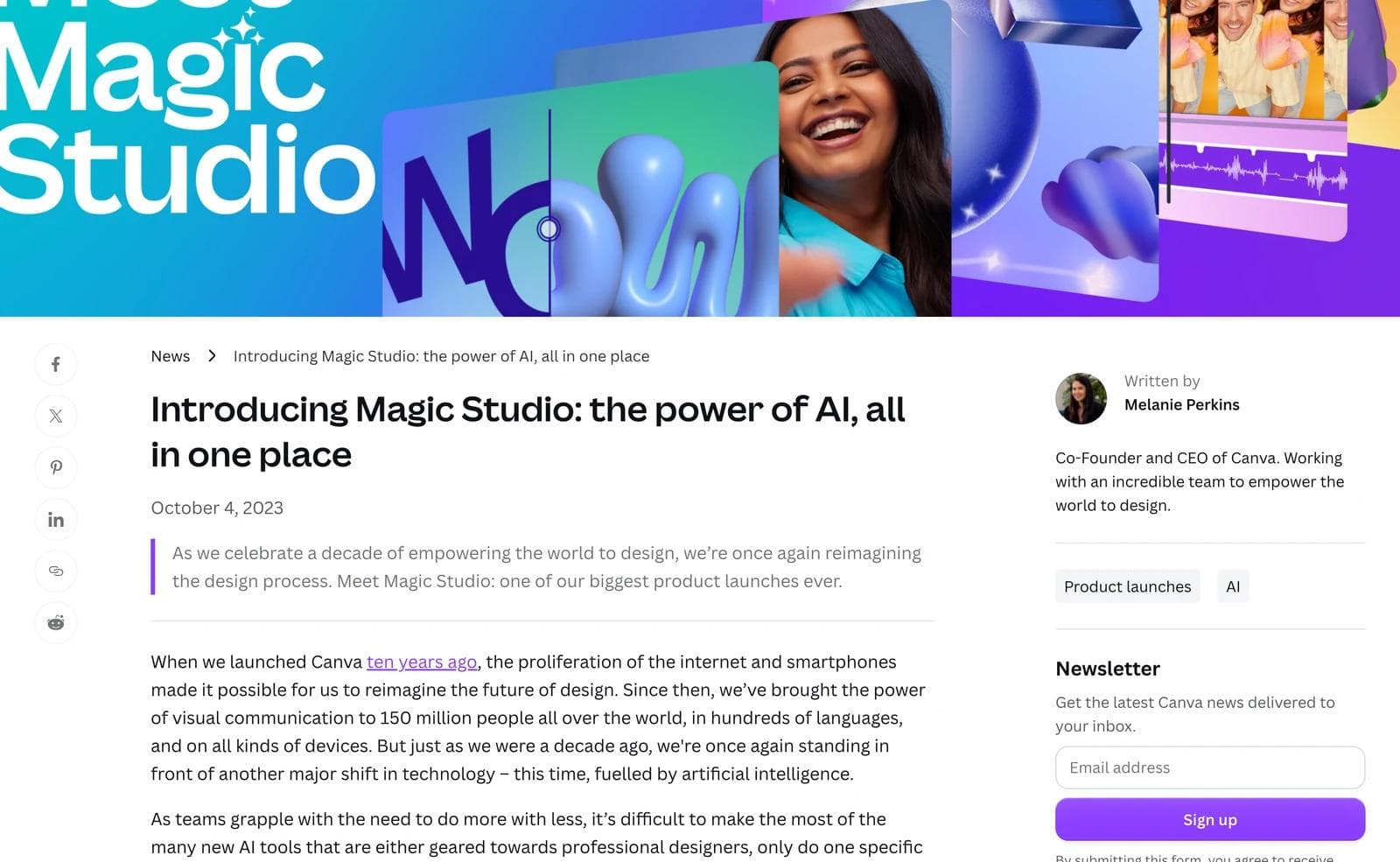
The banner is gone. The page that used to sell Magic Studio now sells Canva AI 2.0, announced at Canva Create in April 2026 and described in Canva's help center as a conversational design partner rather than a set of one-shot buttons. Canva's pricing comparison now splits AI into two sections with no mention of Magic Studio: "AI creation tools (shared allowance)" and "AI design tools".
Here is what the 2023 names map to today.
| 2023 name | Status on September 9, 2026 | What to look for instead |
|---|---|---|
| Magic Studio | Retired from the marketing site. canva.com/magic-studio 404s. Still appears in the Grab Text help article and in photo editor troubleshooting. | Canva AI |
| Magic Switch | Gone as a name. canva.com/help/magic-switch/ 404s. | Split into two rows on the pricing page: Magic Resize and Translate |
| Magic Design | No row on the pricing comparison and no help article of its own. Still referenced inside the Magic Edit help article as a way to make first drafts from the editor search bar. | "Generate designs, elements and images with Canva AI" |
| Magic Media | Help article still live, but the name does not appear on the pricing comparison or the Canva AI page. | "Create an image with Canva AI", "Create a video with Canva AI" |
| Magic Write, Magic Edit, Magic Eraser, Magic Grab, Magic Expand, Magic Morph, Magic Animate | All still listed by name on the pricing comparison | Unchanged |
| The Effects panel in the photo editor | Removed. Canva's help center says the photo editor "no longer has a single Effects section". | Blur, Auto Focus and Face Retouch under Tools; Duotone at the end of Filters; Shadows in its own section |
New since 2023 and not in any of the older roundups: Magic Layers, Style Match, Canva Code, Magic Charts, Magic Insights, Image to Video, Form Generator, Magic Formulas, AI Voice, Canva Grow ad creation, and the Canva AI chat itself.
If a tutorial you are following tells you to open Effects, or to click Magic Switch, it was written for a version of the editor that no longer exists. That is worth knowing before you conclude you cannot find a button.
The tools, sorted by the job
Drafting a first version
Chat with Canva AI is the entry point on every plan, including Free. You describe what you want and pick a content type: Design, Image, Doc, Code or Video clip. You can attach your own files, pull in designs already in your account, or point it at the web.
Canva AI 2.0 is the conversational version: it takes multiple editing actions on an existing design when prompted, keeps a Memory Library of your preferences, can pull context from connected tools like Notion and Slack, and can run scheduled tasks (up to ten at a time, daily, weekly or monthly). Canva's help center lists it as available on Pro, Teams, Business and Nonprofit and "rolling out gradually". Canva's own pricing page and Canva AI page still label conversational design "Coming soon", so whether you have it today depends on your account rather than your plan alone.
Magic Charts turns data into a chart and is one of the few generative-feeling features included on Free.
This is the part of the product Canva is rebuilding, and the part where your experience is least likely to match a written guide.
Editing a photo you already have
This is the most mature group and the one most worth learning.
- Background Remover cuts the subject out of a photo in one click. Paid plans only, and Canva's help center says so explicitly.
- Magic Grab lifts the subject out of a photo and makes it a movable, resizable element. Grab Text does the same for text inside an image, turning it into real editable text boxes.
- Magic Eraser brushes an object out. Pixel Eraser, which sits next to it, is available on every plan, though not on premium stock images if you are on Free.
- Magic Edit brushes over an area and replaces it from a prompt.
- Magic Expand extends the frame outward.
- Magic Layers is the newest one and answers a real complaint about AI output: it turns a generated image into selectable, movable layers instead of one flat picture.
- BG Generator, Upscale, Style Match and Image to Video round out the panel.
Resizing and repurposing
Magic Resize reformats a design into other sizes. Translate rewrites the copy into another language in place. These were one feature in 2023, called Magic Switch, and they are the strongest argument for a paid plan if you publish the same asset across several channels. Both are excluded from Free.
Writing copy
Magic Write is included on Free and, on paid plans, does not draw down your AI allowance at all. It generates from a prompt inside a design or a Doc, supports 103 languages, and has documented limits: a 1,500 word input cap, roughly a 2,000 word output cap, and, in Canva's own wording, it "only uses data and information up to mid-2021". Treat it as a blank-page breaker, not a research tool. Magic Write for SEO is a separate Standard AI row on the pricing table.
Generating media
Image and video generation now sit under Canva AI rather than a branded surface, though the older Magic Media and Dream Lab help articles are both still live. What matters for planning is the tier: standard image generation is Standard AI, "Create a video with Canva AI" is Premium AI, and "Create high-quality video clips with Canva AI" is Ultra AI, which is the most expensive thing you can do with your allowance. Music and Sound Effect Generator is listed as Premium and coming soon.
Interactive and data
Canva Code builds small interactive experiences from a prompt, including ones that save responses. Form Generator and Magic Insights sit alongside it, and Magic Formulas writes spreadsheet formulas in Canva Sheets. These are the least-covered features in the existing articles and the most likely to surprise someone who thinks of Canva as a poster tool.
Which ones earn a place in your workflow
Sorting honestly, based on what each tool is documented to do and where Canva itself publishes limitations.
Genuinely useful, reach for them often. Background Remover, Magic Grab and Grab Text, Magic Resize and Translate, Magic Layers, and Magic Write for a first draft. These replace work that is tedious rather than creative, and the output either works or visibly does not, so a bad result costs you a few seconds.
Useful in narrow cases. Magic Expand is good for fixing a crop that is slightly too tight and unconvincing when it has to invent a lot. Magic Edit is strong on materials and colors, and Canva's own guidance tells you to avoid flags, text, faces and hands, which rules out a large share of marketing photography. Its help article also notes the edited region can come back more pixelated than the rest of the image. Magic Eraser is excellent on a clean background and fiddly against a busy one, which is why Pixel Eraser exists next to it.
Check the fit before you build a habit around them. Magic Morph applies a generated texture or effect to text and shapes, and Canva's own launch framing is seasonal flair rather than brand work, so there is no brand-kit constraint on what it produces. Magic Animate applies animations and timings across a whole design in one click, which is genuinely useful on a long deck and close to a wash on a slide with three elements, where choosing the animation yourself costs about the same and gives you control over timing. Background Generator needs a fixed-size design with something already on the page, because it works by separating foreground from background, and Canva confirms it does not run in responsive formats like Docs and Websites.
Watch the constraints before you plan around a feature. Grab Text only works on Latin script, cannot handle rotated or arched text, and does not process multiple pages in one go. Background Generator only works on fixed-size formats like presentations and posters, not on Docs or Websites. These are Canva's own documented limits, not complaints.
What is free and what is not
It is the most common question about Magic Studio and the hardest one to find answered. Canva's pricing comparison answers it row by row.
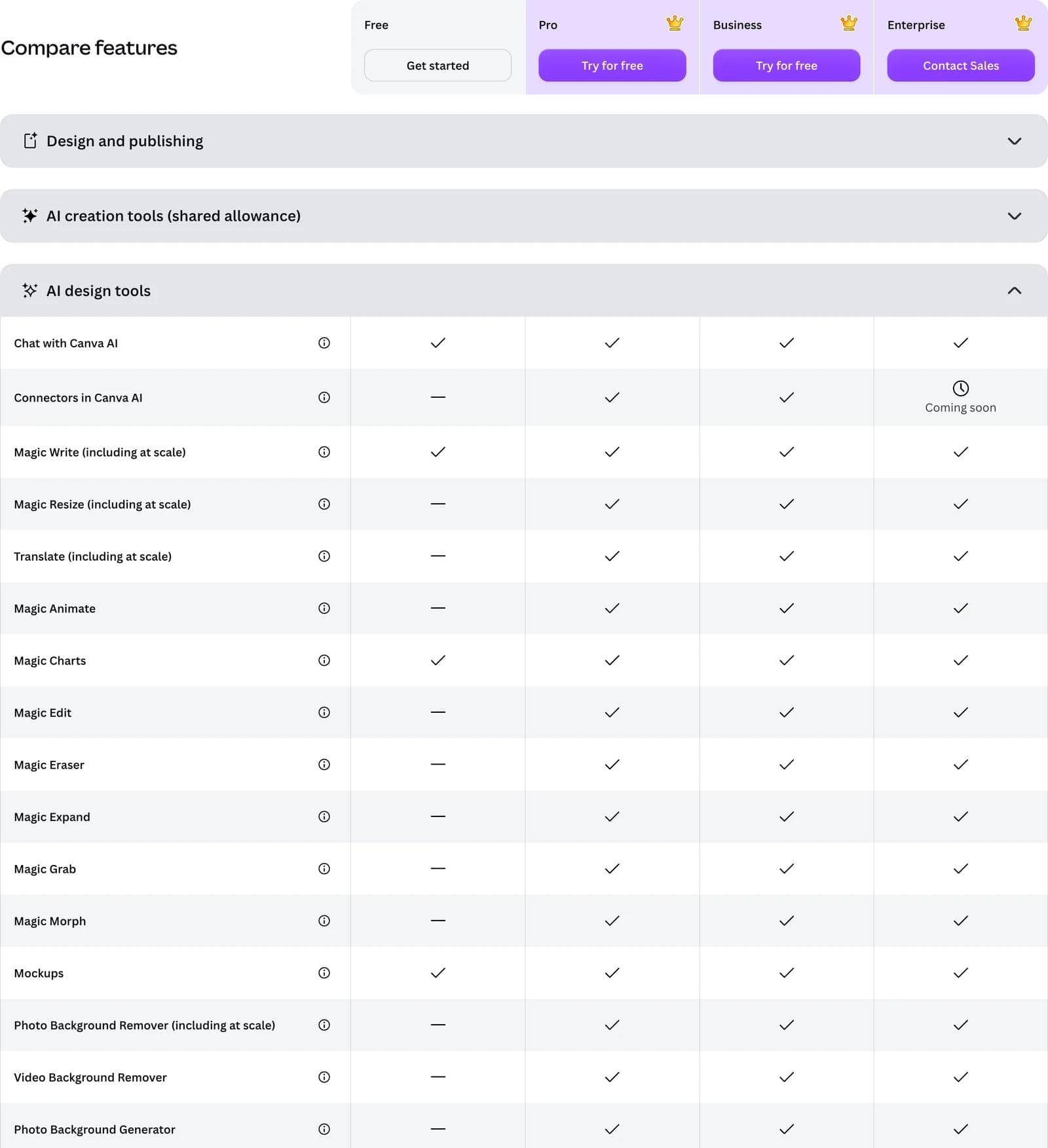
Included on Canva Free: Chat with Canva AI, Magic Write including at scale, Magic Charts, Mockups, Photo and Video Animations, AI Voice, and Beat Sync in manual mode.
Not included on Canva Free: Magic Resize, Translate, Magic Animate, Magic Edit, Magic Eraser, Magic Expand, Magic Grab, Magic Morph, Photo Background Remover, Video Background Remover, Photo Background Generator, Highlights, Enhance Voice, and Connectors in Canva AI. Enterprise shows Connectors as coming soon.
So the honest answer to "is Magic Studio free" is: the chat and the writing assistant are, and almost every image editing tool is not. If your reason for wanting these features is to cut people out of photos or turn one post into six formats, Free will not do it.
For what each plan costs and how the seat math works out for a small team, our Canva pricing breakdown has the full numbers. Registered nonprofits should read Canva for Nonprofits first, since a free team of up to 50 people changes this calculation entirely.
How the AI allowance actually limits you
Canva does not sell AI credits by name, whatever third-party reviews say. Every plan gets one monthly allowance shared across three tiers of tools, and the tier decides how fast you burn through it.
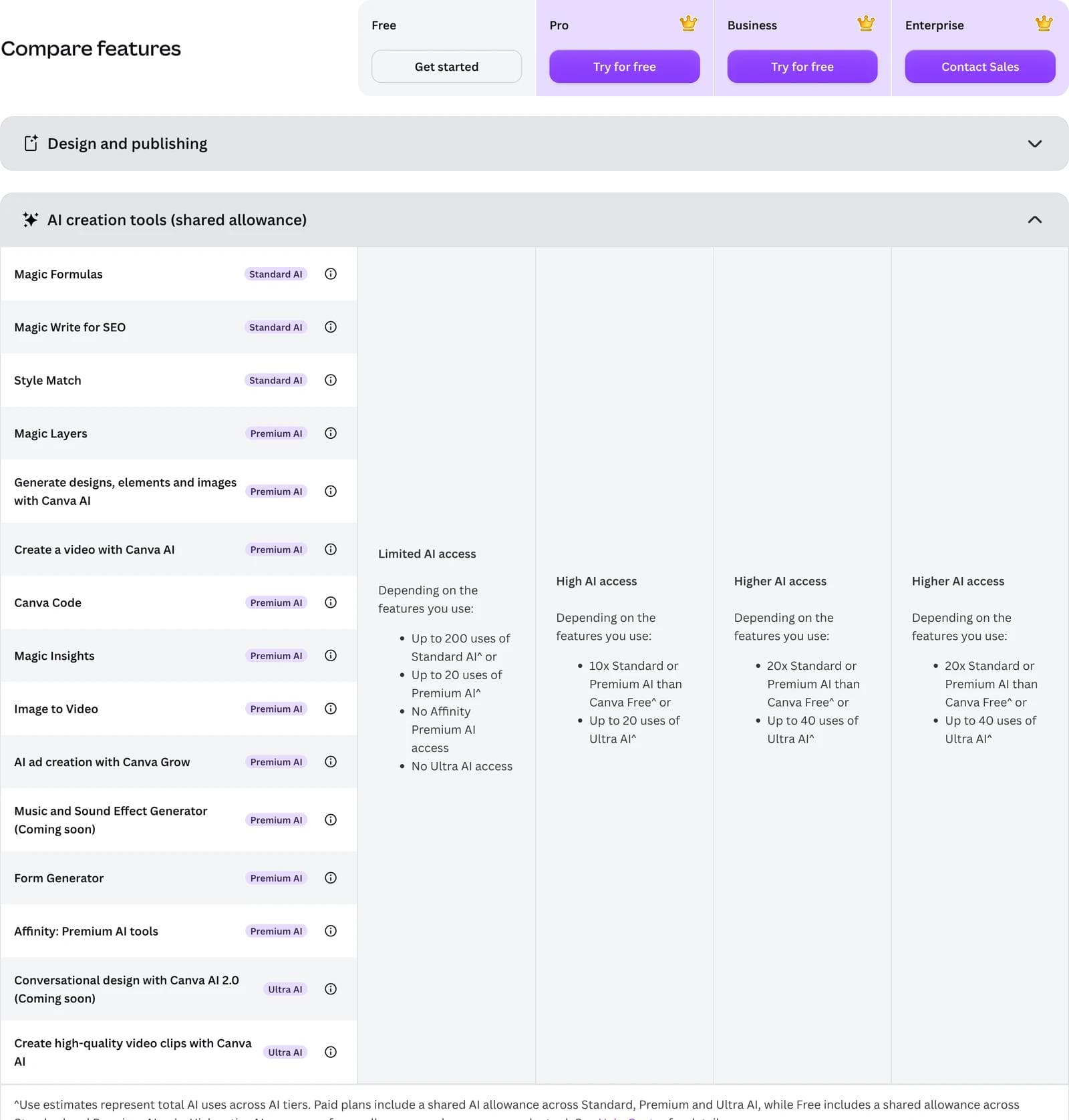
- Standard AI: Magic Formulas, Magic Write for SEO, Style Match, image generation with Canva AI. On every paid plan except Pro Lite, these do not draw from the allowance at all, subject to fair use.
- Premium AI: Magic Layers, design and element generation, Canva Code, Magic Insights, Image to Video, Form Generator, Canva Grow ad creation, and Affinity's generative tools.
- Ultra AI: conversational design with Canva AI 2.0 and high-quality video clips. The most allowance-hungry things in the product.
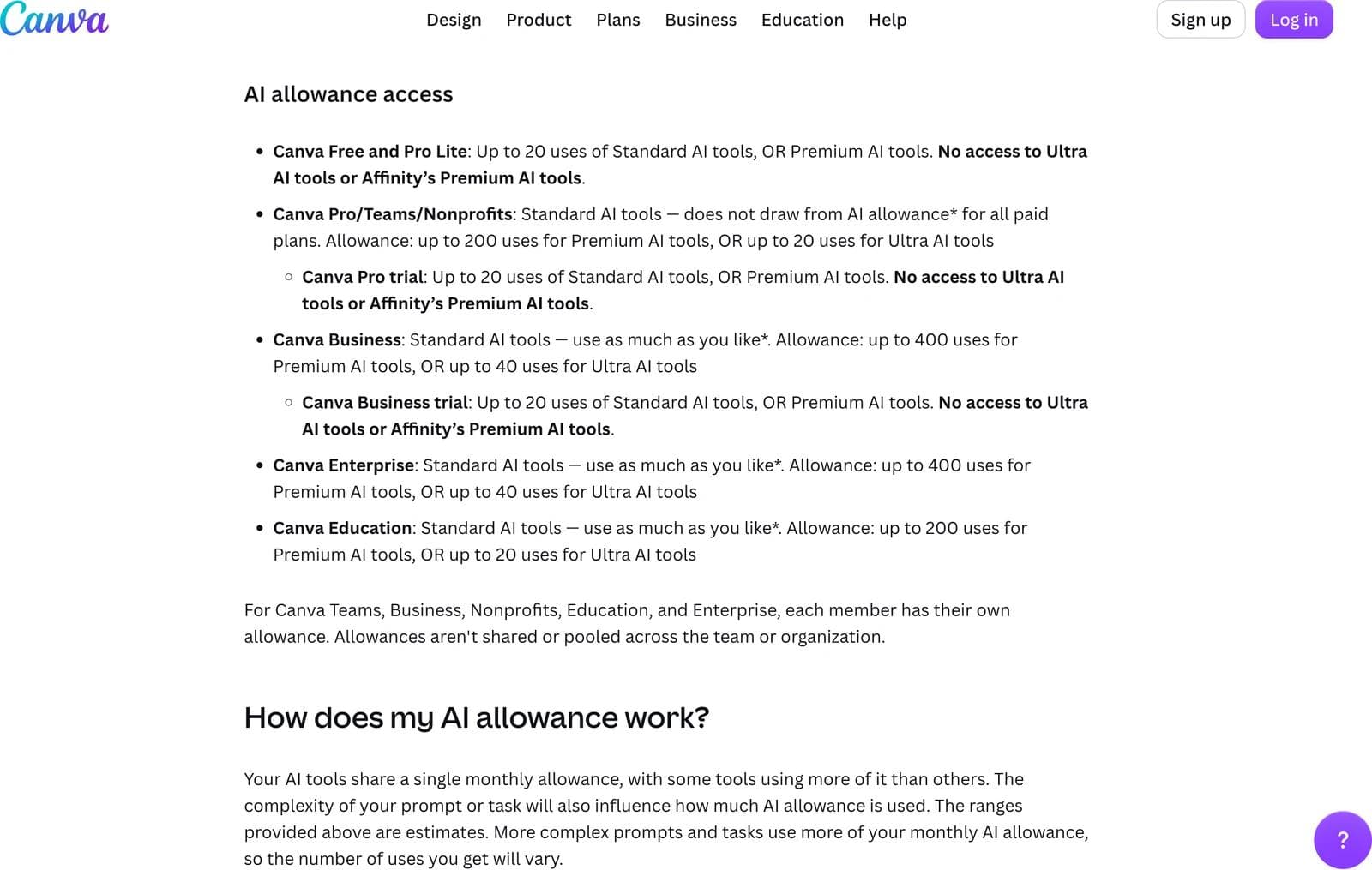
Four rules decide whether the allowance is enough for you:
- Trials get the Free allowance. Canva's help center lists both the Pro trial and the Business trial at up to 20 uses with no Ultra access. If you are trialling Canva to judge its AI, you are judging the Free tier.
- Allowances are per person and never pooled. On a team plan, a heavy user cannot borrow from a light one.
- A conversation costs more than a prompt. Canva says Canva AI 2.0 usage scales with the size of the designs you reference, the number of steps, the number of tools involved and the models used. A 40-slide deck costs more than a 5-slide one. The published ranges assume one tier at a time and simple prompts.
- Marketplace apps are outside the system. Generations made through third-party apps in the Apps Marketplace do not touch your Canva allowance and have their own limits and subscriptions.
What happens when you run out differs by plan, and the difference is sharper than the plan table suggests. On Free, you get short pauses between generations for Standard and Premium tools, and Ultra tools are simply unavailable until the reset. On paid plans, Standard tools keep working normally because they never drew from the allowance, and Premium and Ultra tools continue with short pauses between tasks. Pro and Teams can buy the AI Pass add-on; Business can buy AI Pass or a one-time top-up. The allowance resets on your billing date, or on the first of the month at 00:00 UTC on Free.
One inconsistency to know about: Canva's pricing page says Free gets up to 200 Standard uses, while the help article says up to 20. The two pages have disagreed since at least early September 2026. Plan around 20.
What stays editable, and what does not
Canva's AI writes into the design, not over it. A Magic Write paragraph is a normal text box. A Magic Resize creates a new design you can keep editing. Magic Grab converts part of a photo into an element you can move like any other. This is genuinely better than the AI features in tools that hand back a flat export.
The exception is generated imagery, which arrives as a single picture. Magic Layers exists specifically to break one back into parts, and it is a Premium AI action, so it costs allowance every time you need it.
If your reason for using AI in a design tool is that you want the agent to build the whole first draft on a canvas you then edit, rather than to run individual assists inside a layout you built yourself, that is a different product shape. Moda works that way: you describe the deck or the post, an agent builds it on a real editable canvas, and you refine from there. Canva is the better answer when you want the template library, print ordering, social scheduling, or a specific point tool like Background Remover on a photo you already have. Our Canva alternatives guide compares the options by workflow, and the best AI design tools for brand consistency covers the brand-kit side of the question.
Caveats worth reading before you ship AI output
Commercial use is allowed, exclusivity is not. Canva's own FAQ says you can use Canva AI output commercially and that you own what you create, then adds that you may not have exclusive rights to it, that Canva does not guarantee output is cleared for use, and that it is your responsibility to check whether permission is needed where output resembles existing works, trademarks or logos. For a logo or anything trademark-adjacent, that is a real risk, not boilerplate.
Accuracy is on you. Canva states plainly that its AI can make mistakes and that outputs should be reviewed, especially facts, names, dates and figures.
Admins can turn features off. On Teams, Business, Enterprise and Education, an admin can disable AI tools from the admin panel, which is a common reason a feature you read about does not appear in your account.
Availability is uneven. Several tools are unavailable in China, Magic Background does not work in responsive formats, and Canva AI 2.0 features are still rolling out.
Frequently asked questions
Canva Magic Studio FAQ
What is Magic Studio in Canva?
Magic Studio was the umbrella brand Canva launched on October 4, 2023 for its AI features, including Magic Design, Magic Switch, Magic Media, Magic Write, Magic Animate and the AI photo editing tools. Canva has since retired the name from its marketing site. The page at canva.com/magic now presents Canva AI 2.0, and canva.com/magic-studio returns a 404. Most of the individual tools still exist and still carry Magic names on Canva's pricing comparison.
Is Canva Magic Studio free to use?
Partly. On Canva Free you get Chat with Canva AI, Magic Write, Magic Charts, Mockups, AI Voice, photo and video animations, and Beat Sync in manual mode. You do not get Background Remover, Magic Edit, Magic Eraser, Magic Grab, Magic Expand, Magic Morph, Magic Animate, Magic Resize or Translate. Free is also capped at roughly 20 AI uses a month with no access to the Ultra tier.
How do I add Magic Studio to Canva?
There is nothing to add. The tools are built into the editor rather than installed. Image tools live under Edit, then Tools, when a photo is selected. Magic Write appears in the editor toolbar and in Docs. Canva AI has its own button in the side navigation on the homepage and in the top left of the editor. If a tool is missing, it is because of your plan, your admin's settings, your region, or a gradual rollout, not a missing install.
How many AI credits does Canva give you?
Canva does not use credits. Each plan gets a monthly AI allowance shared across Standard, Premium and Ultra tools. Free and Pro Lite get up to 20 uses. Pro, Teams and Nonprofits get up to 200 Premium uses or 20 Ultra uses, with Standard tools not drawing from the allowance. Business and Enterprise get up to 400 Premium or 40 Ultra. Education gets up to 200 Premium or 20 Ultra. Allowances are per person and are not pooled.
What happened to Magic Switch?
Magic Switch was split up. Its help article now 404s, and Canva's pricing comparison lists the two halves separately as Magic Resize, which reformats a design into other sizes, and Translate, which rewrites the copy into another language. Both are excluded from Canva Free.
Does Canva AI 2.0 replace Magic Studio?
In name, yes. In practice it sits alongside the older tools rather than replacing them: the pricing comparison still lists Magic Edit, Magic Eraser, Magic Grab, Magic Expand, Magic Morph, Magic Animate and Magic Write as separate features. Canva AI 2.0 is the conversational layer that can drive several of them in one request, and it is the most allowance-expensive way to work.
Which Canva AI features are actually worth using?
Background Remover, Magic Grab, Grab Text, Magic Resize, Translate and Magic Layers do tedious work that is hard to do by hand and easy to judge at a glance. Magic Write is a good first-draft tool with a documented knowledge cutoff of mid-2021, so do not use it for facts. Magic Morph and Magic Animate are usually slower than doing it yourself on a simple design.

Real editable visuals. Real canvas. Full control.
Fly through design work