How to Turn a ChatGPT Image Into an Editable Design
ChatGPT can revise images, but downloads are still flat files. Learn when prompting is enough and how to recover editable text and layout objects.
 Anvisha Pai, Co-founder & CEO, Moda
ChatGPT can make targeted edits to generated or uploaded images. If you want to change a subject, background, lighting, or style, its own image editor may be all you need. The limitation appears when you download the result: you get a flat image, not the original text boxes, shapes, and other editable objects.
That distinction matters when the next edit must be exact. Rewriting a headline, moving a logo five pixels, matching a brand color, or reusing the layout in several sizes is easier when those elements are separate objects. This guide explains when to stay in ChatGPT, when to use a conventional image editor, and when it is worth reconstructing the image as an editable design.
The short answer
- Use ChatGPT for changes that should blend naturally into the picture, such as replacing an object or changing the setting.
- Use a raster editor for retouching, masking, compositing, and pixel-level cleanup.
- Use a layout or design tool when you only need to place new text, logos, or shapes over the image.
- Try reconstruction or Layerize when you need to recover editable text and layout objects from a flat graphic. Treat the result as a starting point that must be checked, not as the original source file.
What ChatGPT Images can edit
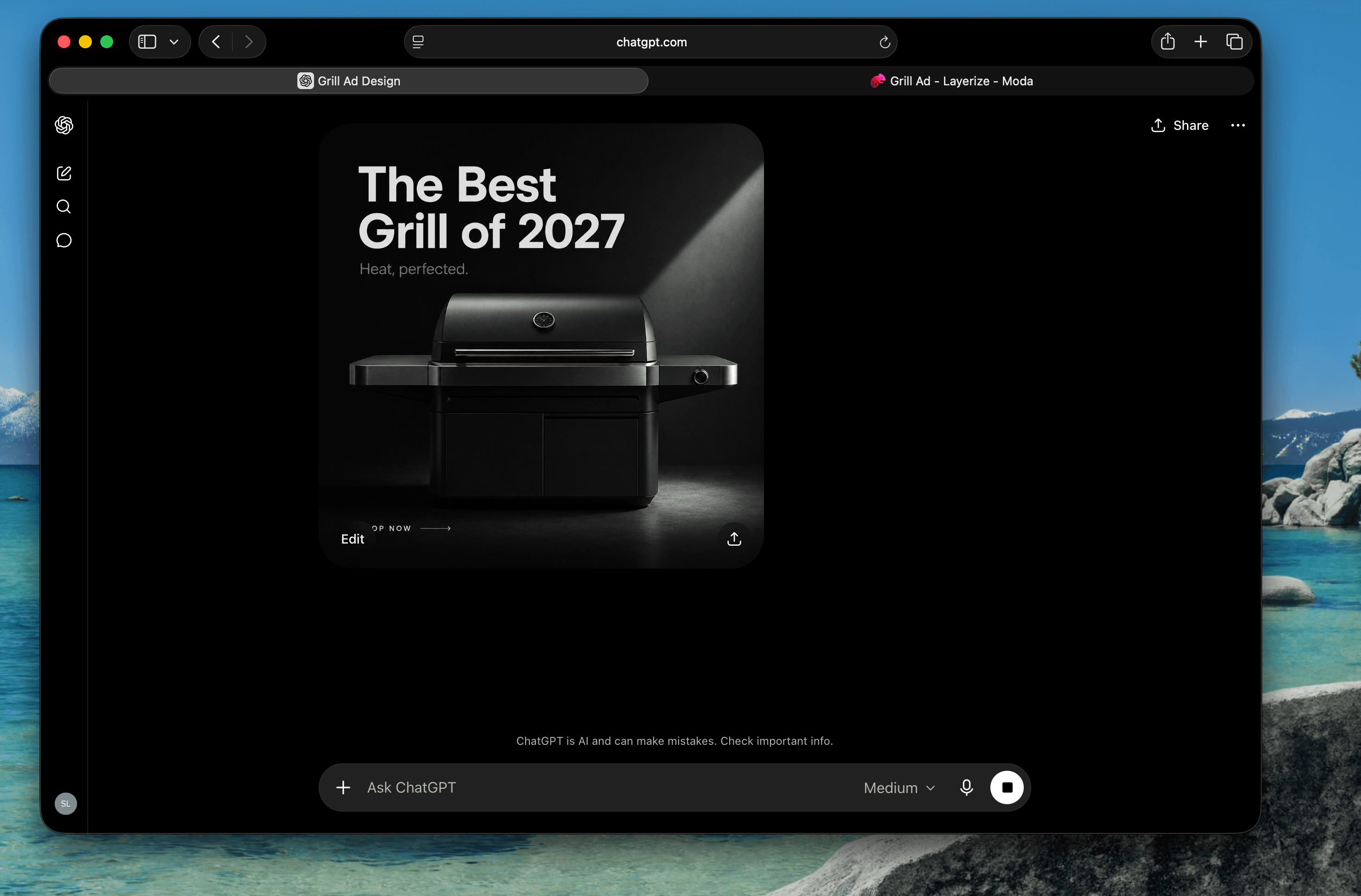
OpenAI documents two editing methods in ChatGPT Images: select an area and describe the change, or describe the edit directly without making a selection. The editor can add, remove, and update parts of an image. OpenAI also warns that selections are not always precise and that an edit can extend beyond the highlighted area.
ChatGPT is a sensible first choice for edits such as:
- Replace the mug on the left with a matte black bottle.
- Remove the car in the background and fill the space naturally.
- Keep the composition but change the scene from daytime to evening.
- Turn the photograph into a flat illustration.
A good edit prompt identifies the region, describes the replacement, and says what should stay unchanged. For example: “Replace the blue mug on the left with a matte black bottle. Keep the person, table, lighting, camera angle, and background unchanged.” The selection tool can help direct the edit, but the words still matter because the selected area is only a guide.
ChatGPT can also generate and revise text inside an image. That is useful during exploration. For final copy, however, inspect spelling and spacing carefully. If the words must be exact or will change repeatedly, a real text layer is usually more reliable than another generation pass.
A flat image is not the same as an editable design
A PNG or JPG records pixels. It does not preserve the text box that produced a headline, the vector path behind a shape, the font choice, or the position constraints used in the original layout. ChatGPT can change the pixels intelligently, but a saved image does not expose those underlying objects for direct manipulation.
This does not make the image unusable. It only changes the best workflow. Ask what you need to do next:
- For a visual change that must blend into the scene, continue editing in ChatGPT.
- For a small text correction, cover the old text and add a new text layer in Photoshop, Photopea, GIMP, Canva, or another editor. This is often faster than reconstructing the whole layout.
- For precise photo retouching or masking, use a raster editor. A design-layout tool is not a replacement for detailed pixel work.
- For a graphic that will become a reusable ad, slide, flyer, or social template, reconstructing the text and layout can save time on later versions.
| What you need to change | Best first tool | What to expect |
| Subject, background, lighting, or style | ChatGPT Images | Natural-language edits that remain part of a flat image |
| Retouching, masks, or compositing | Raster editor | Direct pixel control and new layers, but no automatic recovery of the original source |
| New text or logo over an image | Layout or design editor | Simple, predictable overlays without rebuilding every element |
| Reusable text and layout from a flat graphic | Reconstruction or Layerize | Editable objects that still need visual and factual review |
How to turn a ChatGPT image into an editable design
1. Get the visual edit as close as possible in ChatGPT
Resolve changes that belong inside the picture before moving it elsewhere. If the grill, person, setting, or lighting is wrong, fix that in ChatGPT. Reconstruction is most useful after the visual concept is stable.
2. Save the image at the size you need
Open the image and use Save to download it, as described in OpenAI’s image-management instructions. Avoid repeatedly resizing a small file upward. Reconstruction can make text and shapes editable, but it cannot restore photographic detail that was never present.
3. Decide whether you need text only or the full layout
If one headline is wrong, rebuilding an entire graphic may create unnecessary cleanup. Use a text-only option or cover and replace the original text. Choose full reconstruction when several text blocks, shapes, and layout elements must remain editable across future versions.
4. Reconstruct the image in an editor
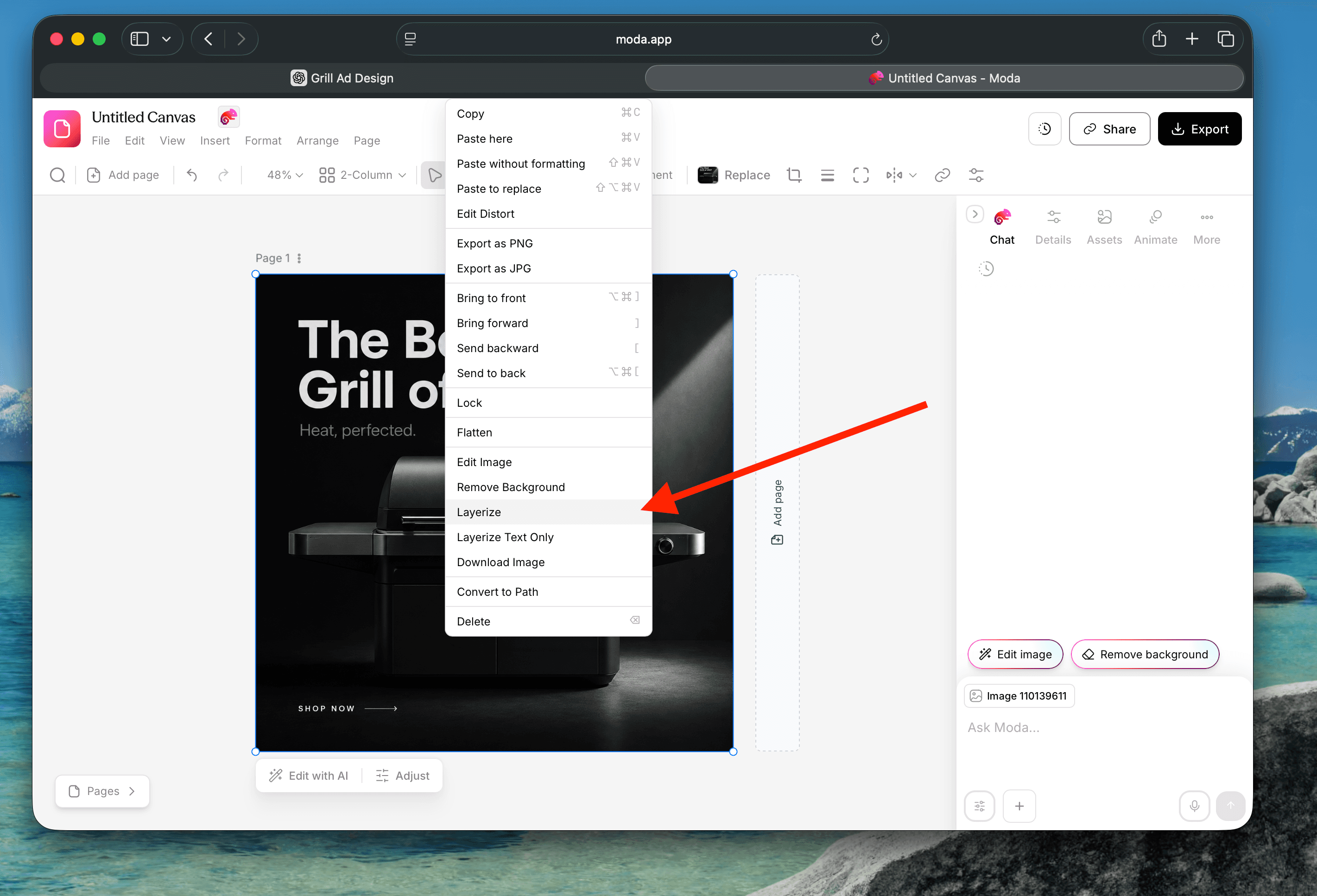
In Moda, place the downloaded image on a canvas, right-click it, and choose Layerize or Layerize Text Only. Full Layerize attempts to rebuild recognizable parts of the graphic as canvas elements. Text-only Layerize focuses on editable text while leaving the rest of the image intact.
Reconstruction is not magic. Clear graphics with distinct text and shapes are better candidates than dense photographs. A cohesive photo may remain mostly a single image, and recognized text can have the wrong font, line break, size, or spacing. If the result is messier than the original, undo it and use a simpler overlay or raster-editing workflow instead.
5. Check the result before making changes
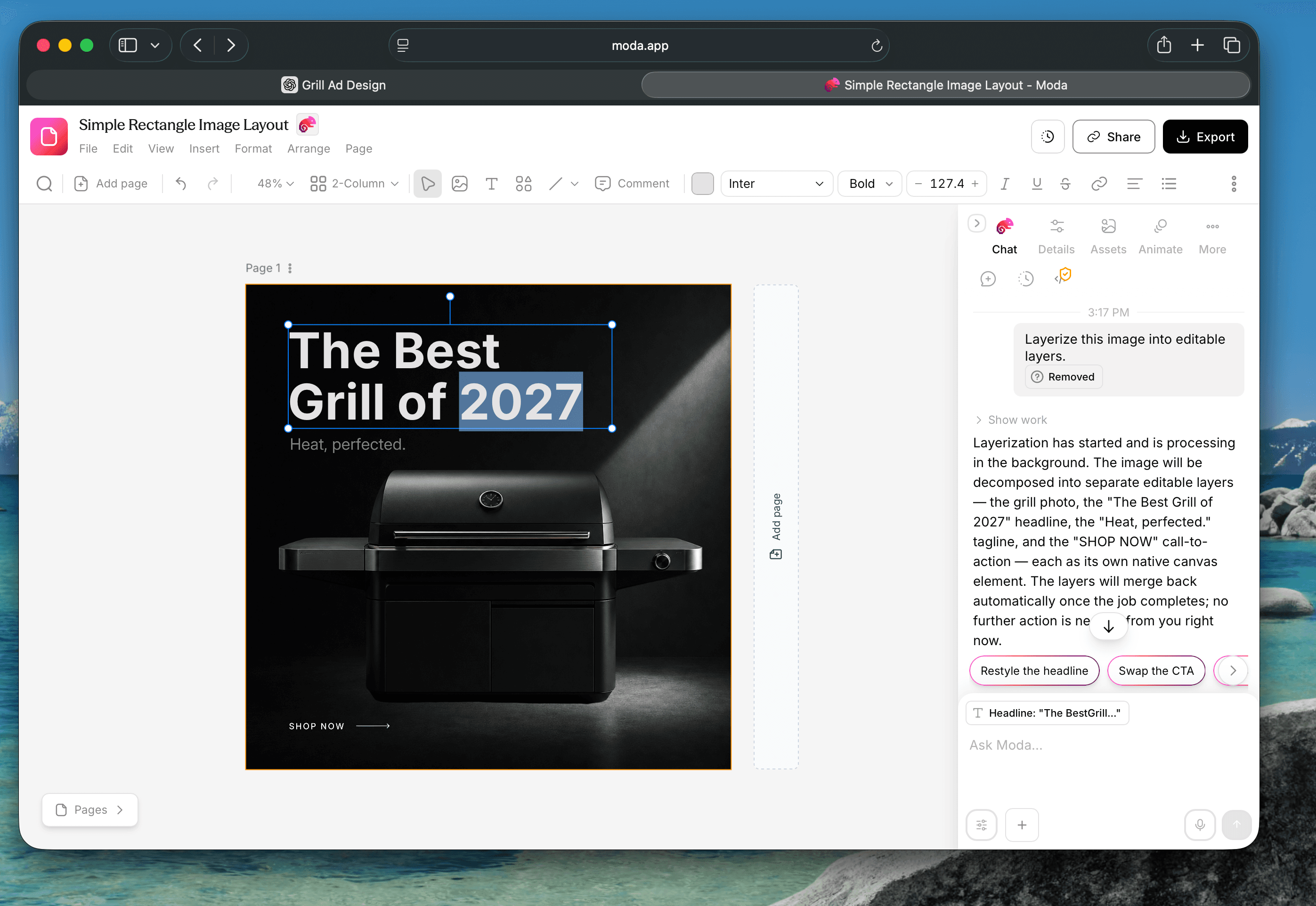
Compare the reconstructed version with the downloaded original. Check:
- Every word, number, and punctuation mark.
- Font family, weight, line breaks, kerning, and alignment.
- Edges where an element was separated from the background.
- Logos, prices, dates, disclaimers, and other details that cannot be approximate.
- Whether the layout still works at the intended export size.
Keep the original image nearby for comparison. Do not assume that editable text was recognized correctly merely because it looks plausible at a glance.
6. Make the exact edits
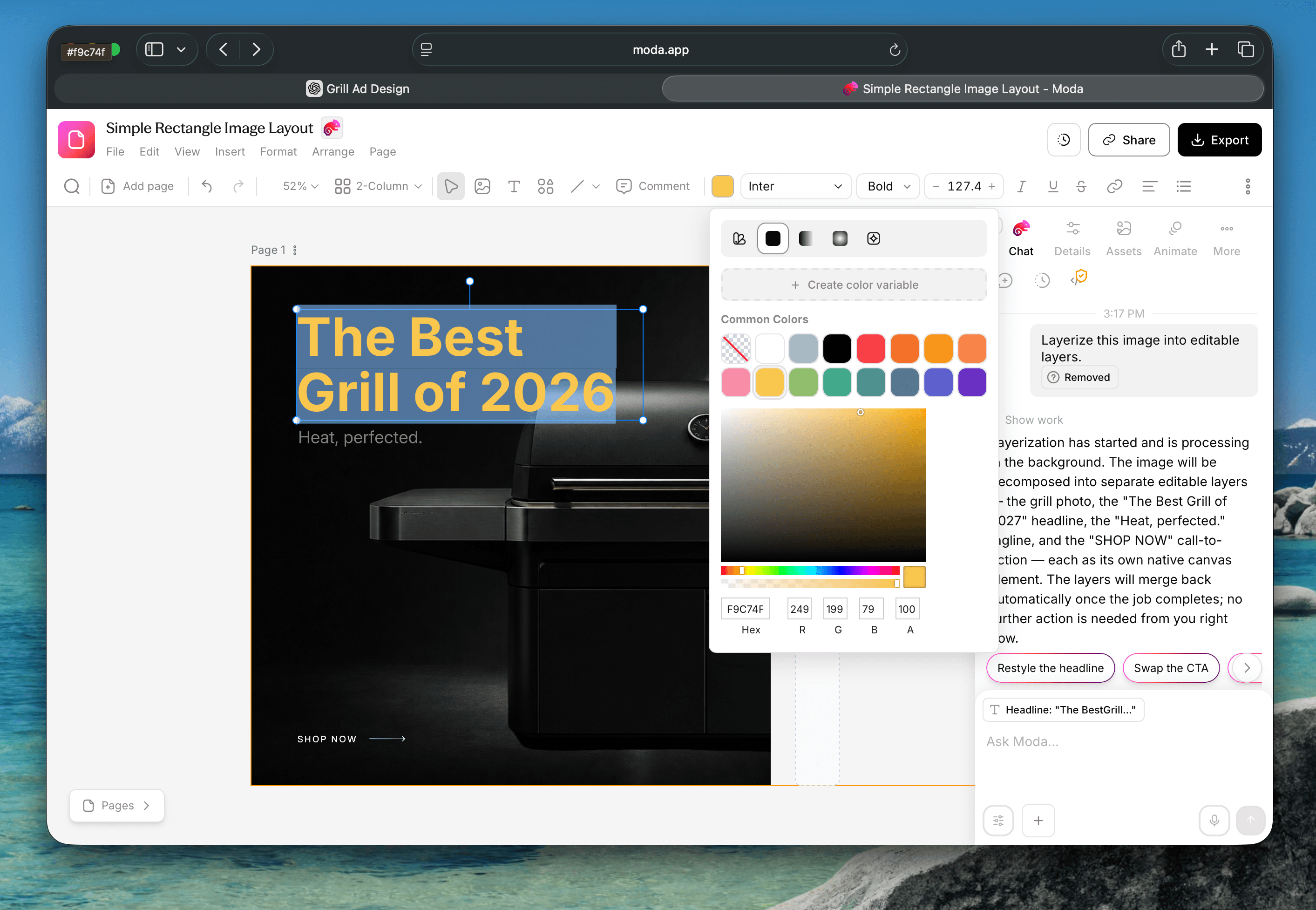
Once the recovered objects pass review, edit them directly. Rewrite the headline, use a known brand color, replace a temporary logo with the approved asset, or move elements to fit a new aspect ratio. This is the point of reconstruction: later changes become ordinary design operations instead of repeated image generations.
What Layerize does not guarantee
Layerize creates an editable reconstruction. It does not recover the hidden source file that originally produced the pixels. That leads to a few practical limits:
- A photograph may stay as an image rather than becoming a collection of editable objects.
- Text recognition can be wrong, especially with decorative type, low resolution, curved text, or heavy effects.
- The original font may not be identifiable or available.
- Overlapping objects and shadows can require manual cleanup.
- A reconstructed design should not be presented as the original source file.
Use images you own or have permission to modify. Being technically able to reconstruct another company’s advertisement does not give you the right to reuse its design, logo, photography, or copy.
A practical rule for choosing the workflow
Stay in ChatGPT while you are changing what the image depicts. Move to a raster editor when you need pixel-level control. Move to a layout editor when you need precise new text and graphics. Reconstruct the image only when recovering several reusable elements will save more work than it creates.
For a one-off correction, the simplest method is often best. For a campaign graphic that needs new headlines, dates, colors, and sizes every week, an editable reconstruction can be worth the review pass.

Real editable visuals. Real canvas. Full control.
Fly through design work